EasyManua.ls Logo

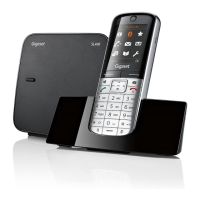
Siemens Gigaset SL400 - User Manual

Siemens Gigaset SL400
93 pages
Print Icon
To Next Page IconTo Next Page
Loading...
SL400
SL400
GIGASET. INSPIRING CONVERSATION.
Gigaset Communications GmbH
Frankenstr. 2a, D-46395 Bocholt
Manufactured by Gigaset Communications GmbH
under trademark license of Siemens AG.
As of 1 Oct. 2011 Gigaset products bearing the
trademark 'Siemens' will exclusively use the trademark 'Gigaset'.
All rights reserved. Subject to availability.
www.gigaset.com
© Gigaset Communications GmbH 2010

Table of Contents

Questions and Answers

  • C
    Carly BrownAug 10, 2025
    Why can't I send messages from my Siemens Gigaset SL400?
    • K
      kennedylisaAug 10, 2025
      There are several reasons why you might be unable to send messages: * The CLIP service (Calling Line Identification Presentation) may not be enabled. Ask your service provider to enable this service. * SMS transmission might have been interrupted. Try re-sending the SMS. * The SMS centre number may be incorrect or missing. Enter the correct number for the SMS centre.
  • P
    pattersonmargaretAug 16, 2025
    What to do if I have stopped receiving SMS messages on my Siemens Cell Phone?
    • J
      Jennifer LewisAug 16, 2025
      If you've stopped receiving SMS messages, it could be due to a few reasons: 1. You might have changed the ID of your mailbox. Give your SMS contacts your new ID or undo the change. 2. Your mailbox may not be activated. Activate your mailbox. 3. Call divert settings may be interfering. Change the call divert settings, especially if set to 'Immediately' for the network mailbox.
  • D
    Diana TapiaAug 21, 2025
    What to do if messages are only received during the day on my Siemens Cell Phone?
    • D
      David DavisAug 21, 2025
      If you are only receiving messages during the day, it may be because the terminal is recorded in your SMS provider's database as having no fixed line network SMS functionality. Send any SMS to automatically register your telephone to receive SMS, or obtain information from your fixed line network SMS service provider.
  • J
    Jason RayAug 27, 2025
    What to do if the SMS is played back on my Siemens Gigaset SL400 Cell Phone?
    • L
      Lisa DownsAug 27, 2025
      If the SMS is played back, possible causes include: * The 'display call number' feature is not activated. Ask your service provider to activate this function (chargeable). * There is no agreement between your mobile phone operator and your fixed line network SMS service provider. Obtain information from your fixed line network SMS service provider. * Your terminal has been recorded by your SMS provider as having no fixed line network SMS functionality. Send any SMS to automatically register your telephone to receive SMS.
  • T
    Tammy BradySep 2, 2025
    What to do if I receive an incomplete SMS on my Siemens Cell Phone?
    • R
      Rachael RobinsonSep 3, 2025
      If you are receiving incomplete SMS messages, it might be because your phone's memory is full. Try deleting old SMS messages.

Summary

Gigaset SL400 - your high-quality accessory

Directory for up to 500 vCards - calendar and appointments

Save contacts and manage appointments and birthdays in the calendar.

Brief overview

End call key, On;Off key

Ends calls, cancels functions, and manages handset power.

Talk key

Answers calls, opens redial list, and starts dialling.

Safety precautions

General Safety Warnings

Important warnings regarding power adapters, batteries, and usage.

Usage Environment Precautions

Warnings about medical equipment, hearing damage, and hazardous environments.

Handling and Maintenance Precautions

Advice on avoiding liquid, heat, and using correct parts.

Device Limitations and Power Failure

Notes on country compatibility, power failure, and emergency calls.

First steps

Checking the package contents

Lists all items included in the product packaging.

Installing the base and charger

Instructions for proper installation of the base station and charger.

Connecting the base

Details on connecting the base to power and the phone line.

Connecting the charger

Instructions for connecting the handset charger.

Setting up the handset for use

Guides on inserting the battery, attaching clips, and placing in charger.

First battery charge and discharge

Instructions for the initial charging and discharging of the battery.

Setting the date and time

Steps to set the correct date and time for call logging and alarms.

Using the phone

Using the control key

Explains the functions of the central navigation control key.

Using keys on the keypad

Details how to use the numeric and function keys.

Using the menus

How to access and navigate the phone's menu structure.

Submenus and reverting to idle state

Navigating submenus and returning to the idle display.

Menu overview

SMS

Manage SMS messages, mailboxes, and services.

Directory

Save and manage phone numbers and contact details.

Settings

Configure date/time, audio, display, language, and system settings.

Making calls

Making an external call

Instructions for dialling numbers on the public telephone network.

Ending a call

Simple procedure to disconnect an ongoing call.

Accepting a call

How to answer an incoming call using different methods.

Using handsfree mode

How to conduct calls without holding the handset.

Activating;deactivating handsfree mode

Turning handsfree mode on and off during a call.

Making calls using network services

Receiving call waiting during an external call

How to handle incoming calls while already on a call.

Using consultation call, call swap, conference

Managing multiple participants in calls.

Using the directory and lists

Saving a number in the directory

Step-by-step guide to adding new entries to the directory.

Dialling with the directory

How to make calls using saved directory entries.

Sending SMS (text messages)

Writing;sending SMS

Guides on composing and sending text messages.

SMS troubleshooting

Solutions for common SMS sending and receiving errors.

ECO DECT

Eco Mode

Reduces radiation by 80% and range by 50%.

Eco Mode+

Switches off radiation in idle state, affecting call setup time.

Setting the alarm clock

Activating;deactivating the alarm clock and setting the wake-up time

Setting up and managing the phone's alarm clock.

Using multiple handsets

Registering and De-registering Handsets

Adding and removing handsets from the base station.

Making Internal Calls

How to call between registered handsets.

Transferring and Conferencing Calls

Moving calls to other handsets and managing multi-party calls.

Using a handset as a room monitor

Using a handset as a room monitor

Setting up the handset to monitor sounds in another location.

Activating the room monitor and entering the destination number

Configuring the room monitor function and destination number.

Using Bluetooth devices

Registering Bluetooth devices

Pairing the handset with Bluetooth accessories like headsets.

Defining handset settings

Setting the base

Protecting against unauthorised access

Securing base settings with a system PIN.

Resetting the base to the default settings

Restoring all base station settings to factory defaults.

Customer Service & Assistance

Questions and answers

Common problems and their solutions for phone usage.

Accessing additional functions via the PC interface

Completing a firmware update

Steps for updating the phone's firmware via PC.

Siemens Gigaset SL400 Specifications

General IconGeneral
TechnologyGSM
2G bandsGSM 900 / 1800 / 1900
SIMMini-SIM
Alert typesVibration; Downloadable polyphonic, MP3 ringtones
LoudspeakerYes
3.5mm jackNo
WLANNo
GPSNo
RadioNo
BrowserWAP 2.0/xHTML
GamesYes
JavaYes, MIDP 2.0
BatteryRemovable Li-Ion 750 mAh battery
Talk timeUp to 5 h
ColorsBlack, Silver
TypeTFT
Phonebook1000 entries
BluetoothYes
USBYes
MessagingSMS, MMS

Related product manuals