9
3.2 Komoot Connect Navigation
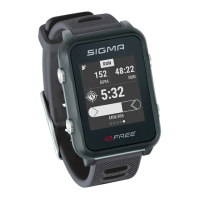
iD.FREE and iD.TRI can display navigation instructions of the “Komoot” app. Here you can plan routes and
let the application navigate.* The watch will then display the navigation instructions sent by the app
on the smart phone. To use the Komoot navigation, proceed as follows:
Setup:
►
Download Komoot app from the App Store or Google Play Store
►
Create account and buy region
►
Pair your smart phone with iD.FREE / iD.TRI via the SIGMA LINK app
►
Open
Komoot app
►
In your profile settings, you can now connect the watch with the Komoot app under the item
“Bluetooth Connect”
Navigate:
►
Plan your route in the Komoot app
►
Start the route
►
Start a training on the iD.FREE / iD.TRI
►
The navigation instructions are displayed on the device
►
If you leave the route a recalculation will be done by Komoot, and the navigation instructions
will be adjusted accordingly on the watch
*The desired region must be released.
3.1 Loading the tracks on the device and
navigate
The track management can also be performed quickly and conveniently via the DATA CENTER. It is also possible to
transfer already created tracks to the iD.FREE / iD.TRI very conveniently via the SIGMA LINK app. To do this, select
the “Tracks” area in the DATA CENTER or the app and transfer the tracks to the device.
You can start a track from the main menu level. To do so, select the menu item “Loading track”, select
the desired sport profile and start the training session. The track will then be displayed on an extra screen.
Alternatively, you can start a track during a training session by opening the quick menu (press the “+” button for 2 s)
and select “Loading track” from the list. Here you can also go back to the driven track.
3 Navigation


 To Next Page