SILENT BEACON 16 MANUAL
Check Pairing Status
You may check the status of your Silent Beacon’s pairing at any time by viewing the large
Beacon image inside of the App. It will be gray if your device is not paired, Black if paired.
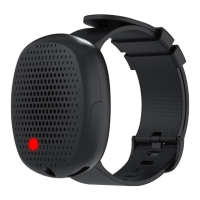
You may also tap either button on the Silent Beacon to see the pairing status, Blue LED
means the Beacon is connected to the App, Red means it is not.
Powering On/Off
Pressing both Buttons for 5 seconds will initially turn on the Silent Beacon. You will see
the LED light up and change color, hear an audio sequence, as well as feeling the
Beacon vibrate, letting you know this was successful. When you are not in an
emergency, you can turn off your Beacon by holding both buttons for 5 seconds.
Find Your Beacon
Within the Beacon section of the App, there is a feature called “Find your Beacon” that
will illuminate when the Silent Beacon is connected. If you lose your Silent Beacon you
may select the “Find” icon when within Bluetooth range to help you find it. The Silent
Beacon will also blink blue and vibrate to help you locate it. The range finder icon lets
you know if you are getting closer or further from the Beacon.
Battery Status
You can check the status of your battery of your Silent Beacon within the Beacon
section of the App. If your battery gets to 5%, it will vibrate, and orange LEDs will flash
to let you know it needs to be recharged. When connected to a power source, the LEDs
will glow green to let you know it is charging. Once the battery is fully charged the light
will stay lit until removed from the USB Cable.
Factory Resetting Your Beacon
To reset the Silent Beacon, hold both buttons down for 30 seconds. The LEDs will cycle
colors, the restart chime will begin and the Beacon will vibrate to let you know the reset
has been completed.
Warning: The Silent Beacon and App will lose its connection if this the device is reset. All
information on the Beacon will be erased making you have to go through the pairing process
again inside the Silent Beacon App.


 To Next Page