EasyManua.ls Logo

Silver Peak UNITY EdgeConnect - User Manual

Default Icon
2 pages
Print Icon
To Next Page IconTo Next Page
Loading...
© 2015 Silver Peak Systems, Inc. PN 200907-001 Rev A
Before You Begin
Check your packing slip to
verify that you have all the
necessary items.
If your EdgeConnect model
requires it, ensure that you
have the associated rack mount
instructions.
Make sure you have a standard
Phillips screwdriver.
Supply circuits should be
protected by a minimum 15A,
maximum 20A circuit breaker.
On the network equipment,
identify the 10/100/1000
Ethernet ports and/or the
1Gbps/10Gbps ber ports.
1
Rack Mount the Appliance
Based on your model, refer to the separate instructions for rack mount,
desk mount, or wall mount.
2
Install the Appliance into the Network
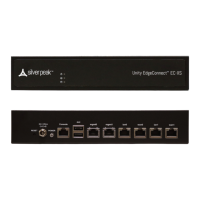
a. Identify the relevant ports on the rear of the appliance.
b. Connect the supplied network cables from the appliance to the
identied network equipment ports.
c . DO NOT connect the power cables yet.
All copper RJ-45 Gigabit Ethernet interfaces in the Silver Peak appliance
support MDI/MDI-X and auto-negotiation.
The ber interfaces support:
LC connectors
multi-mode 50µ ber / 62.5µ ber
3
Connect Power Cords
Depending on the model, your appliance may have a single power supply,
or redundant power supplies.
a. Connect each power cable to the Silver Peak appliance and to your
local power source.
b. For redundancy, plug in all power cords, preferably to different
power sources.
4
Turn the Power On
Some appliances power up as soon as they’re plugged in, others don’t. If
the power is off, turn it on. If you don’t plug in all the power cords, an
audible alarm sounds until you do.
a. Verify that each power supply’s LED illuminates green.
b. On the front panel, verify that the Power LED illuminates green or
blue.
5
Optionally, connect the management ports
It is not necessary, however, if you want to create local, physical access to
the management ports, you can do so as follows:
Silver Peak assigns the MGMT1 ethernet interface a default IP address of
169.254.0.1 and a subnet mask of /16 (the same as 255.255.0.0).
Both RJ-45 Gigabit Ethernet interfaces (MGMT0 and MGMT1) support
MDI/MDI-X and auto-negotiation.
a. Identify the appliance’s MGMT0 and MGMT1 interfaces.
b. Using the blue straight-through cable, connect the appliance’s
MGMT0 interface to the network equipment interface.
c . Using the red crossover cable, connect the appliance’s MGMT1
interface to your PC.
You’ve now completed the physical installation and are ready to register
the product with Unity Orchestrator.
UNITY
EdgeConnect
Quick Start Guide
Part 1 - Physical Installation
Silver Peak Systems, Inc.
2860 De La Cruz Blvd
Suite 100
Santa Clara, CA 95050
1.877.210.7325 (toll-free in USA)
+1.408.935.1850
www.silver-peak.com/support
Question and Answer IconNeed help?

Do you have a question about the Silver Peak UNITY EdgeConnect and is the answer not in the manual?

Summary

Install the Appliance into the Network

Network Port Identification and Features

Identifies physical network ports (fiber, copper) and supported interface features like MDI/MDI-X and auto-negotiation on the appliance.

Connect Power Cords

Power Connection Procedure

Details connecting appliance power cables to local power sources, emphasizing redundancy.

Turn the Power On

Power-On Verification

Outlines steps to verify that power supplies and front panel LEDs illuminate correctly after powering on.

Optional Management Port Connectivity

Management Port Setup

Guides connecting management ports (MGMT0, MGMT1) to a PC or network for local access, using specific cables.

Approve Discovered Appliance in Orchestrator

Appliance Discovery and Approval Workflow

Describes navigating the Orchestrator to find, approve, and assign discovered appliances to groups.

Configure Appliance Manager Settings

Configuration Wizard Steps

Details proceeding through the Configuration Wizard, including license registration and initial deployment settings.

Overview

This document describes the Silver Peak Unity EdgeConnect appliance, a device designed for Wide Area Network (WAN) optimization and connectivity. It facilitates the creation of a software-defined WAN (SD-WAN) by integrating various network functions and providing robust management capabilities.

Function Description

The Unity EdgeConnect appliance serves as a core component in an SD-WAN architecture, enabling enterprises to build a unified network fabric across diverse locations. Its primary function is to optimize WAN performance, enhance application delivery, and simplify network management. The appliance achieves this by intelligently routing traffic, applying quality of service (QoS) policies, and providing secure connectivity. It supports both physical and virtual deployments, making it adaptable to various network environments. The EdgeConnect system integrates with the Silver Peak Cloud Portal, which acts as a central repository for appliance registration and account association. This cloud integration streamlines the initial setup and ongoing management of the appliances.

The device is designed to be installed into a network and then powered on. It automatically registers its serial number with the Silver Peak Cloud Portal upon power-up, associating it with a specific account. This auto-registration feature simplifies the deployment process, especially for large-scale rollouts. Once registered, the appliance can be configured through the Unity Orchestrator, a centralized management platform. The Orchestrator allows administrators to discover, approve, and configure EdgeConnect appliances, assign them to groups, and manage their network settings.

The EdgeConnect appliance supports various network interfaces, including copper RJ-45 Gigabit Ethernet and fiber interfaces, to accommodate different network infrastructures. It is capable of handling both LAN (Local Area Network) and WAN connections, acting as a gateway for traffic optimization. The device can be deployed in various modes, including DHCP (Dynamic Host Configuration Protocol) for automatic IP address assignment or with static IP addresses for more controlled environments. It also supports the creation of tunnels to peers, enabling secure and optimized communication between different EdgeConnect appliances in the SD-WAN.

Important Technical Specifications

The EdgeConnect appliance features multiple network interfaces to ensure versatile connectivity. For copper connections, it utilizes RJ-45 Gigabit Ethernet interfaces. These interfaces support MDI/MDI-X (Medium Dependent Interface/Medium Dependent Interface Crossover) auto-negotiation, which means they can automatically detect and configure the correct cable type (straight-through or crossover) for connection to other network equipment. This simplifies installation by eliminating the need for specific cable types.

For fiber optic connections, the appliance supports LC connectors. These fiber interfaces are compatible with both multi-mode 50µ fiber and 62.5µ fiber, providing flexibility for different fiber optic cable types commonly found in enterprise networks. The presence of both copper and fiber options allows the EdgeConnect appliance to integrate seamlessly into diverse physical network infrastructures, from traditional Ethernet to high-speed fiber backbones.

Power supply configurations vary by model, with some appliances featuring a single power supply and others offering redundant power supplies. Redundant power supplies enhance reliability by providing a backup in case one power supply fails, ensuring continuous operation. The power supply circuits should be protected by a minimum 15A and maximum 20A circuit breaker, indicating the power requirements and safety considerations for installation.

The management interfaces, MGMT0 and MGMT1, are also RJ-45 Gigabit Ethernet interfaces that support MDI/MDI-X auto-negotiation. The MGMT0 interface is assigned a default IP address of 169.254.0.1 with a subnet mask of /16 (255.255.0.0). This default IP allows for direct local access and configuration. The MGMT0 interface can be connected to network equipment using a blue straight-through cable, while the MGMT1 interface can be connected directly to a PC using a red crossover cable for local management access. This dual management interface setup provides flexibility for initial configuration and troubleshooting.

The appliance's software version is indicated by a numerical format (e.g., 7.3.0.0_55994), which is important for software updates and compatibility. The device also tracks uptime, providing an indication of its operational stability.

Usage Features

The Unity EdgeConnect appliance is designed for ease of use, from initial installation to ongoing management. The physical installation process is straightforward:

  1. Rack Mounting: The appliance can be rack-mounted, desk-mounted, or wall-mounted, depending on the specific model and available instructions.
  2. Network Connection: Network cables are connected from the appliance to the identified network equipment ports. It's crucial not to connect power cables until all network connections are established.
  3. Power Connection: Power cords are connected to the appliance and local power sources. For models with redundant power supplies, it is recommended to plug them into different power sources for enhanced reliability.
  4. Power On: The appliance powers up automatically upon connection or can be manually turned on. LED indicators on the power supply (green) and front panel (green or blue) confirm successful power-up.
  5. Management Port Connection (Optional): Local physical access to management ports (MGMT0 and MGMT1) can be established using standard Ethernet cables for direct configuration.

Once powered on, the appliance automatically registers with the Silver Peak Cloud Portal. The Unity Orchestrator then facilitates the discovery and approval of these appliances. Administrators can access the Orchestrator to view discovered appliances, approve them, and assign them to specific groups. This process initiates the configuration wizard, which guides users through essential setup steps, including:

  • License & Registration: Entering account name and account key, and applying purchased licenses (e.g., EdgeConnect Boost, EdgeConnect Plus).
  • Hostname, DHCP, DNS: Configuring the appliance's hostname and network settings, including DHCP or static IP addresses for WAN-side interfaces.
  • Deployment Mode: Setting the operational mode of the appliance.
  • Tunnels to Peers: Establishing secure tunnels for inter-appliance communication.
  • Date & Time: Configuring time synchronization.
  • Change Password: Setting administrator passwords.

The configuration wizard is designed to be user-friendly, with each step applied before moving forward. It also allows users to reset or move back to previous steps without applying changes, providing flexibility during configuration. The Orchestrator provides a centralized view of all managed appliances, displaying their IP addresses, serial numbers, models, software versions, groups, sites, and discovery times. It also features an alarm system to notify administrators of critical, major, minor, or warning events.

Maintenance Features

The Unity EdgeConnect system incorporates several features that aid in maintenance and troubleshooting:

  • LED Indicators: Power supply LEDs (green) and front panel Power LEDs (green or blue) provide immediate visual feedback on the appliance's operational status. An audible alarm sounds if not all power cords are plugged in, alerting administrators to potential power issues.
  • Auto-negotiation: The MDI/MDI-X auto-negotiation on RJ-45 interfaces simplifies cable management and reduces potential connection errors, making it easier to replace or reconfigure network cables.
  • Redundant Power Supplies: For models equipped with redundant power supplies, the system offers fault tolerance. If one power supply fails, the other takes over, ensuring continuous operation and minimizing downtime. This is a critical feature for maintaining high availability in enterprise networks.
  • Centralized Management (Unity Orchestrator): The Orchestrator provides a single pane of glass for monitoring and managing all EdgeConnect appliances. This includes viewing appliance status, software versions, and alarm notifications. Centralized management simplifies troubleshooting by providing a comprehensive overview of the entire SD-WAN infrastructure.
  • Software Updates: The system supports software version tracking, which is essential for applying updates and patches. While not explicitly detailed, a centralized management platform typically facilitates remote software upgrades, reducing the need for on-site intervention.
  • Management Interfaces: Dedicated management interfaces (MGMT0 and MGMT1) allow for out-of-band management, meaning administrators can access and configure the appliance even if the primary data network is experiencing issues. This is crucial for remote troubleshooting and recovery.
  • Documentation and Support: The Quick Start Guide emphasizes consulting the User Manual and contacting Support if questions arise, indicating that comprehensive documentation and technical assistance are available to aid in maintenance and problem resolution.
  • Account and Registration Information: The system stores account name, account key, serial number, and license information, which are vital for support inquiries, warranty claims, and license management. This ensures that all necessary information is readily available for maintenance purposes.

In summary, the Silver Peak Unity EdgeConnect appliance is a robust and user-friendly SD-WAN solution designed to optimize network performance, simplify management, and ensure high availability through its advanced features and centralized control.

Silver Peak UNITY EdgeConnect Specifications

General IconGeneral
BrandSilver Peak
ModelUNITY EdgeConnect
CategoryNetwork Hardware
LanguageEnglish

Related product manuals