20
OWNER’S MANUAL
ADVANCED OPERATIONS
RECORDING TO A USB DEVICE
1. Press the Record Function Button (F2). A pop up window will
appear.
2. Press the front panel Record button to being recording.
3. Press the Play/Stop button to stop recording.
4. Use the previous steps on how to play audio files to play back your
recorded song.
Please Note: Recordings will be Stereo 16-bit MP3 files.
Please Note: Recording will begin after 5 sec. You will see the REC
button LED light turn red and then will start blinking
to indicate recording has started.
USB TO COMPUTER CONNECTION
The SD1200’s USB to computer connection is used for two different
operations. MIDI communications and Sample transfers.
MIDI
The SD1200 is a USB MIDI class compliant device meaning that
you can plug it into your Windows or Apple computer and it will be
recognized as a MIDI device. This makes it possible to use the SD1200
as a trigger to MIDI device to play sounds on your computer or you
can use the SD1200 module as a drum module from your computer
MIDI software.
You can also use the MIDI In and MIDI Out jacks to connect to
equipment. The SD1200 transmits and receives on MIDI Channel 10.
SAMPLE TRANSFERS
The SD1200 can import up to 28Mb of 16Bit .wav files. To move .wavs
into the SD1200, you will need to use the Simmons software program
(available on Simmonsdrums.net) that will enable you to select the
sample and send it to the internal memory of the SD1200. After
transferring the sample you can assign the sample your own custom
programs that can be played on the drums or cymbals.
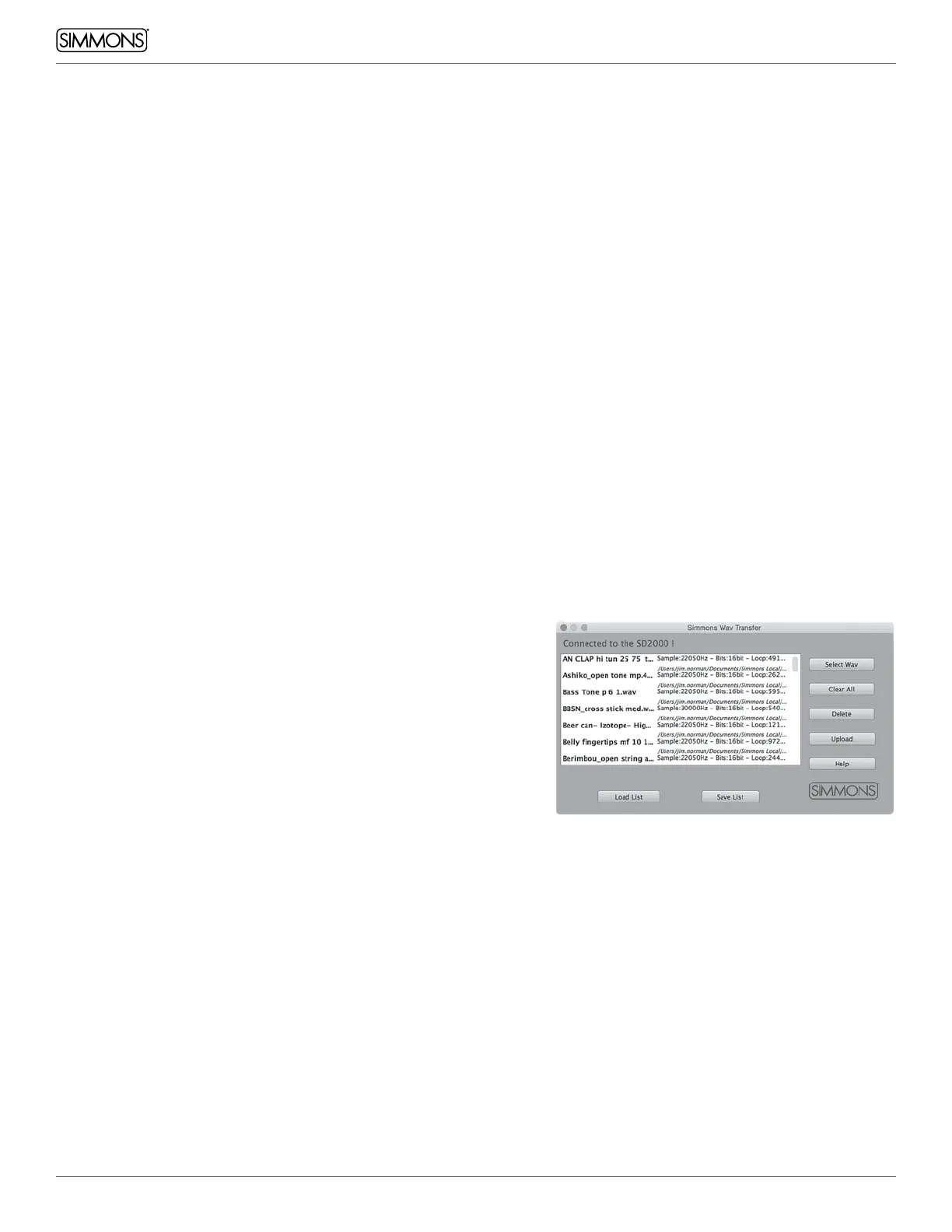
You will need the SD1200 WAV Transfer program to move audio files
from your computer to the SD1200. You can download this software
from Simmonsdrums.net. We strongly advise that you back up any
User kits and sounds you want to keep before loading User samples.
1. Plug in the SD1200 into your computer via USB.
2. Launch the SD1200 WAV Transfer program. You should see the
program indicate that you are connected to the SD1200’s flash
memory.
3. Select the .wav files you want to transfer to the module using the
Select WAV button. You can transfer up to 28Mb of 16Bit .wav
samples to the module.
4. After selecting the files you will see them listed on the transfer
screen.
5. Click on the Transfer button to send the files to the module.
6. After the program completes the transfer, you will need to
disconnect the power on the back of the module and restart.
Pulling the power cable before powering down normally may
erase some User kits and sounds.
Once the files are inside the module you can now assign them to User
Wave programs.


 To Next Page