21
ADVANCED OPERATIONS
SAMPLE ASSIGNMENT.
1. Select the Drum Function button. To do this, press Kit then
F2 (Drum).
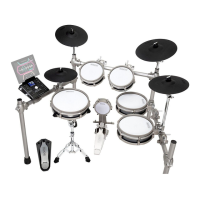
2. Press the User Wave Function button (F3.)
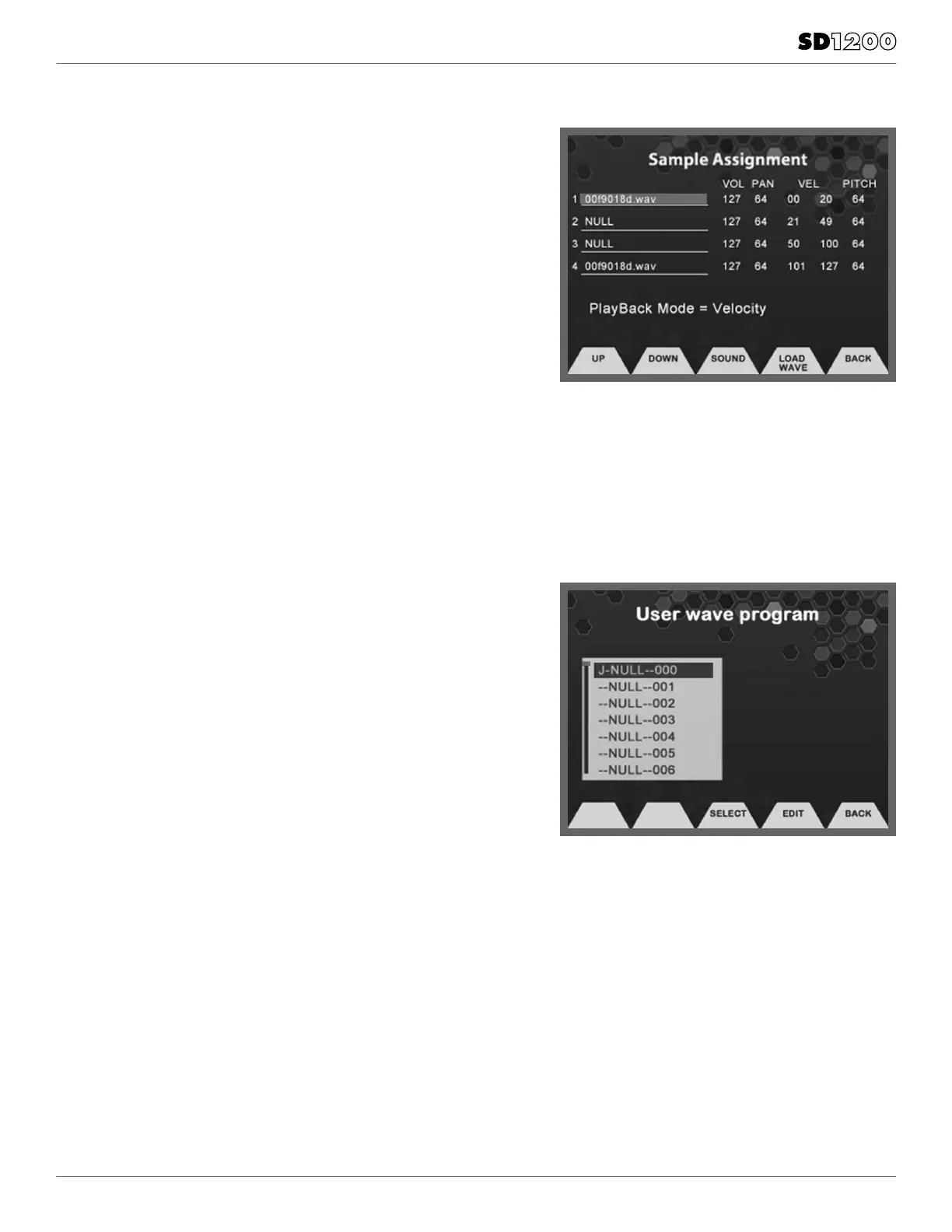
3. Press the Edit Function button. This will take you to the Sample
Assignment screen. Press Cursor Up and Down to move the cursor
to the sample parameter, press button UP/DOWN to move the
cursor up and down to the Sample position (1-4).
4. Press the Load Wave Function button and select the sample that
you want to assign with the value dial and press the Load Function
button. You will come back to the Sample assignment screen with
the sample assigned to the sample position that you selected.
5. You can modify the settings for Volume, Pan, Velocity cross
switching and Pitch for up to 4 samples per Instrument.
6. After setting these up Press the Save/Enter button to save your
User program. It will now be a User Drum sound.
Playback Mode allows you select between Velocity switching,
Sequence and Random between the samples that are assigned in the
User Wave Instrument.
To see examples of file transfer and use, visit simmonsdrums.net/videos.
Please Note: If you delete your samples from the Utility Restore
mode or Transfer more samples, the samples in the
SD1200’s memory will be overwritten.
SAVING YOUR WAVE PROGRAM
1. From the sample assignment page press the Save/Enter button.
2. You come to a screen where you can name your sound.
3. Use the Value dial to change the character and move to the next
character with the cursor buttons.
4. After you complete changing the characters you then should press
the Save/Enter button.
5. You will come back to the User Wave Program screen.
6. You can press Select [F3] to choose a User Wave sound.


 To Next Page