5
ACCESSING SHARED FOLDERS IN WINDOWS
1 In the Address bar of your browser, enter
\\simpleshare and press Enter.
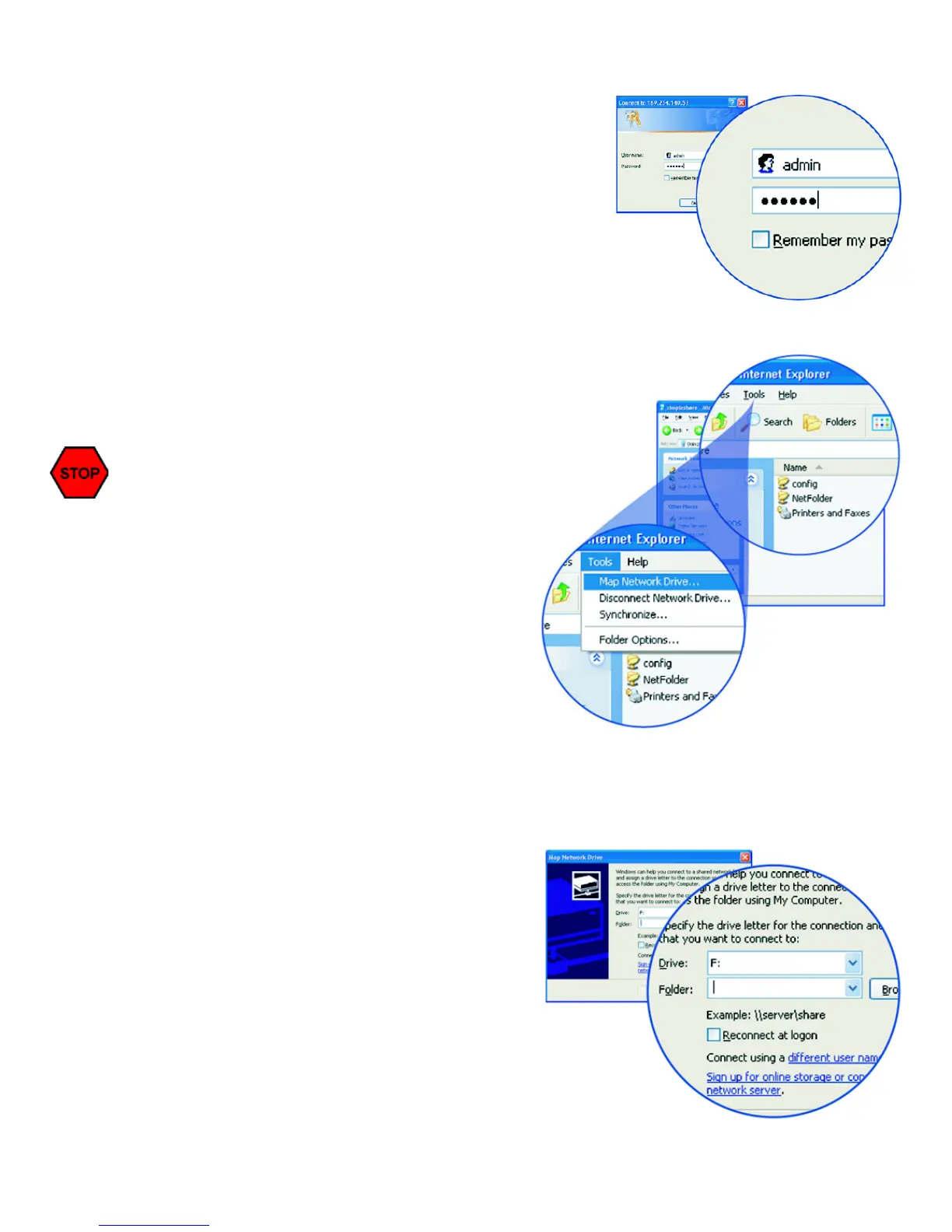
2 In the logon dialog box, enter SimpleShare’s default
username “admin” and password “simple.” If you
want the system to remember your password, click
Remember my password. Click OK.
SimpleShare’s root directory appears in
Windows Explorer, listing its shared folders.
Mapping Shared Folders in Windows
1 In Windows Explorer, click Tools>Map Network Drive to run the Map Network Drive
wizard.
2 Accept the next available drive letter,
displayed in the Drive list or choose a
different letter. In the Folder list, type
\\Simpleshare\NetFolder or use Browse
to locate NetFolder on SimpleShare. If you
want your computer to reconnect to
NetFolder each time you reboot your
computer, click Reconnect at logon, and
then click Finish.
If the logon window does not appear, make
sure SimpleShare is in Ready mode and
properly connected to the network. Then,
try to connect to SimpleShare again. If you
are still unable to connect to SimpleShare,
use NASFinder to locate the server.


 To Next Page