6
ACCESSING SHARED FOLDERS IN MAC OS
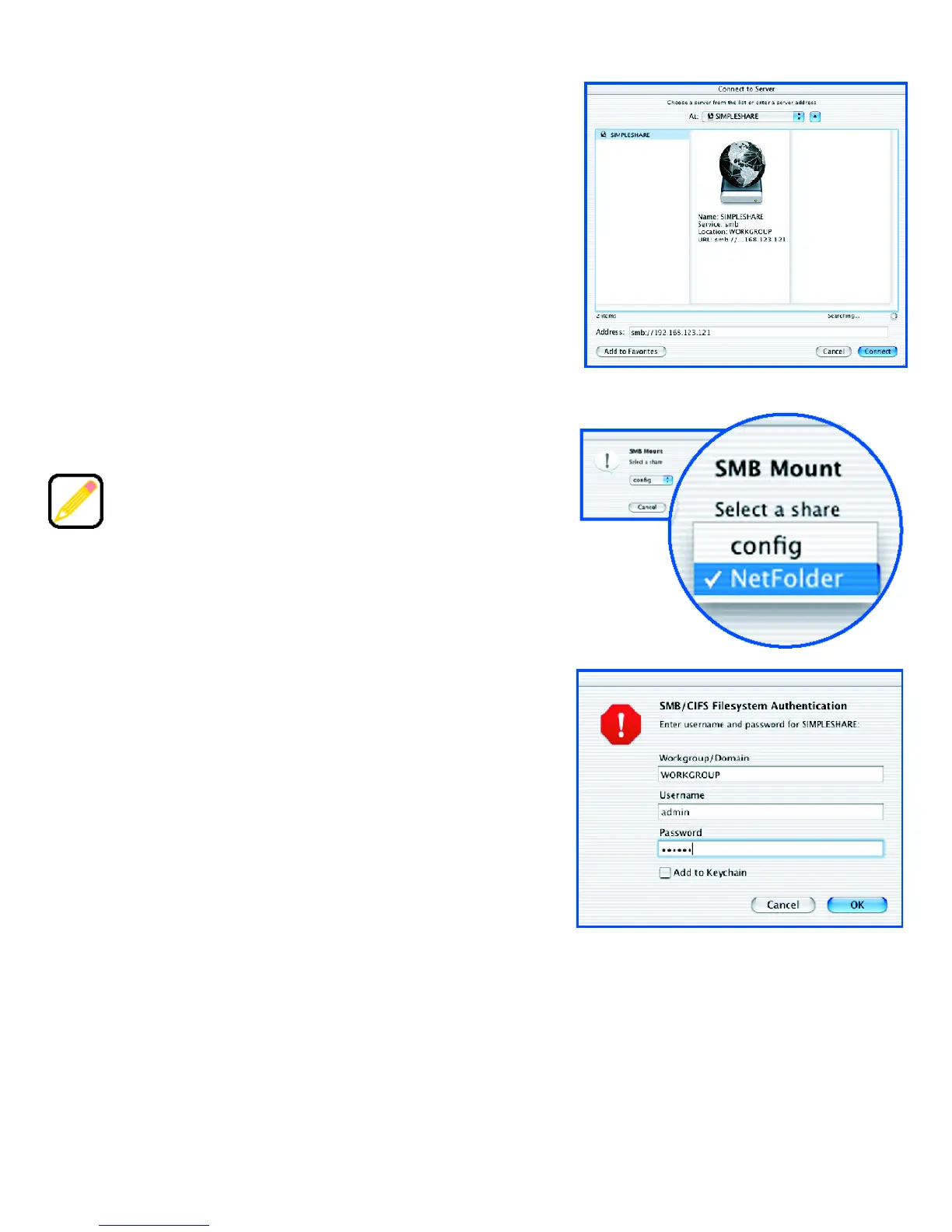
1 Open the Go menu and click Connect to Server.
2 In the Connect to Server window, select
SimpleShare from the servers listed in the left
pane. If Windows Workgroup names are listed,
check the Workgroup for SimpleShare. If you
can’t locate SimpleShare, enter its URL in the
Address box (where the URL consists of the
protocol "smb://" and the SimpleShare name
(“SimpleShare”) or IP address. After selecting
your SimpleShare server, click Connect.
3 In the SMB Mount window, open the SMB
Mount list, select NetFolder and click OK.
4 In the SMB/CIFS Filesystem Authentication
window, under Username, enter SimpleShare’s
default username “admin.” Under Password,
enter the default password, “simple.” If you want
the system to remember your authentication
information, click Keychain, and then click OK.
A NetFolder icon appears on the desktop.
ADVANCED CONFIGURATION OPTIONS
To access SimpleShare’s advanced configuration options through SimpleShare
Administrator, enter the name or IP address of your SimpleShare in the Address bar of
your Web browser. If SimpleShare’s configuration folder is mapped to your computer,
open the folder and double-click Configuration.html. For instructions on using
SimpleShare Administrator, refer to the SimpleShare User’s Guide.
NetFolder is the default shared folder
configured on SimpleShare.


 To Next Page