5
7
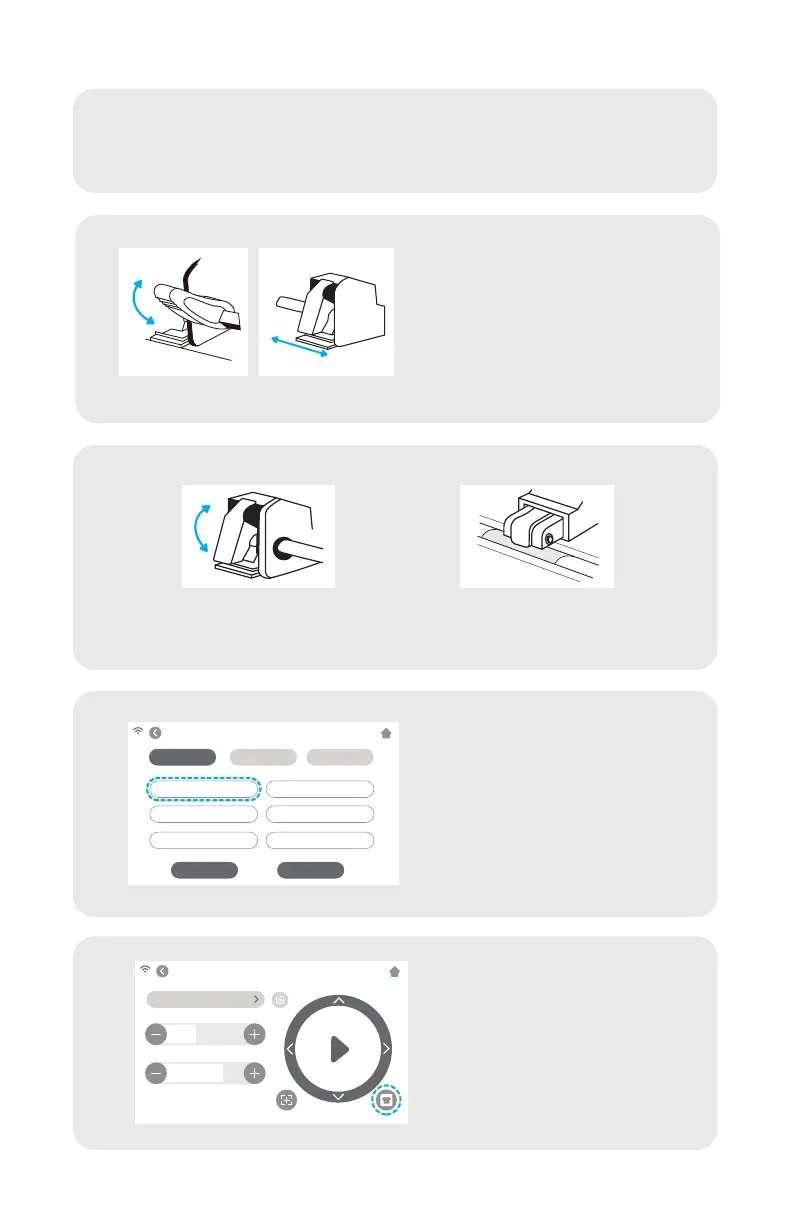
Tap ‘Cut Settings’ on the
touch screen, then tap the
current preset to view the
entire menu. Select the
preset that matches your
material to automatically
adjust the cut force and
speed.
4
8
Tap ‘Test Cut’ to cut a
small shape out of your
material to ensure the cut
settings are correct. After
testing, select the ‘Home’
icon to return to the
home screen.
6
Lower the roller bar lever to
adjust the pinch rollers and
position as desired. Take
material or cutting mat and
align under the rollers. Raise
the roller bar lever to secure
the material or mat in place.
Insert blade housing into tool holder on the machine
head with the blade facing down. Turn the knob on
the tool holder clockwise to tighten.
HTV
RENAME LOAD
PSV OTHER
EASYWEED VS11 FS40
VS11 FS40
VS10 FS20 VS8 FS35
VS12 FS40
VS9 FS25
GLITTER
TWINKLE
STRIPFLOCK PRO
HOLOGRAPHIC
METAL
PRESETS
PRESET
CUT SPEED VS
FORCE FS
40
560
CUT SETTINGS
Pinch Rollers
The pinch roller levers can be flipped
‘up’ to increase the tension of the
roller or ‘down’ to ease the tension.
Position pinch rollers over the
grit marks for optimal traction.


 To Next Page