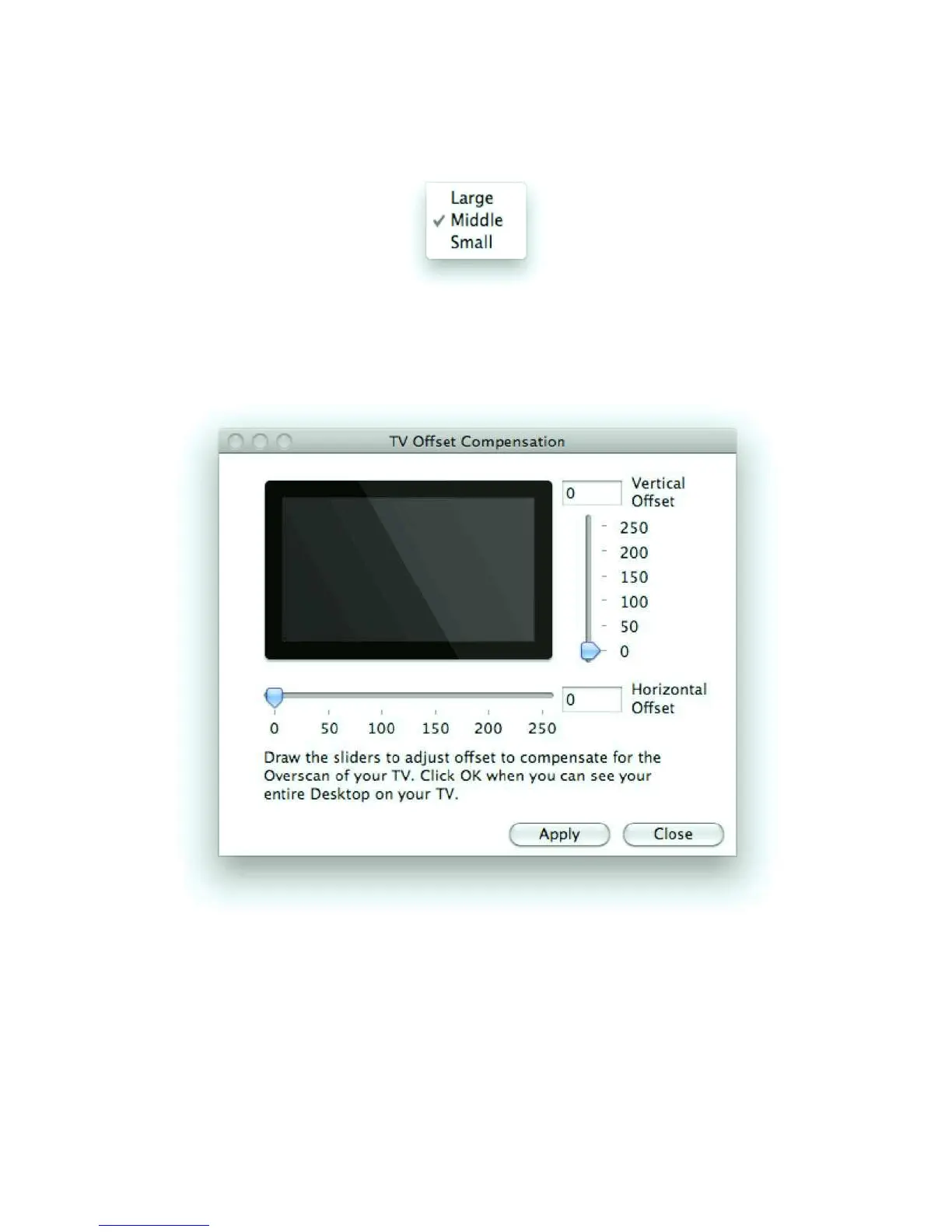
Click <PC Screen Resolution> to adjust projection image quality. Larger resolution
requires higher bandwidth. Default is Middle.
Click <TV Offset Compensation> Many TV’s have an overscan design which will cut the
edges of the PC Desktop shown on the TV screen. If you cannot turn off overscan from
your TV menu, please use the <TV Offset Compensation> to fit the projected screen
into your TV screen.
Drag the sliders to set the offset value. Click <Apply> to update the TV projection.
Check the TV screen. When the desktop of your PC fits to the TV screen size, click
<Close>. Otherwise repeat the steps above and make adjustments until the screen fits
into the TV screen exactly. Check <Auto WiFi Connection> to let the PConTV search
and connect to access points, or turn it off to use your original WiFi manager to connect
to access points manually.
Click <WiFi AP-Client Configuration> to setup the PConTV in a wireless connection
with an existing home WiFi router, you can use the AP-Client mode. The quality of the


 To Next Page