benchmark score measured during installation should be 4 stars or above for
video projection.
2. System too busy. Close all other programs and try again.
3. Network not fast enough. Check connection speed. You may try lower screen
resolution or projection quality to save bandwidth.
Q. The PC desktop edges are cut off my TV screen. What can I do?
A. Most TV’s present overscan. The result will deliver a cut PC desktop to your TV screen.
Please check for menu options on your TV such as scaling, fit-to-screen or aspect ratio to
change overscan behavior, or use the TV Offset Compensation in PConTV Software user
interface menu to compensate the overscan behavior.
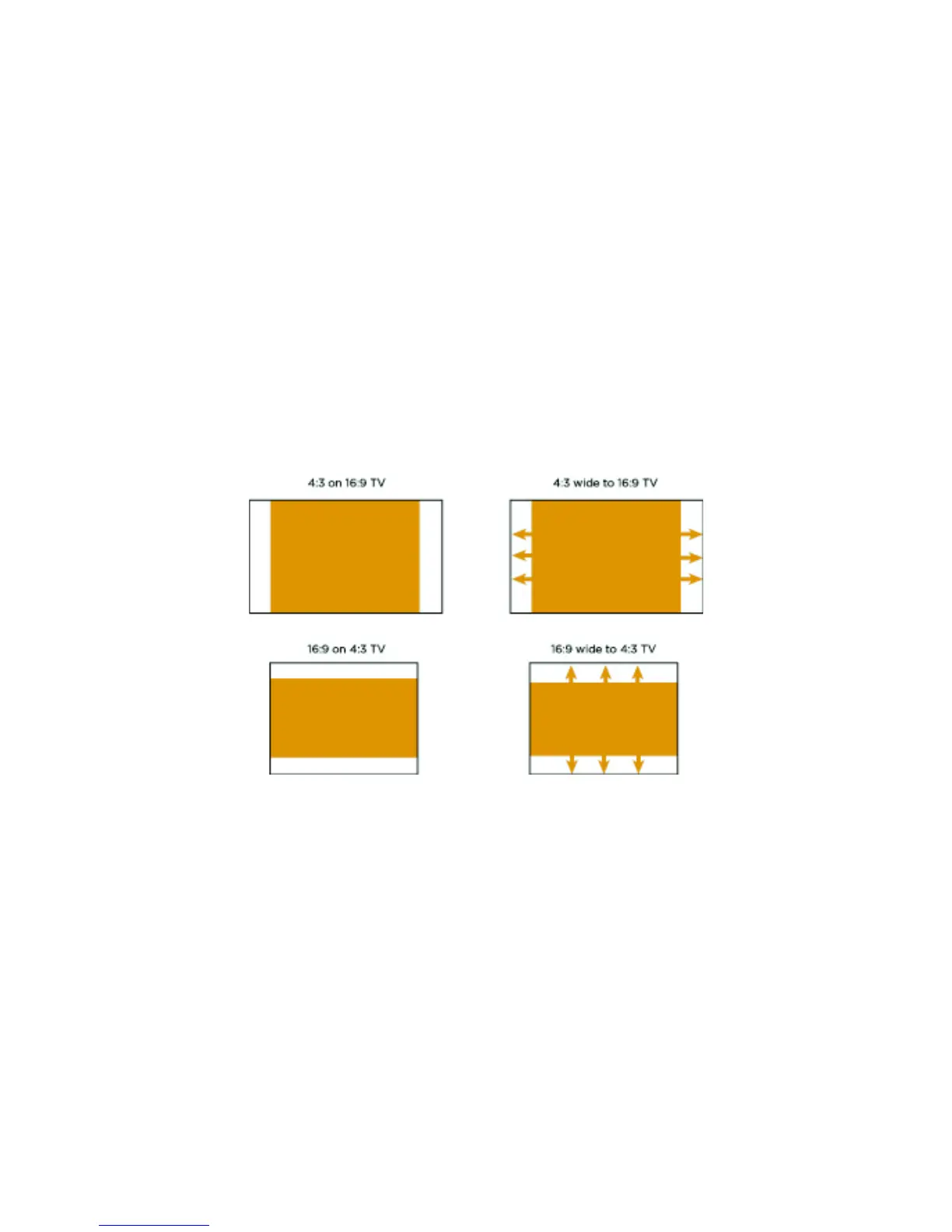
Q. The aspect ratio on the TV is distorted. What can is the reason?
A. The projected image is identical to the screen of your Windows or Mac PC. However,
due to different aspect ratio in different resolution settings on PC (4:3 or 16:9), the
aspect ratio may be altered by the TV to fit to screen. Please look for options on your TV
such as scaling, fit-to-screen or aspect ratio to change how the PC signal is fitted to TV,
or change your PC resolution to the same aspect ratio as your TV screen (mostly 16:9 on
new flat TVs). For example, select 1280 x 720 on your PC for original aspect ratio on a
16:9 flat TV.
Q. The AP Client configuration is delivering no IP address to PConTV. What can I
do?
A. There are several possible reasons to check:
1. Check the strength of your wireless home router (N-Type router recommended).
When the quality of the wireless signal of your home router is too low it will not be
able to deliver an IP address to PConTV.
2. Check if your home router is set to deliver automatically an IP address to any
other client (DHCP mode)
3. If your home router is set-up to deliver static IP addresses only, you need to
configure the PConTV to use a static IP address out of your network IP range.
Open the PConTV web device management page and give the PConTV device a
Static IP address which is part of your static home IP address range.
If the answers above do not work in your situation, try to setup the PConTV using
Ethernet cables or HomePlug (sold separately) environment as show in chapter 3: Setup
Possibilities.


 To Next Page
 Loading...