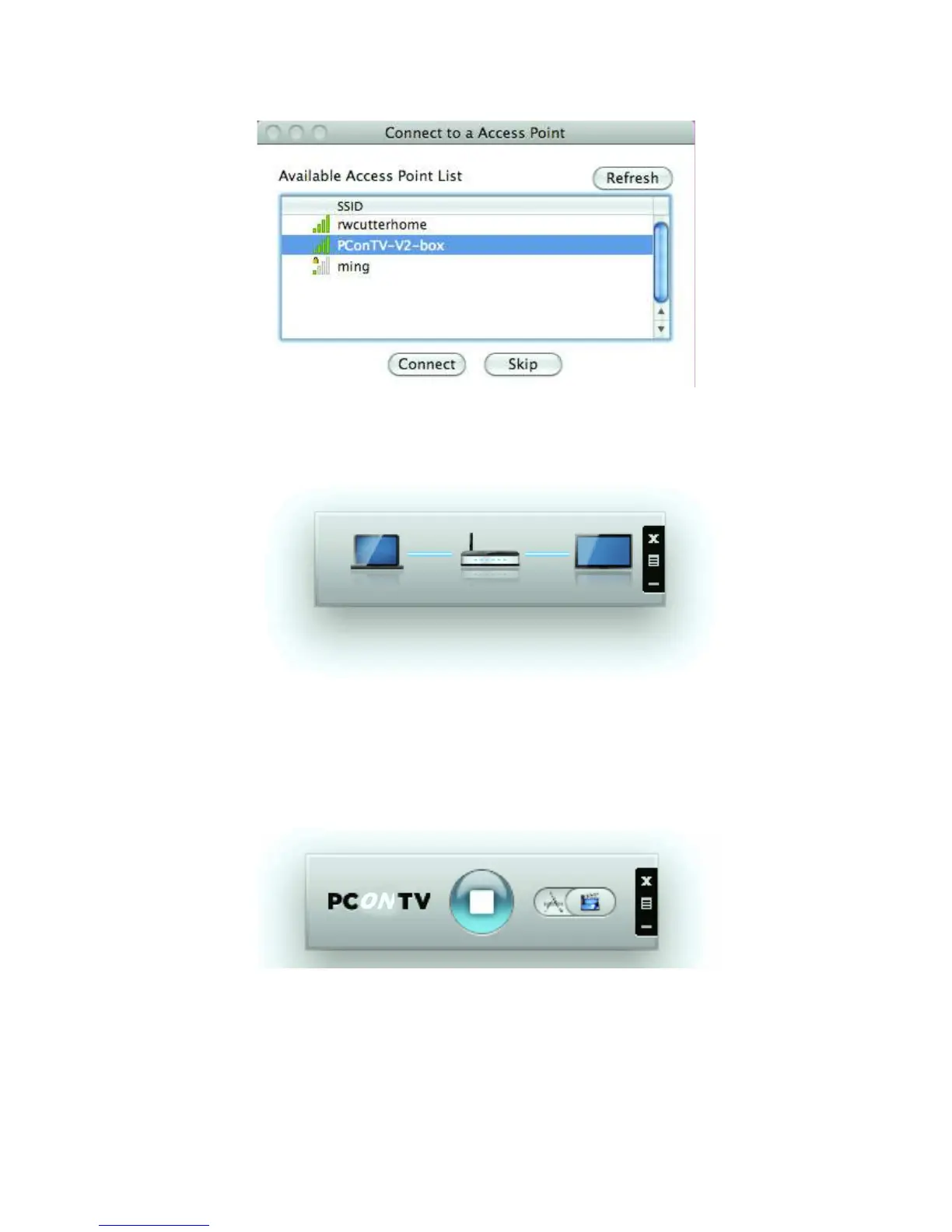
9. Connect to selected access point.
10. Connecting to PConTV server. If only one server is found, it will automatically
connect to the server.
11. The application will temporarily adjust your Windows or Mac resolution for best
projection result, and then project your screen to TV. You should see your Windows
or Mac PC Desktop on the TV screen now.
12. To quit a projection, click the <Stop/Play> button on the PConTV software user
interface (as shown below). Your screen resolution will be restored to the original
one.
13. To begin a projection again, click the Play button again.


 To Next Page