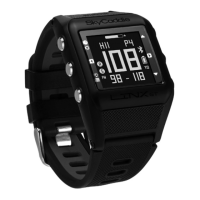
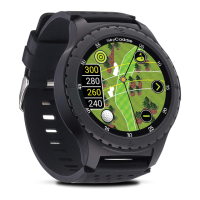
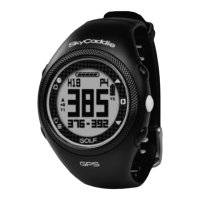
CHANGING MODES
To change Modes:
1. Press and hold the MENU button until the Menu list appears.
2. Use the UP/DOWN buttons to scroll through Menu items.
3. Press the OK button to select the highlighted Menu item.
GOLF MODE
Starting a New Round
Make sure you are outside and near the course you are going to play.
1. Press and hold the MENU button until the Menu list appears.
2. Highlight GOLF using the UP/DOWN buttons.
3. Press the OK button to confirm.
4. If prompted, highlight NEW GAME and press the OK button.
5. The SkyCaddie LINX will turn on the GPS and auto-search for
nearby courses. It may take a few minutes for the SkyCaddie LINX
to acquire a GPS signal.
6. When the search is completed, a list of nearby courses will display.
7. Highlight the correct course using the UP/DOWN buttons.
8. Press the OK button to open the highlighted course.
Playing Golf
To change between the GREEN, TARGETS, INFO and
INTELLIGREEN
†
Views, press the OK button. Press and hold the
OK button to view and edit your score and stats at any time.
HINT: When you take a break, set your SkyCaddie LINX to TIME
Mode to save battery power. After your break, return to GOLF
Mode and resume your round or start a new round.
5



 To Next Page