5 Software Update
5.1 Upgrade firmware
The firmware of the Aurora eye tracker may at times require upgrading to improve performance
and stability of the Aurora eye tracker. Aurora firmware images are provided as .auimg files,
and are written to the eye tracker using the Smart Eye Setup Tool. To perform a firmware
upgrade, follow the steps below.
1. Open the Smart Eye Setup Tool (found in the Windows start menu).
2. Select Aurora as eye tracker and open the Advanced Settings...
3. Connect the Aurora eye tracker to a USB port on the computer (if not already done so),
if the supplied cable is of type USB-A make sure to connect it to a USB 3.0 port. Verify
that eye tracker information is updated with values from the eye tracker.
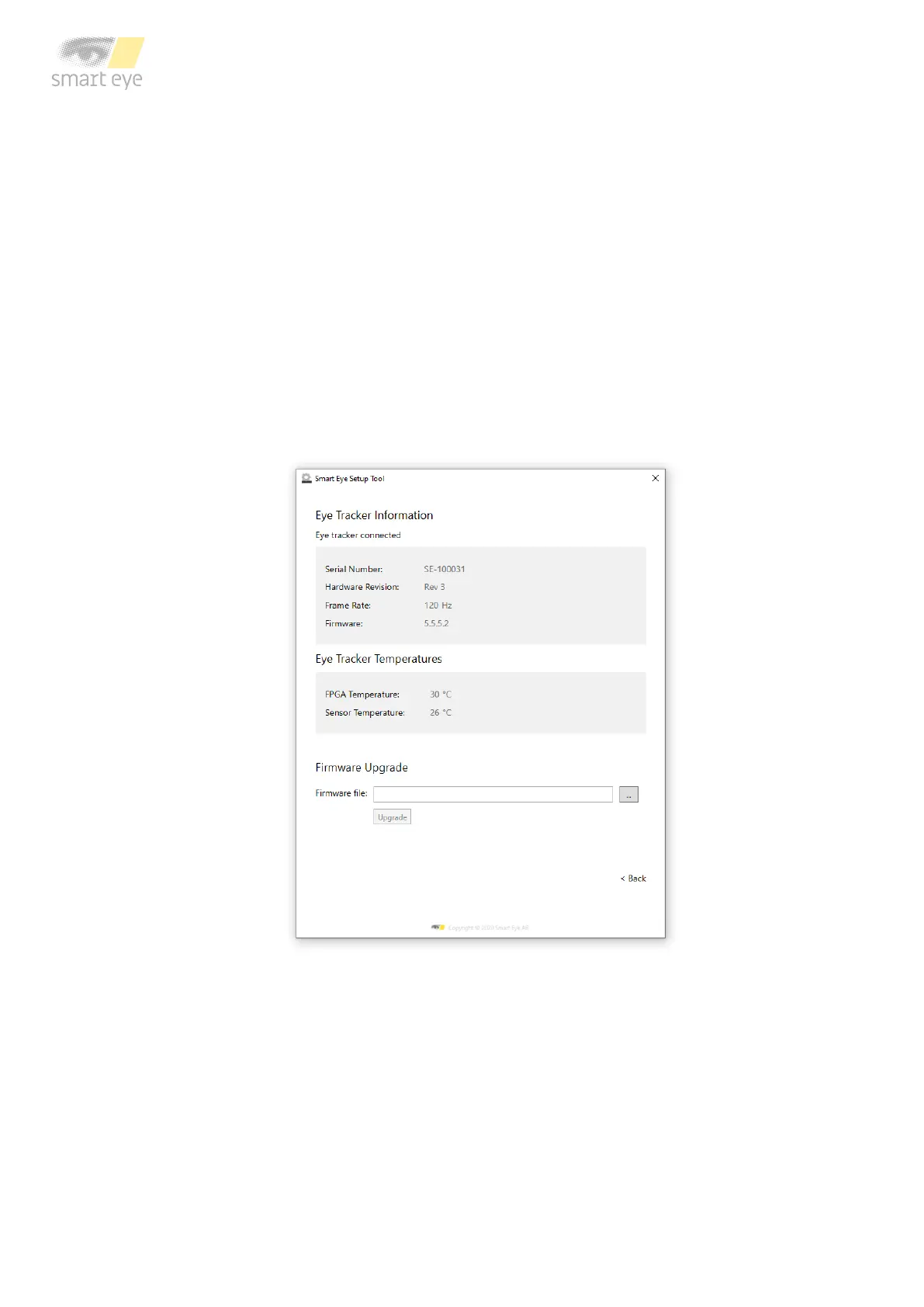
Advanced Settings: eye tracker information is displayed for the connected eye tracker. The displayed values will likely
differ from the ones shown here.
4. Select the firmware file (.auimg) containing the new firmware and press the Upgrade
button.
5. Wait for the firmware upgrade to complete. Note that this may take several minutes.



 To Next Page