The deadbolt area is red, a non-admin user cannot unlock unless it is an admin user or unlocks with a key
7. Deadbolt setting
.
A. Wake up the screen by touching keyboard, press the “*” and “#” keys then input initialize password 123456 and “#” key
to enter initialize menu: (After enter menu, press “*” key to return/ press “#” key to confirm)
B. First time entering main menu, need to record new password (6 digits with #” key to confirm and repeat again) or
fingerprint (6 times) as admin user, press "#" key to confirm. Wake up the screen by touching keyboard, press the
“ ” and “#” keys then input admin password and “#” key or fingerprint to enter main menu:
Press 2 to enter the user no. which need to del then press “#” key to confirm.
Press 3 to enable and again to disable.
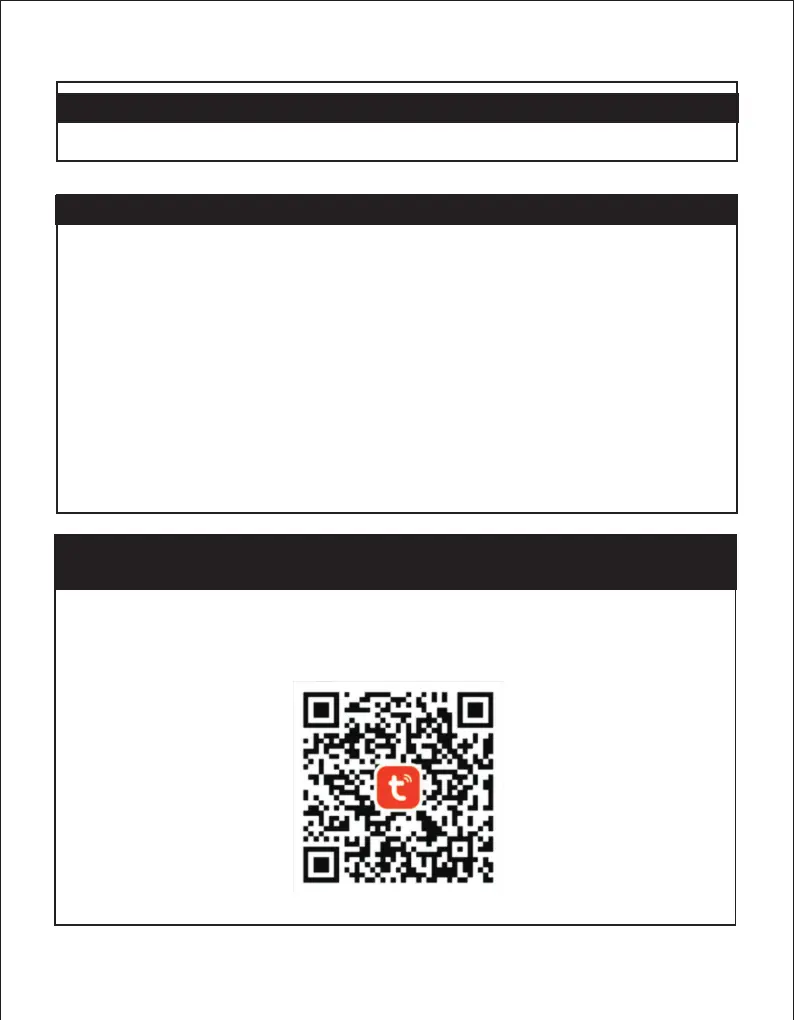
① Open your mobile phone and scan the following QR code to download the app.
② After registering the user, select Lock “Wi-Fi” in “security & sensor” and connect WIFI according to the
Press 4 to enable and again to disable.
software
instruction. (only support Wi-Fi network of 2.4G band ), operate the smart lock to enter main menu to active connection
mode (when entering main menu, the blue light will start flashing ), then connect the smart lock to the network.
1: Add Users
3: Normally open
Press 1 to record new password (6 digits with “ #” key to confirm and repeat again) or fingerprint (6 times)
as normal user, press “#” key to confirm.
2: Del Users
mode
4: Mute mode
8. Smart Lock User Interface Operation
( Suitable for model: 610 & 620 Tuya
9. How does the smart lock connect to the tuya app?
)
*


 To Next Page
 Loading...