① Ensure that the WIFI module has been connected to the cloud, and the APP can view the device.
② Press "9" + "#" on the door lock to wake up the Tuya module, and the module indicator will light up.
(Some door locks wake up the module when they are touched, you do not need to press 9#, please operate
according to the actual situation).
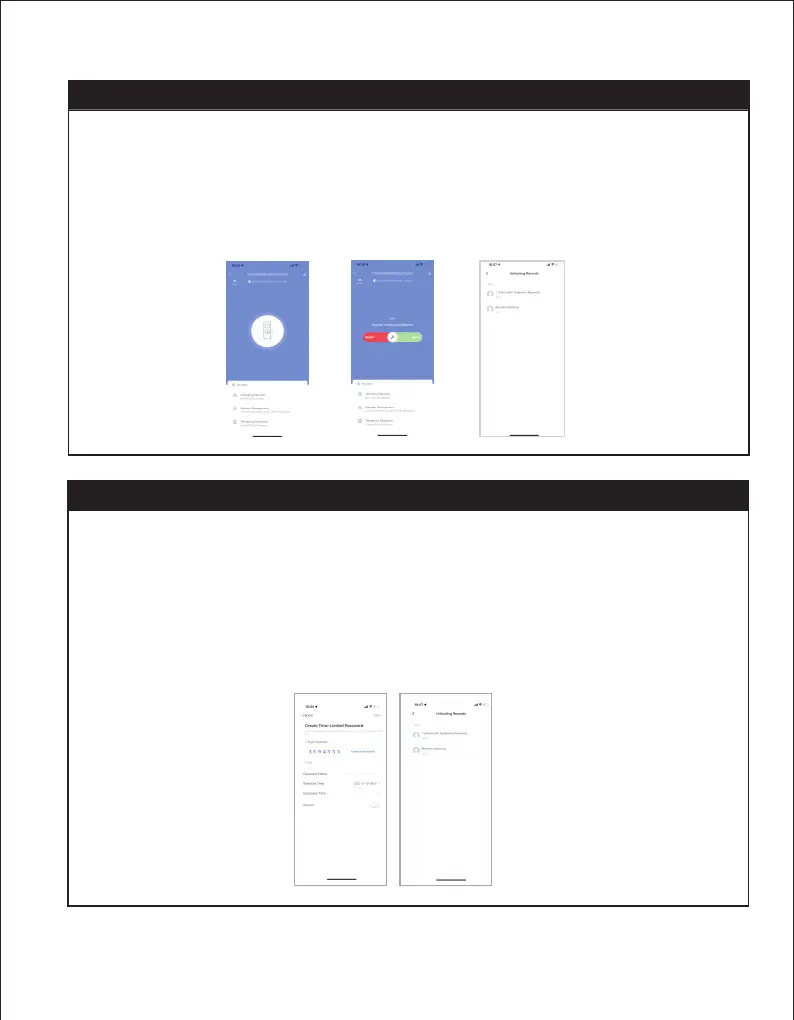
③ Wait for the module to be connected to the cloud. On the home page of the APP interface, the button "Click
to open the door remotely" will appear. After clicking, it will confirm whether to unlock or not.
④ After confirming the unlocking, the door lock will be unlocked, and the APP side will report the remote unlocking
record (Note: There is no record reporting in the initialization state, and a user needs to be entered before the
door opening record can be reported).
① Make sure that the wireless module has been detected at the door lock end, and check the detection
information when it is powered on;
② Ensure that the time of the door lock is accurate with the Beijing time. If the door lock time is not set, please
manually enter the administrator setting interface to set the correct time (Note: For some devices without a screen
that do not have time to display or broadcast, this step can be ignored)
③ Click "click to get" under the remote dynamic password on the APP side to get the password;
④ Press "9" + "#" on the door lock to wake up the Tuya module, and the module indicator will light up.
(Some door locks are in the touch-to-wake mode)
⑤ Enter the dynamic password, after the verification is successful, the door lock will be unlocked, and the unlock
record will be reported.
Note: The dynamic password will change every 5 minutes, and each password can be unlocked unlimited times.
10.
11. Remote dynamic password
Remote unlock function


 To Next Page
 Loading...