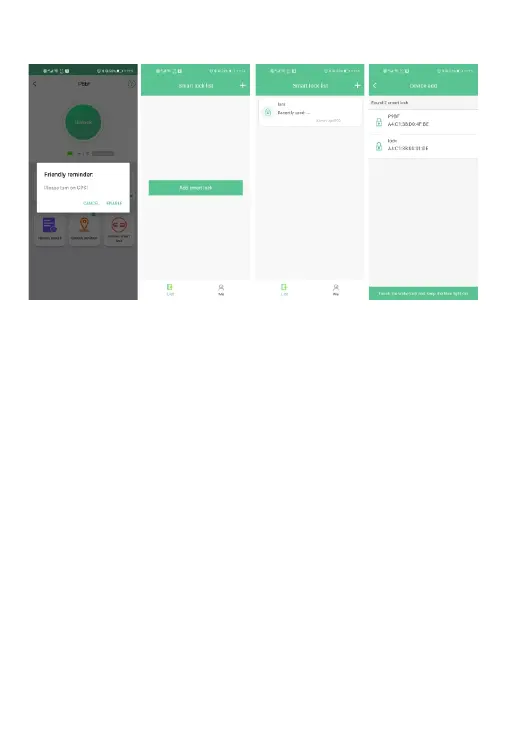
Fig. 3 Fig. 4
Fig. 6Fig. 5
6.1.5 Connect Smart Lock
1. When to connect smart lock to the App. It should keep smart lock in working status.
Touch the touch sensor of smart lock and blue light flashes
2. BT connection: When blue light is flashing, click "Connect" on the main interface of
APP. After the connection is successful, the blue light stays on. Please note that smart
lock will go to sleep mode and BT is disconnected automatically when there is no
operation for 1 minute.
6.1.6 Authorization management
1. You can add sub-accounts through "Account Sharing" or "Scan QR Code to Share".
Scan account is that other accounts scan to add smart lock by connecting to BT, and
be added to the unauthorized list automatically. (Fig. 7)
2. Authorize the unlocking period of the sub-account/scan account (Fig. 8) . Click the
time to set the schedule (Fig. 9).
3. Delete authorized user, click the "X" to the right to delete the user.
8


 To Next Page