8 | P a g e
SMT-400 Draft Manual
Step 6
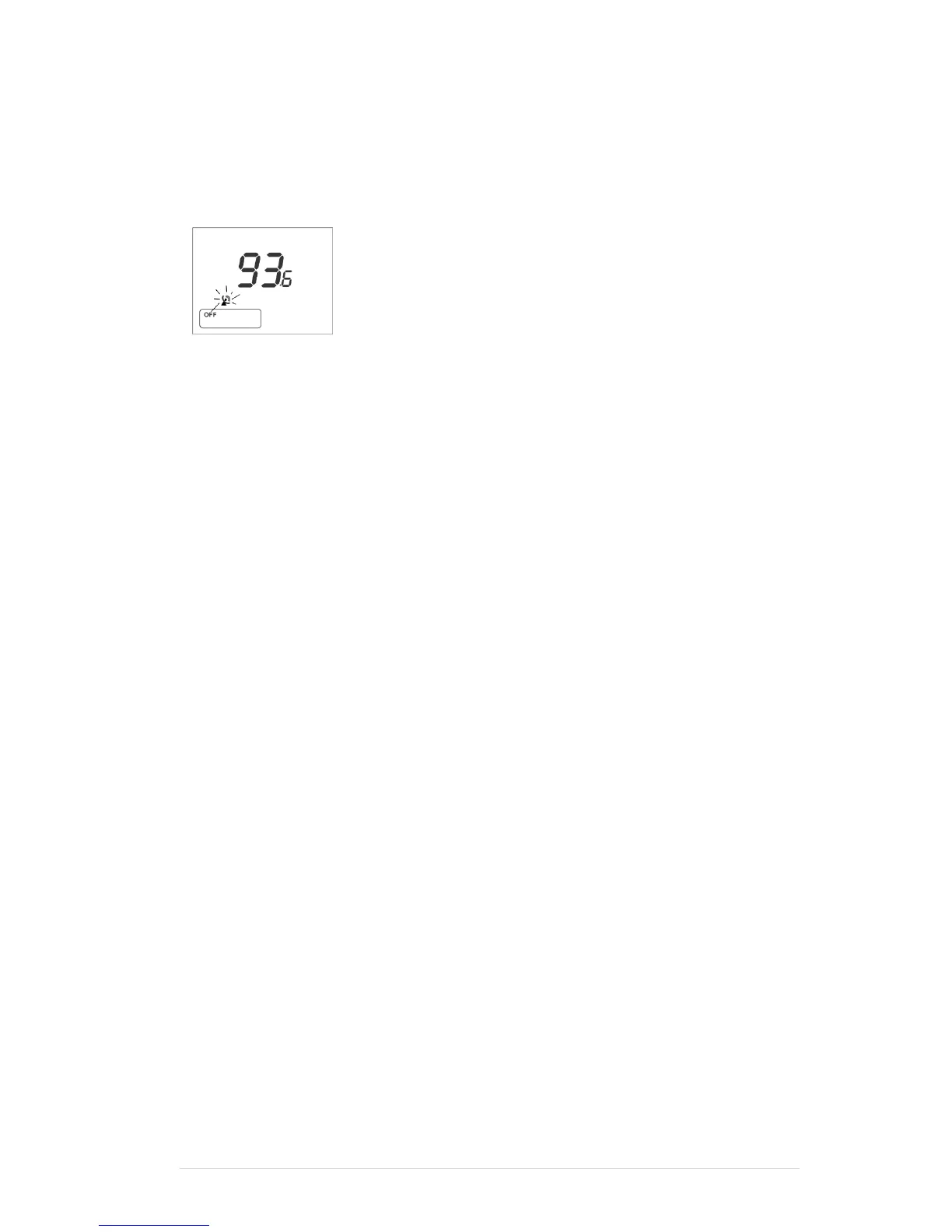
The SMT-400 will perform a countdown from 10 to 0 as it enables, tests and resets the Wi-Fi radio within the
thermostat. When the thermostat reaches 0 (zero) – press the connect button on the Smart Temp Comfort App. The
app will then search your paired network looking for your SMT-400. Once detected on the network the app will
automatically upload the network ID and password into the SMT-400 memory. If the app fails to find your device,
try the connection process again. If you have repeated failed attempts, you may need to hard reset (reboot) your
smart device.
Step 7
If connection is successful, your SMT-400 will display a 3-digit security code. Enter this
code into the Smart Temp app in the box that has popped up. Press “Enter” to
confirm. If you entered the correct passcode in your app the process is complete and
the Smart Temp Comfort App will return to the device screen showing your SMT-400
thermostat. The Satellite icon will remain on solid confirming your connection to the
building Wi-Fi router. You can now use your app from anywhere in the world that has
Wi-Fi access.
If you enter the incorrect passcode the SMT-400 will flash “Fault”. You will need re-enter your pairing code.
Note
On rare occasions after you pair your device the App may note advance from the connect screen, simply press
“connect again” and re-enter enter the PIN the thermostat displayed.
Adding Extra Devices to Your Account
Once you have your Smart Temp "Comfort App" account setup you are free to add as many SMT-400 (and other
Smart Temp Wi-Fi enabled devices) that you wish to your account. This permits you to control the SMT-400 that is
installed at home, in your office or any other place that you have a Smart Temp Wi-Fi device installed and paired
with the local Wi-Fi network. There are no practical limits on the number of devices you can pair to your account.
Simply open the options window on your app and select "Add Device" and add the device as explained in that devices
manual.
Permitting Others to Control Your SMT-400
Once you have your Smart Temp "Comfort App" account set up and paired with your SMT-400 you can permit others
to also have Wi-Fi control of your SMT-400. For example, a SMT-400 may be installed in a home and can then invite
other family members to join in controlling the same SMT-400 thermostat.
Step 1
Ensure the person you wish to add has a Smart Temp “Comfort App” installed on their smart device and a user
account set up.
Step 2
Touch the Options Window in the Smart Temp "Comfort App" and select "Add User".
Step 3
Enter the account name and privilege level of the user you wish to add and press submit. This person will be sent
a message on their app inviting them to share control of your thermostat. You will be sent a message informing you
that the user has accepted or declined access to your SMT-400.
Please Note: The SMT-400 will respond to the latest command it receives from either direct input at the thermostat or
from any Wi-Fi commands.
Resetting Your App Pairing
If you change home or router you will need to reset your SMT-400 router pairing and set up a new connection with
your new router.
Step 1
If your SMT-400 fails to connect to a router stored in its memory the WiFi symbol will flash. Press the wi-fi symbol
on the SMT-400 display to reset the radio back to factory settings
Step 2
Follow the instructions above in “Pairing you SMT-400 to the network for the First Time”



 To Next Page