7 | P a g e
SMT-400 Draft Manual
If the SMT-400 is OFF, tapping the “FAN” button will turn the fan ON or OFF as desired. If your system has 3 fan speeds
these can also be selected by tapping the “FAN” button.
Programming
Although your SMT-400 is not a traditional programmable thermostat it does provide a cloud based scheduling function
via the Smart Temp Comfort App. Using your app, select schedule enter your desired times and temperature settings
into the app.
The Smart Temp Comfort app web server will then send temperature setpoint updates to your SMT-400 “Enterprise”
thermostats at the time scheduled.
The Web Portal additionally permits you to program in holidays that will be used to control your SMT-400 “Enterprise”
thermostat.
Please note the thermostat must be set to the desired mode (Heat Cool Or Auto) for the schedule to work. Setting a
scheduled cool set temperature will have no effect if your SMT-400 thermostat is in Off or Heat Only mode
Using the Smart Temp “Comfort” App
The “App” Explained
The SMT-400 "App" will permit you to control all aspects of the wall thermostat. It will also permit you to perform
many additional functions such as applying a schedule or automatically turning your home comfort system on or off
as you approach or leave your home.
Please refer to your App for up to date information on the functions available.
Pairing your SMT-400 to Your Wi-Fi Network for the First Time
Connecting your SMT-400 to the internet is a very simple process and no more difficult than connecting a lap top
or other Wi-Fi device to your home or office wireless network.
Step 1
Make sure your smart device is paired with the same network that you wish to pair your SMT-400 thermostat with.
Example, your home Wi-Fi network if installing the SMT-400 in your home.
Step 2
Download and install the "Smart Temp Comfort App" as you would any other app for your device if not
previously installed. (Both Apple or Android versions available) and log into or create a new Smart Temp
Comfort App account. Consult your smart device manual for help with downloading and installing apps
if needed. You will need follow the prompts if setting up a new Smart Temp Comfort app account and
respond to confirmation emails that will be sent.
Step 3
In the Smart Temp app main window, click on the “ + ” icon in the top right
of the app window to add a new device. – Select the “Smart Wi-Fi” option
in the pop up box that appears.
Step 4
In the Connect Window that opens, ensure the Wi-Fi network you wish to pair your SMT-400
with is shown in the Network box (this will be the same Wi-Fi network your phone is paired
with. Enter the password for the shown network in the Password box. (Note -The app does
not have access to your password data in the smart device, hence your need to enter this
information manually)
Step 5
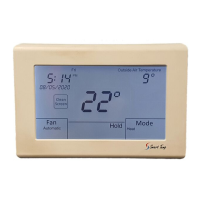
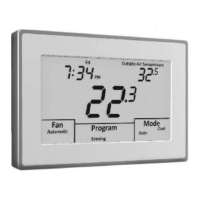
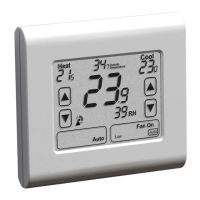
Power up your SMT-400 Controller. After it displays
the firmware version and performs a display test, the
Thermostat will power up and show a typical display.
The Wi-Fi symbol will flash. Simply touch the flashing
Wi-Fi symbol to begin the pairing process.
(The Wi-Fi symbol will time out after 2 minutes – if this happen simply press
and hold the display where the Wi-Fi symbol would shown for 5 seconds– Just
above the centre of the Mode button)



 To Next Page