LAN IP Setup Quick Start Guide
© 2018 WattBox® Rev. 180531-1550
Page 4
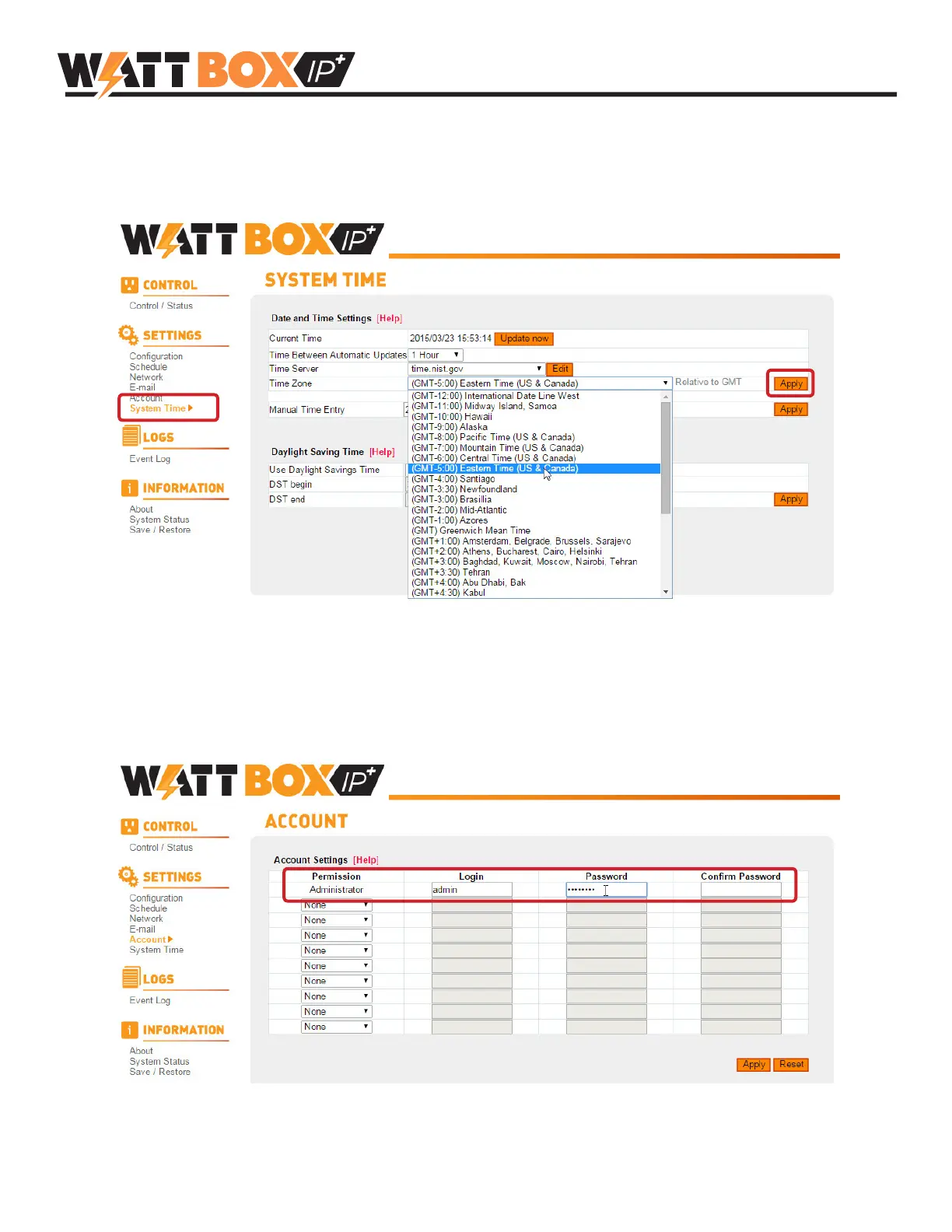
7. Congure System Time
The default time zone setting must be changed to match the installed location so that scheduled events and log
records are correct. Click System Time in the Settings menu and select the correct time zone from the dropdown, then
click the Apply button to save the setting.
8. Change the Default Login Password
Click Account in the Settings menu and change the default admin credentials to avoid unauthorized access to the web
interface. After clicking Apply to save the settings you will be asked to log in using the new credentials.
Additional accounts may be created as either an admin (full privileges) or user (can’t change settings, can view and
control outlets). Be sure to record the login credentials and the purpose of each account in a safe place.


 To Next Page