54
D315 | D305 User Manual Using the Phone
Blind transfer
• Blind transfer of active call
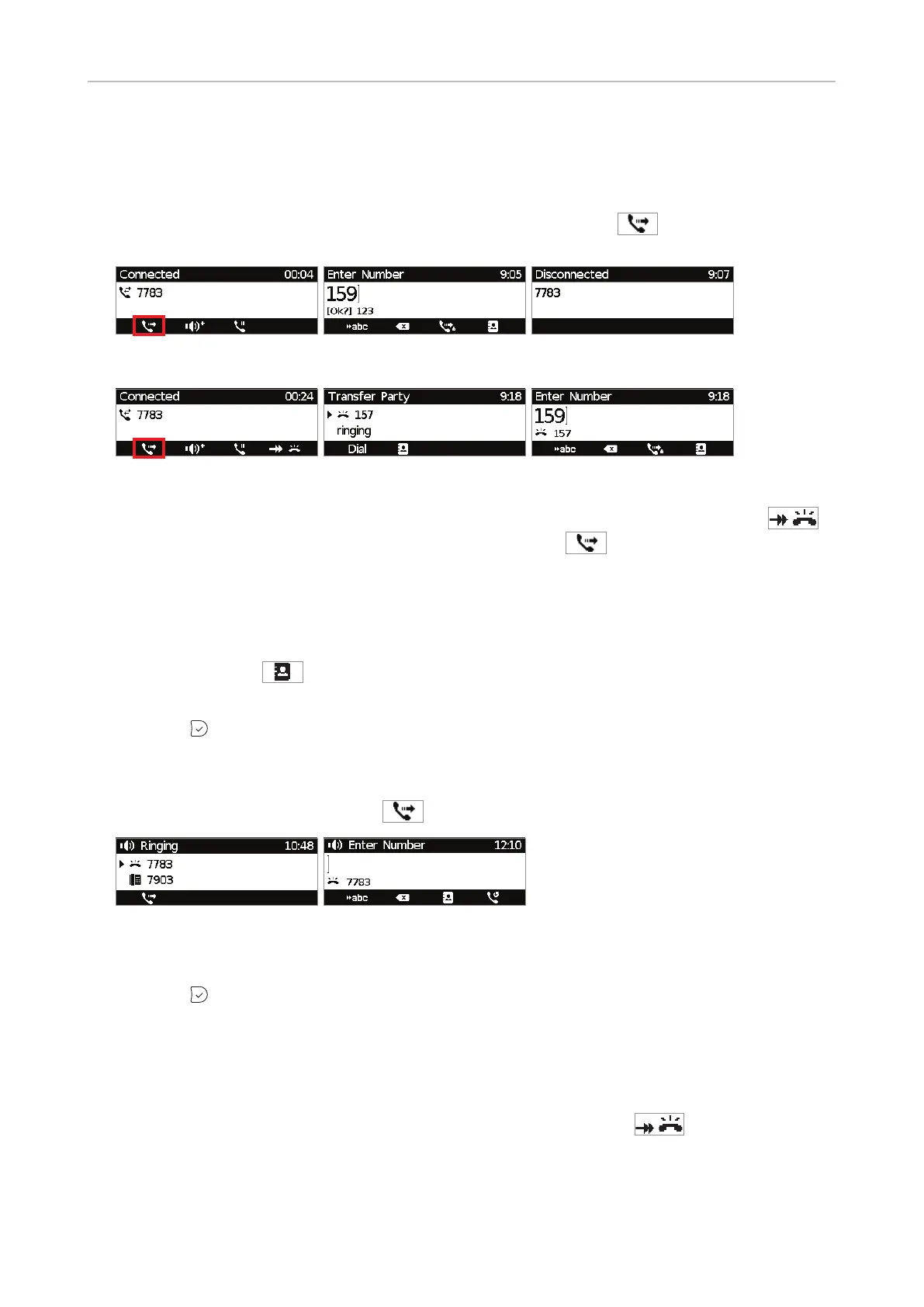
1. With a call on the line (Fig. 1), press the function key underneath
. The dial screen will
appear (Fig. 2).
Fig. 1 Fig. 2 Fig. 3
Fig. 4 Fig. 5 Fig. 6
To transfer your active call while a call is waiting (Fig. 4), as indicated by the symbols
in
the lower right corner, press the function key underneath
. The "Transfer party" screen
appears on the display (Fig. 5). Pressing any number key will open the dial screen (Fig. 6).
Note: If you want to transfer the call waiting, see "Blind transfer of call waiting",
below.
2. Dial the number of the third party to whom you intend to transfer the call or press the function
key underneath
to select a number from one of the available directories and call lists
(Fig. 2 and 6).
3. Press
. The transferred call is briefly indicated as "disconnected" (Fig. 3).
• Blind transfer of ringing call
1. With a call ringing (Fig. 1), press
.
Fig. 1 Fig. 2
2. Dial the number of the third party you intend to transfer the call to (Fig. 2).
3. Press
.
• Blind transfer of call waiting
For more information on call waiting, see "Call waiting" on page 50.
1. If you are in a call and want to transfer a call waiting (Fig. 1), press
to put the call
waiting on-screen (Fig. 2).
NOTE: Your active call will remain active while you are transferring the ringing
call.



 To Next Page