Hold and retrieve calls
To put the active call on hold:
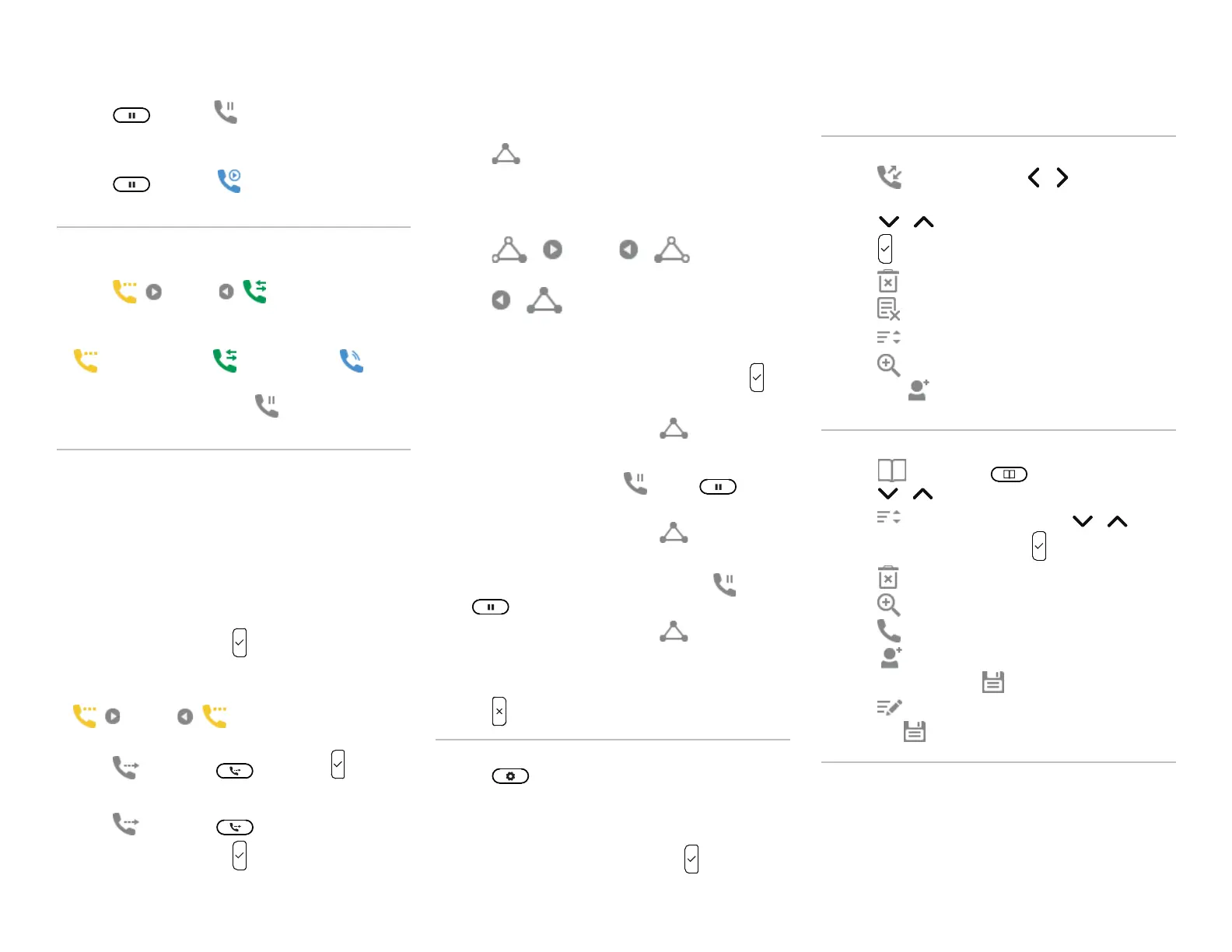
• Press OR press Hold
• OR press the Line function key with the steady LED.
To retrieve the held call:
• Press OR press Retrieve
• OR press the Line function key with the blinking LED
Switching between calls
To switch between calls (active, on hold, call waiting):
• Press Right or Left until the call you
want is displayed on the screen.
The symbol color indicates the type of call:
Yellow = on hold, Green = active, Blue =
call waiting
• Any keys you press (such as Hold) will affect the
call currently displayed on the screen.
Transfer calls
There are two ways to transfer a call:
• Attended transfer - Call the destination party first,
and announce the call before making the transfer.
• Blind transfer - Transfer the call to the destination
party without announcing the call.
Attended transfer
1. Put all calls on hold.
2. Dial a number and press .
3. When the party answers, announce the call.
4. If you have more than one call on hold, press
Right or Left until the call you want
to transfer is displayed.
5. Press Transfer or , then press .
Blind Transfer
1. Press Transfer or .
2. Dial a number and press .
Conference calls
1. Call the first party.
2. Put the call on hold.
3. Call the second party.
4. Press Conference.
The conference is established, and the Conference
screen appears.
Selecting a party
1. Press Right or Left to select
a party in the conference.
2. Press Left to select the Conference
screen.
Talking to one party in private
1. Select the party you want to talk to, and press .
The other party is put on hold.
2. To restart the conference, press Conference.
Putting one party on hold
1. Select the party and press Hold or .
The other party becomes an active call.
2. To restart the conference, press Conference.
Putting both parties on hold
1. Select the Conference screen and press Hold
or .
2. To restart the conference, press Conference.
Ending the conference
1. Select a party or the Conference screen.
2. Press .
Forward calls
1. Press and select
Call Features > Call Forwarding.
2. Select Forward All, Forward when Busy, or
Forward after Timeout.
3. Select Enable Fowarding, and press to switch
between On or Off.
4. Select Target and enter the phone number to
forward calls.
5. For Forward after Timeout, enter the Wait Time
(in seconds) before forwarding the call.
Call history
• Press Call History. Press / to select All,
Missed, Received, or Dialed calls.
• Press / to select a call.
• Press to dial the number of the selected call.
• Press Delete to delete the selected call.
• Press Clear to delete the entire list.
• Press Sort to sort the calls.
• Press Details to show details of the selected
call. Press Add Contact to add the call to the
Directory.
Directory
• Press Directory or . To select an entry,
press / OR enter the first letter of a name.
• Press Sort to sort entries. Press / to
select a sort option and press .
• Press Delete to delete the selected entry.
• Press Details to display the selected entry.
Press Dial to dial the number of the entry.
• Press Add Contact to add an entry. Enter the
information and press Save.
• Press Edit to edit an entry. Enter the information
and press Save.
For more detailed information about how to use your phone,
refer to the Snom D717 User Guide.
Copyright © 2019 Snom Technology GmbH.
All Rights Reserved. v2019001 Version 1, 10/2019


 To Previous Page
 Loading...