EasyManua.ls Logo

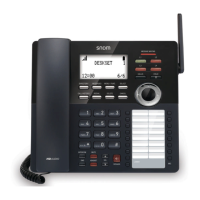
Snom D120 - User Manual

Snom D120
96 pages
Print Icon
To Next Page IconTo Next Page
Loading...
© 2018 Snom Technology GmbH
Snom Technology GmbH
Wittestr. 30 G
13509 Berlin, Deutschland
Tel. +49 30 39 83 3 0
Fax +49 30 39 83 31 11
offi ce.de@snom.com
Snom Inc.
136 Harvey Road, Suite A102
Londonderry, NH 03053, USA
Tel. +1 339 227 6160
Fax +1 339 227 6180

Snom Technology GmbH
The Courtyard, High Street


Tel. +44 161 348 7500
Fax +44 169 348 7509

Snom Technology GmbH

78870 Bailly, France
Tel. +33 1 80 87 62 87
Fax +33 1 80 87 62 88

Snom Technology GmbH

20122 Milano, Italia
Tel. +39 02 00611212
Fax +39 02 93661864

Snom Technology Ltd.
Rm. 828, 5F, No. 285, Sec. 4

Taipei City 10692, Taiwan
Tel. +886 2 8751 1120
Fax +886 2 8751 1130



v1.00



Table of Contents

Other manuals for Snom D120

Question and Answer IconNeed help?

Do you have a question about the Snom D120 and is the answer not in the manual?

Summary

Important Information

Safety Instructions

General safety precautions and warnings for device usage.

Setting Up the Phone

Initializing and Registering the Phone

Steps for initial setup, language, time zone, and account registration.

Getting to Know Your Phone

At a Glance Overview

Visual overview of the phone's components and factory settings.

Settings

Phone Settings Overview

Accessing and adjusting settings available in user and administrator modes.

Display Backlight and Contrast Settings

Customizing screen brightness and contrast for active and idle states.

The Phones Web Interface

Opening and Navigating the Web Interface

Steps to access and use the phone's web interface for configuration.

Directories

Directory Entries and Contact Types

Managing contacts, defining entry types, groups, and assigning ringtones.

Adding, Editing, and Deleting Entries

Procedures for adding, modifying, and removing phone book entries on the phone and web.

Using the Phone

Making Calls and Audio Devices

How to make calls using handset, headset, speakerphone, and select identities.

Dialing Methods and Call Completion

Various dialing techniques, including speed dial, emergency calls, and call completion.

Accepting Calls and Call Waiting

Handling incoming calls, automatic answers, and managing waiting calls.

Call Management Features

Software Update

Troubleshooting

Summary

Important Information

Safety Instructions

General safety precautions and warnings for device usage.

Setting Up the Phone

Initializing and Registering the Phone

Steps for initial setup, language, time zone, and account registration.

Getting to Know Your Phone

At a Glance Overview

Visual overview of the phone's components and factory settings.

Settings

Phone Settings Overview

Accessing and adjusting settings available in user and administrator modes.

Display Backlight and Contrast Settings

Customizing screen brightness and contrast for active and idle states.

The Phones Web Interface

Opening and Navigating the Web Interface

Steps to access and use the phone's web interface for configuration.

Directories

Directory Entries and Contact Types

Managing contacts, defining entry types, groups, and assigning ringtones.

Adding, Editing, and Deleting Entries

Procedures for adding, modifying, and removing phone book entries on the phone and web.

Using the Phone

Making Calls and Audio Devices

How to make calls using handset, headset, speakerphone, and select identities.

Dialing Methods and Call Completion

Various dialing techniques, including speed dial, emergency calls, and call completion.

Accepting Calls and Call Waiting

Handling incoming calls, automatic answers, and managing waiting calls.

Call Management Features

Software Update

Troubleshooting

Snom D120 Specifications

General IconGeneral
Ethernet Ports2 x 10/100 Mbps
PoEYes
Headset SupportYes
AudioHD audio
HandsetYes
TypeDesk phone
Supported CodecsG.711, G.722, G.729
Power SupplyPoE
Headset PortRJ9
Supported ProtocolsSIP, RTP, RTCP
DisplayBacklit graphical display
Lines4 lines

Related product manuals