CHAPTER 3: SETUP FOR WINDOWS PC 29
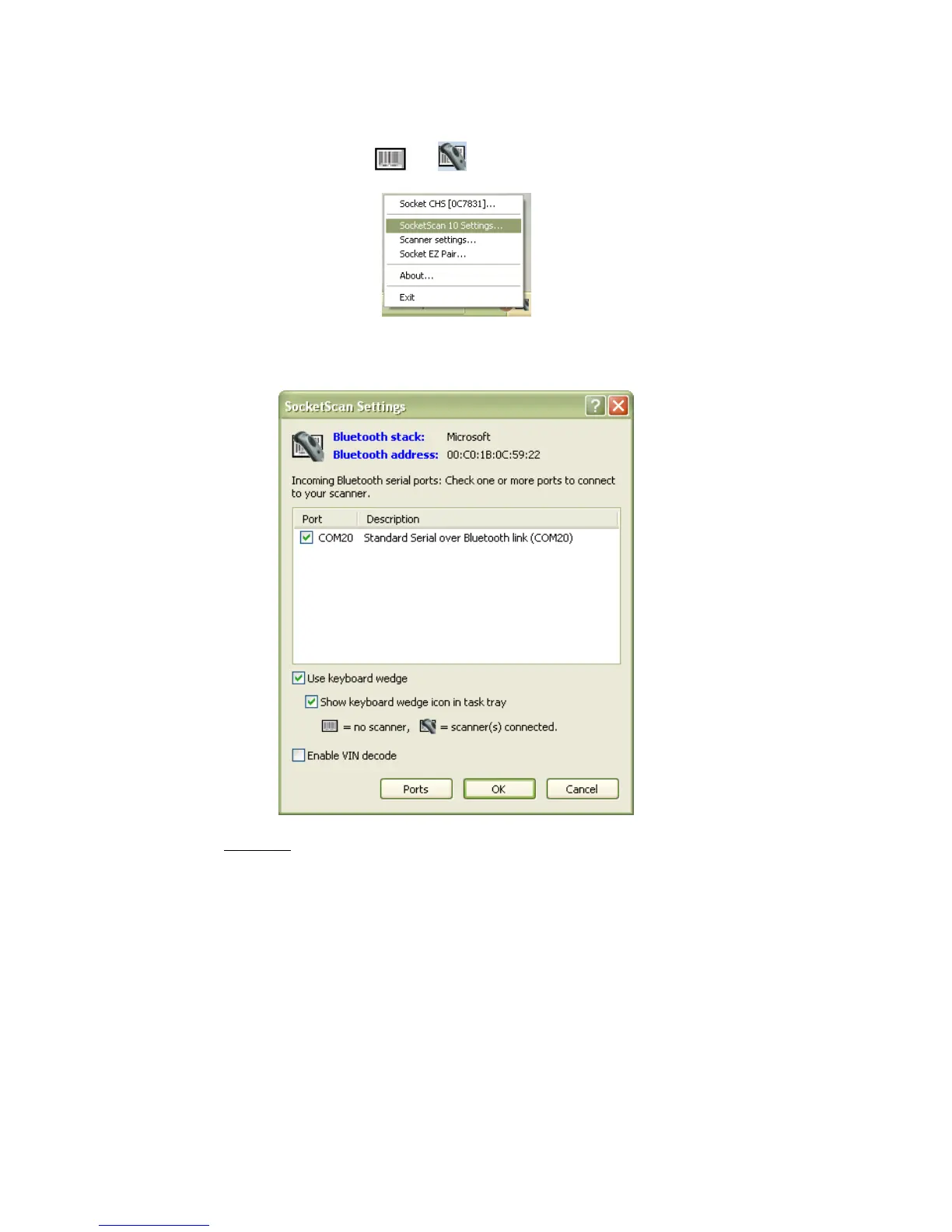
SocketScan 10 Settings
1. Click on the SocketScan 10 icon or in the system tray. In the pop-up menu, click
SocketScan 10 Settings…
2. The SocketScan 10 Settings screen will appear, reporting the manufacturer of the
computer’s Bluetooth stack and the computer’s Bluetooth Device Address.
• Port: An incoming
Bluetooth serial COM port must be selected for the CHS connection.
o If a suitable port is not listed in SocketScan 10 Settings, click Ports to use your
computer’s Bluetooth software to add one.
o Toshiba Bluetooth stack: To identify an incoming COM, click Ports. In your
computer’s Bluetooth software, incoming ports are labeled as LocalCOM-Server.
• Use keyboard wedge: Should be selected in most cases unless you plan to use the SDK
• Show keyboard wedge icon in tray: Select to have a system tray icon appear that
conveniently indicates whether the CHS is connected to the PC.
• Enable VIN decode: Select to have SocketScan 10 only send a 17-character Vehicle
Identification Number (i.e., omit any prefix/suffix included in a VIN barcode).
• Ports: Click to access your computer’s Bluetooth software to add or view properties of
Bluetooth COM ports (including which are incoming / outgoing).
3. After making changes, click OK.


 To Next Page