CHAPTER 4: SETUP FOR WINDOWS MOBILE 49
SocketScan 10 Settings
You can only view Basic Scanner Properties when the CHS is connected to your SoMo.
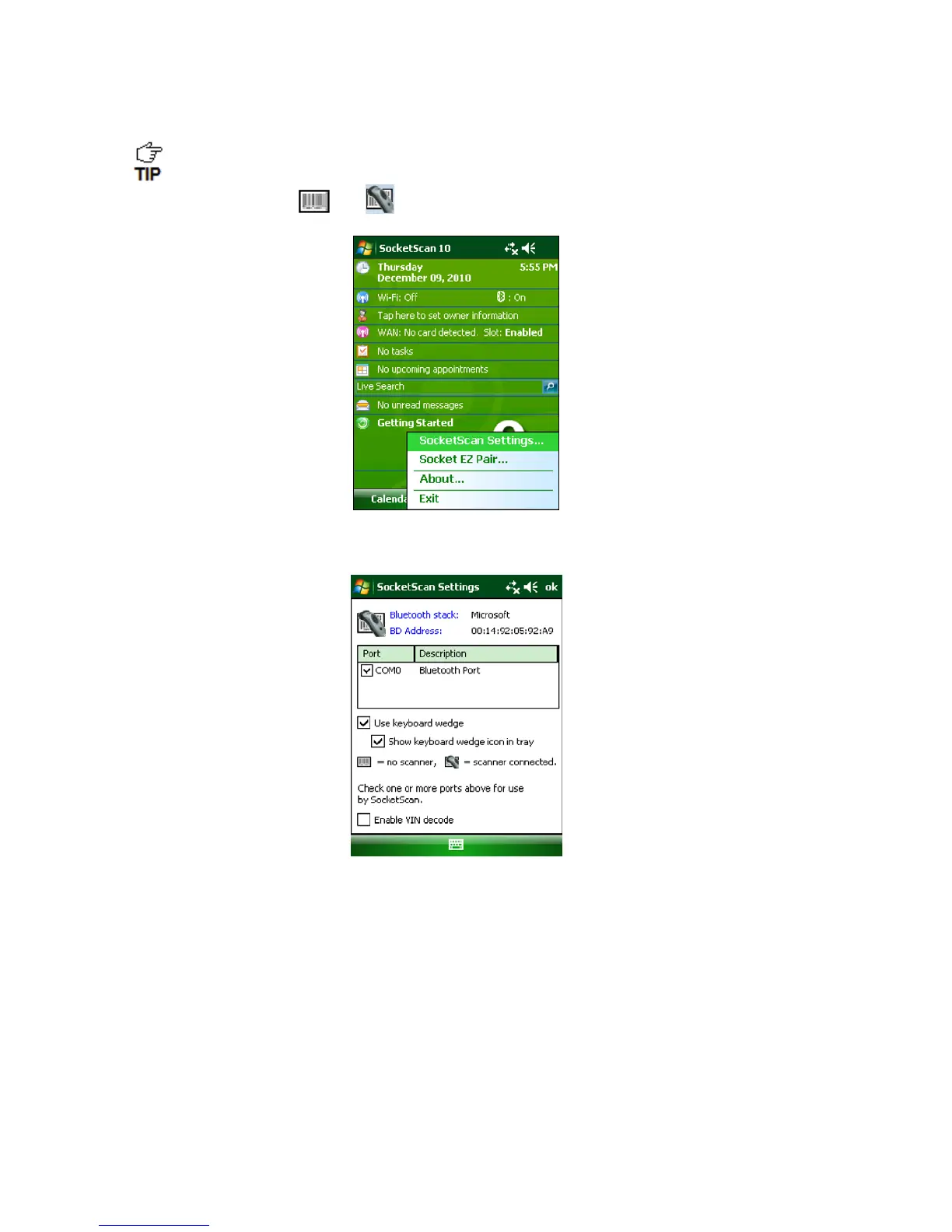
1. Tap on the CHS icon
or in the task tray. In the pop-up menu, tap
SocketScan settings…
2. A screen will appear displaying the SocketScan software settings, as well as the
Bluetooth stack manufacturer and Bluetooth Device Address.
• Port: Select the incoming Bluetooth serial COM port that you would like SocketScan to
use to connect to the CHS (REQUIRED).
• Use keyboard wedge: Should be selected in most cases unless you plan to use the SDK.
• Show keyboard wedge icon in tray: Select to have a task tray icon appear that
conveniently indicates whether the CHS is connected to the PDA.
• Enable VIN decode: Select to have SocketScan 10 only send a 17-character VIN (i.e.,
omit any prefix/suffix included in a VIN barcode).
3. After making any changes, tap ok to exit.


 To Next Page