copyright by www.soflow.com 11/52
2.6. Usage of “Find My” APP for SO ONE / SO ONE+
Users of an Iphone are able to connect the scooter with the “Find my” function to track the
location of the scooter.
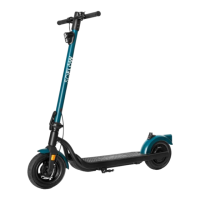
Ø The following steps show the instruction for the model SO ONE.
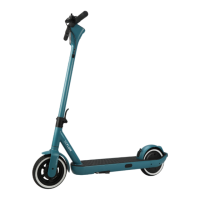
For the SO ONE+ please see the instruction on the next page.
Ø Important, for all steps below the scooter screen must be on.
Setup your scooter / Add scooter
1. Open the “Find My” APP
2. Keep the SO ONE near your Iphone, then tap on + and
“add other item”
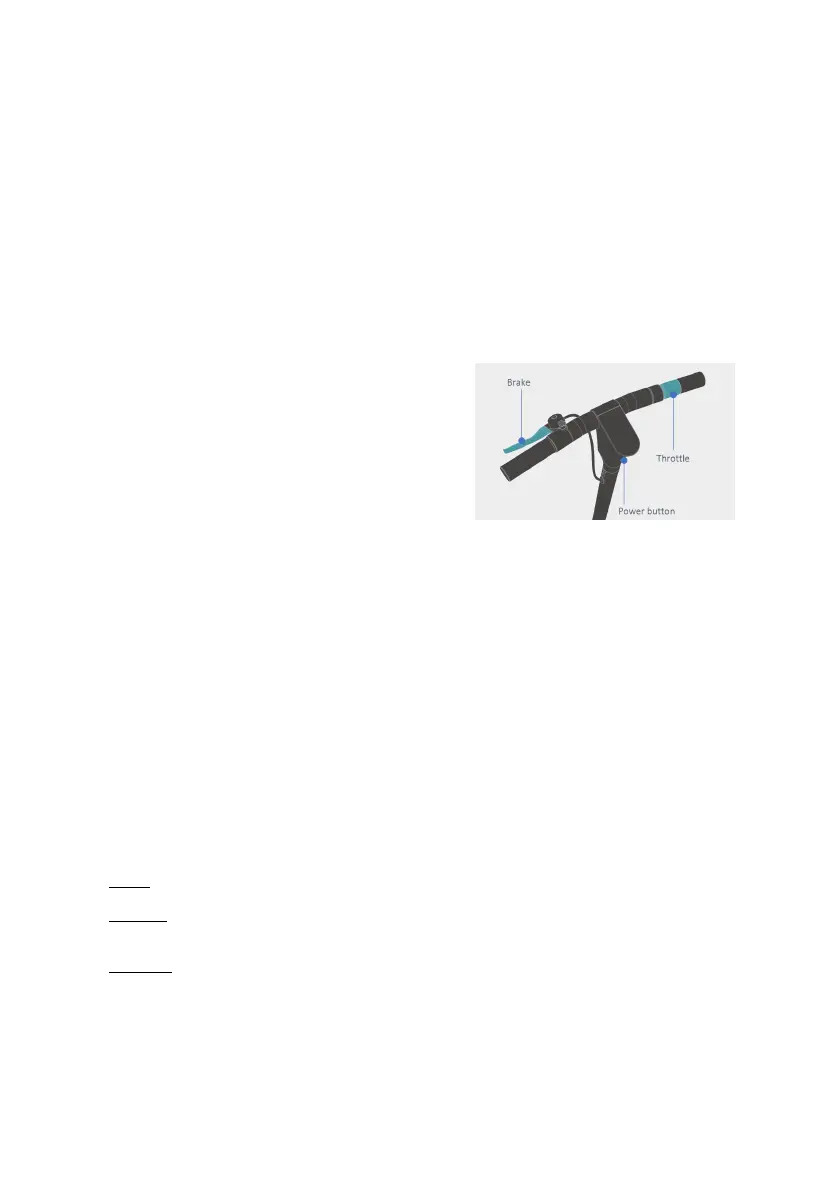
3. Press the power button on the scooter for 1 sec. to
power on the scooter
4. Quickly press the power button 7 times to hear one
buzzer signal.
5. “SO ONE” will pop up on the Iphone screen, then tap
“connect”.
6. Enter a name and choose an Emoji, then tap continue.
7. Tap “Register item to your Apple ID”, then continue again.
8. Tap “Done” to complete the setup
Learn More - Serial number lookup
Quickly press the power button 6 times to hear one buzzer tone.
How to Disable
Quickly press the power button 8 times to hear one buzzer tone.
Factory Reset
Hold the brake lever and quickly press the power button 7 times to hear one buzzer tone. Then to release
them.
How to exit «Disable» state
Quickly press the power button 7 times to hear one buzzer tone.
How to switch between «Nearby», «Separated» and «Disconnect»
Nearby
Connection Status Disconnected.
Separated
Nearby status timeout:
Reboot (The battery of this device cannot be removed. Reboot is not supported).
Disconnect
Turn off the Bluetooth on your iPhone.


 To Next Page