Setting up Wi-Fi for iOS
Step 4.1
After pressing “Set up Wi-Fi”, you will be asked to give permission for the app to access your location services.
Please give the app permission.
Step 4.2
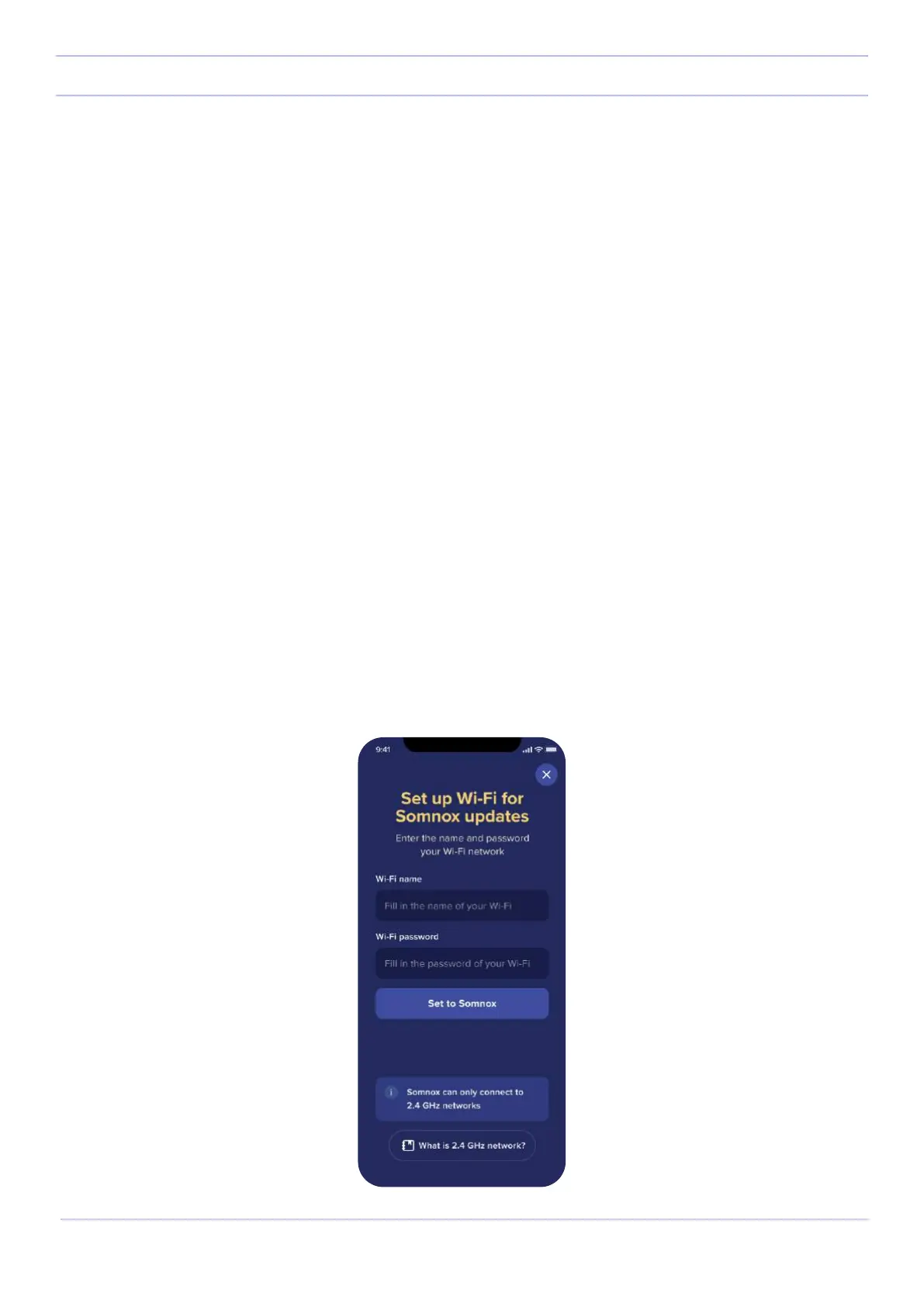
You will then be asked to fill in the name and password of your Wi-Fi. The app automatically fills in the name of the
Wi-Fi network your phone is currently connected to. It should be noted that Somnox 2 is not compatible with 5.0
GHz networks.
An easy way to spot whether you have a 5.0 GHz network, is to look at the name of the Wi-Fi. 5.0 GHz networks
typically have a 5, 5G or 5.0G in the name. If that is the case, please identify the name and password of your 2.4.
GHz network. For more information, please go to page 27, where we will explain this in more detail.
After you have filled in the password and name, press “Set to Somnox”. You have now successfully connected
Somnox 2 with your Wi-Fi!
Continue on page 28 for the next steps
25
Somnox © 2021
Updating your Somnox



 To Next Page