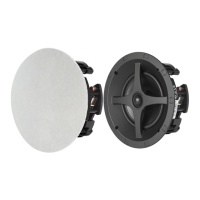
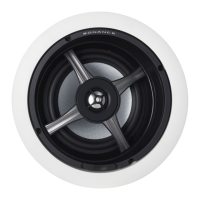
SONIC ADJUSTMENTS DR7001 Speaker
(front view)
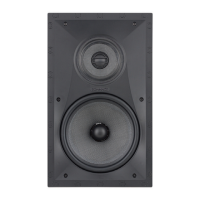
Each DR-Series speaker features apivoting tweeter and two
models, the DR7001 and DR5501, also include room equaliza¬
tion switches for custom tailoring of the frequency response.
Adjusting The Pivoting Tweeter
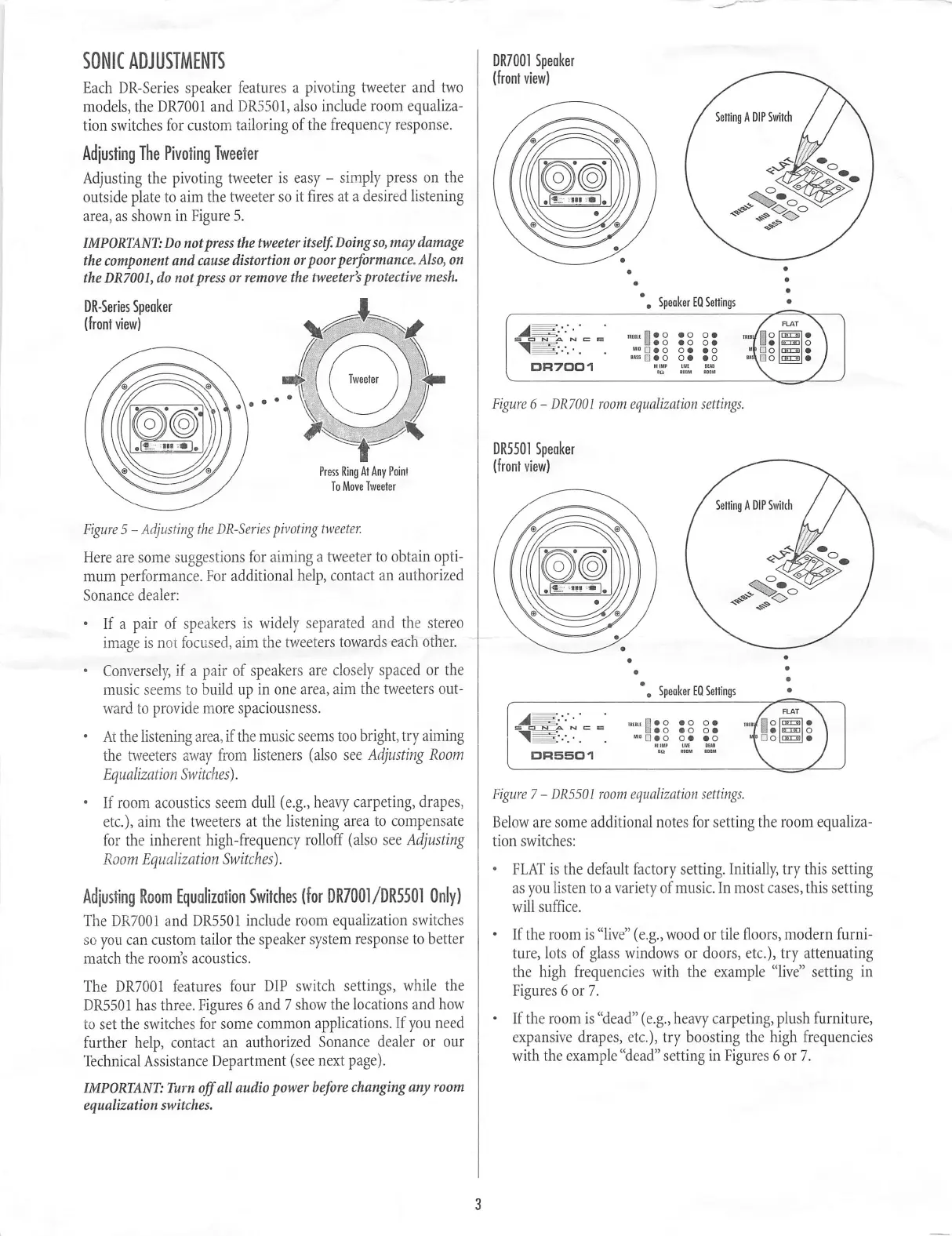
Adjusting the pivoting tweeter is easy -simply press on the
outside plate to aim the tweeter so it fires at adesired listening
area, as shown in Figure 5.
IMPORTANT: Do not press the tweeter itself. Doing so, may damage
the component and cause distortion or poor performance. Also, on
the DR7001, do not press or remove the tweeter’s protective mesh.
DR-Series Speaker
(front view)
Setting ADIP Switch
'///:
*, Speaker EQ Settings
FLAT
●O 9 0 O ●
_«0 *0 o^
o o ● ● o
WS5 0● o o● mo
riKBii
Xi "f Do
Oo
□ n700i
Tweeter
Figure 6-DR7001 room equalization settings.
DR5501 Speaker
(front view)
Press Ring At Any Point
To M o v e Tw e e t e r
Setting ADIP Switch
Figure 5-Adjusting the DR-Series pivoting tweeter.
Here are some suggestions for aiming atweeter to obtain opti¬
mum performance. For additional help, contact an authorized
Sonance dealer:
●If apair of speakers is widely separated and the stereo
image is not focused, aim the tweeters towards each other.
●Conversely, if apair of speakers are closely spaced or the
music seems to build up in one area, aim the tweeters out¬
ward to provide more spaciousness.
●At the listening area, if the music seems too bright, try aiming
the tweeters away from listeners (also see Adjusting Room
Equalization Switches).
●If room acoustics seem dull (e.g., heavy carpeting, drapes,
etc.), aim the tweeters at the listening area to compensate
for the inherent high-frequency rolloff (also see Adjusting
Room Equalization Switches).
Adjusting Room Equalization Switches (for DR7001/DR5501 Only)
The DR7001 and DR5501 include room equalization switches
so you can custom tailor the speaker system response to better
match the room’s acoustics.
The DR7001 features four DIP switch settings, while the
DR5501 has three. Figures 6and 7show the locations and how
to set the switches for some common applications. If you need
further help, contact an authorized Sonance dealer or our
Te c h n i c a l A s s i s t a n c e D e p a r t m e n t ( s ee n e xt p a g e ) .
IMPORTANT: Turn ojf all audio power before changing any room
equalization switches.
*, Speaker EQ Settings
FLAT
,●0 *0 o«
^●O 90 09
●OO●*0
miMP UVt DEID
IRIBll
□o|nyr?i| ●
□ R5S01
Figure 7-DR5501 room equalization settings.
Below are some additional notes for setting the room equaliza¬
tion switches:
●FLAT is the default factory setting. Initially, try this setting
as you listen to avariety of music. In most cases, this setting
will suffice.
●If the room is “live” (e.g., wood or tile floors, modern furni¬
ture, lots of glass windows or doors, etc.), try attenuating
the high frequencies with the example “live” setting in
Figures 6or 7.
●If the room is “dead” (e.g., heavy carpeting, plush furniture,
expansive drapes, etc.), try boosting the high frequencies
with the example “dead” setting in Figures 6or 7.
3


 To Next Page
 Loading...