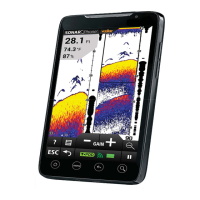
How to Connect to a SP100 or SP200/SP300
iOS Devices
1. Start the SonarPhone by powering up the SP200/SP300 or placing the SP100 into the
water. (Use a wet paper towel to power up the SP100 if at home)
2. Go to your iPhone or iPad's main "Settings" page .
3. Go to "WiFi". Your iPhone will search for new signals and should find the SP100
or SP200/SP300 signal.
4. Select the SP100 or SP200/SP300 that appears
5. If a master password is set for the SP100 or SP200/SP300, you will need to enter
this password to access the signal. Tap "Join" to connect.
6. Press your iPhone's home button, then located and tap the SonarPhone icon to start
the app.
7. (Optional) Tap “System Setup” to change the default SonarPhone username and
password. Note that if you change the default, you will need to exit SonarPhone,
return to step 2 and then re-select the SP100 or SP200/SP300.
8. (First Run Only) Tap "Master" and enter the default password (12345678) or the
new password you set up in the last step.
Setup is Complete. Tap "Connect Now" to begin using SonarPhone.
Android Devices
1. Start the SP-100 or SP-200/SP-300 by powering up the SP200/SP300 or placing the
SP100 into the water. (Use a wet paper towel to power up the SP100 if at home)
2. Go to “WiFi” setting and be sure it is “ON”. Your SonarPhone system is transmitting
and WiFi signal and you should see it on your WiFi networks listing.
3. Select the WiFi SonarPhone source you wish to use, at this point if several other
SonarPhone's are being used nearby, you will see them as well, but as you will
soon find, they are protected by a security code the primary operator of the system.
Ask them for the Security code so they can share their signal with you. If you
are using the system by yourself the WPA security code from the factory is 12345678.
4. DO NOT leave the WiFi settings screen until you see you are connected to the WiFi
channel you have selected.
5. Now that your WiFi is connected you can open the SonarPhone app.
6. It is CRITICAL at this point you DO NOT hit the option to CONNECT NOW when the
SonarPhone home page comes up. You must FIRST touch the MASTER button to establish
your device as the master. If you do not have a Master controlling the SonarPhone,
it will not allow you to connect.
7. When you Select Master, it will ask for password and it again is 12345678 then
hit enter.



 To Next Page