The SonicWall TZ400 Wireless (TZ400W) is a network security appliance designed to provide comprehensive protection and network management capabilities for small to medium-sized businesses. It comes with a range of features and components to ensure a secure and efficient network environment.
Function Description:
The SonicWall TZ400W serves as a network gateway, offering firewall protection, wireless connectivity, and various network management functionalities. It is designed to secure the network from external threats, control network access, and provide reliable internet connectivity. The device supports 802.11 b/g/n/ac wireless standards, enabling secure wireless access for connected devices. It can be configured as a network gateway, connecting to an internet access device (like a cable or DSL modem) and providing network services to local devices such as PCs, game consoles, and Smart TVs. The appliance runs on SonicOS, which provides a command-line interface (CLI) for advanced configuration and a web-based interface for easy management through a browser.
Important Technical Specifications:
- Wireless Capabilities: Supports 802.11 b/g/n/ac wireless standards. The TZ400W model includes three antennas for wireless connectivity.
- Ethernet Ports: Features multiple Ethernet ports (X0-X6).
- X0 Port (LAN): Labeled as LAN, typically used for connecting to local network devices or a network switch.
- X1 Port (WAN): Labeled as WAN, used for connecting to the internet access device (modem).
- X2-X4 Ports: Configurable ports that can be assigned to other networks.
- X0-X6 Port Status LEDs:
- Top LED: Indicates 10/100 Mbps Ethernet port status.
- Bottom LED: Indicates 1 Gbps Ethernet port status.
- USB/SSD Port: Supports external USB and SSD hard drive connections.
- Console Port: Allows access to the SonicOS Command Line Interface (CLI) using a compatible CLI cable for advanced configuration.
- Power Supply: Requires 110-240 volts AC power input.
- LED Indicators:
- Power LED: Indicates the power supply status.
- Test LED:
- Fast blinking: Initializing.
- Slow blinking: SafeMode.
- Service LED: Reserved for future use.
- Wireless (W0) LED (TZ400W only): Indicates 802.11 b/g/n/ac security status.
- Wireless LAN LED (TZ400W only): Indicates 802.11 b/g/n/ac activity.
- Reset Button: Used to set the appliance into Safe Mode by pressing and holding for several seconds.
- Antenna Screws: Three screws for attaching the antennas, with a dedicated center antenna screw compatible only with the enclosed center antenna.
Usage Features:
- Out-of-Box Experience: The package includes the SonicWall TZ400 Wireless appliance, three antennas, one Ethernet cable, one power adapter, and one power cord.
- Quick Start Guide: Provides instructions for initial setup and cabling.
- Cabling Topologies:
- Option 1 (PC Direct Connection): Connects the WAN port (X1) to a DSL or cable modem for internet access and the LAN port (X0) directly to a PC.
- Option 2 (Network Switch Connection): Connects the WAN port (X1) to a DSL or cable modem and the LAN port (X0) to a network switch. The network switch then connects to multiple devices like PCs, printers, and other network devices.
- Power On Sequence: After plugging in the power cable, the orange LED blinks during the boot sequence, which takes approximately 2 minutes.
- Admin User Interface Access:
- Connect a PC to the LAN (X0) interface or a network switch connected to the LAN interface. The PC will automatically receive an IP address from the SonicWall appliance.
- Access the web-based interface by opening a browser and navigating to
https://192.168.168.168.
- First-Time Setup Wizard: Upon first access as the admin user, the system offers a choice to use a Setup Wizard or log directly into the management interface.
- The Setup Wizard guides the user through initial configuration steps, including connecting to the internet, registering the device, and setting up LAN IP range, Wi-Fi, VPN, and 3G/4G radio.
- The default admin credentials are "Username: admin" and "Password: password". Users are prompted to update the password for security.
- IP Configuration: The WAN interface can automatically detect a DHCP server to retrieve IP configurations. Alternatively, users can manually configure static IP parameters.
- Internet Access Confirmation: The Setup Wizard confirms successful internet access with displayed WAN IP address, subnet mask, gateway address, and DNS server addresses.
- Advanced Configuration: Additional and advanced configuration options are available through the SonicWall Web Interface after the initial setup.
Maintenance Features:
- Password Management: The Setup Wizard prompts for updating the default admin password, which is a crucial security maintenance practice.
- Safe Mode: The Reset Button allows the appliance to be set into Safe Mode, which can be useful for troubleshooting or recovery operations.
- CLI Access: The Console Port provides Command Line Interface access for advanced diagnostics and maintenance tasks.
- Firmware Updates: While not explicitly detailed in the provided text, SonicWall devices typically support firmware updates to enhance security, add new features, and fix bugs, ensuring the appliance remains up-to-date with the latest protections.
- Power Cord Verification: The included power cord is approved for use only in specific countries and regions. Users are advised to verify that the power cord is rated and approved for use in their location before use, which is an important safety and maintenance consideration.

 Need help?
 General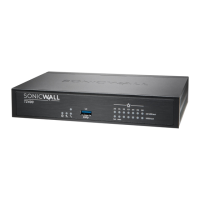

 To Next Page