42
Managing Connectivity
My devices screen displays the paired
devices. To send a data to an unpaired
device, select Search new device. Select
the unpaired device of your choice. Enter the
passcode when you are asked to enter.
5. When the other device accepts your le, the
message Done is displayed on the screen.
6. When the other device rejects the le, the message
Unfinished is displayed on the screen.
Receiving Data via Bluetooth
To receive data using Bluetooth, your device should be
Bluetooth activated and must be visible to other devices.
1. When you receive a data, you are asked if you want
to accept it.
2. Select Accept to receive data OR select Reject to
refuse the data.
3. If you accept, the data will be stored in My files >
Images or Audio or Others.
Data Account
You can set the Network account and view the data
connection information.
To set the data account, select Menu > Settings >
Connectivity > Data account and create a new data
account.
You can create, edit and delete the accounts. You can
edit the following information in the accounts: Account
name, APN, User name, Password and Authority type,
Primary DNS and Secondary DNS. Make the changes
and select OK. Then Add new packet data account will
pop up, select Yes.
Network Profile Settings
To use the applications requiring internet service, the
network prole must be set.
Select Menu > Settings > Connectivity > Java Settings.
Select the required data account and save.
Data Service Settings
Data service option enables/disables the data service
activity on the phone.
Select Menu > Settings > Connectivity > Data Service.
Data Roaming Settings
Data roaming option enables/disables the usage of data
service during roaming.
Select Menu > Settings > Connectivity > Data
Roaming.
USB Function
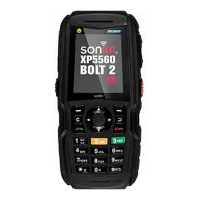
Phone can be connected to PC as a Mass storage
using USB cable. When the phone is connected to the
computer via a USB cable, the following two options are
displayed:
• Mass storage: Select this to use the USB cable as
mass storage device to transfer and synchronize
data between the Sonim XP5560 phone and your
computer.
• COM port: Select this to use the phone with
PC-Sync software.


 To Next Page