7
Chapter 4 – Verify Connections Using System Information
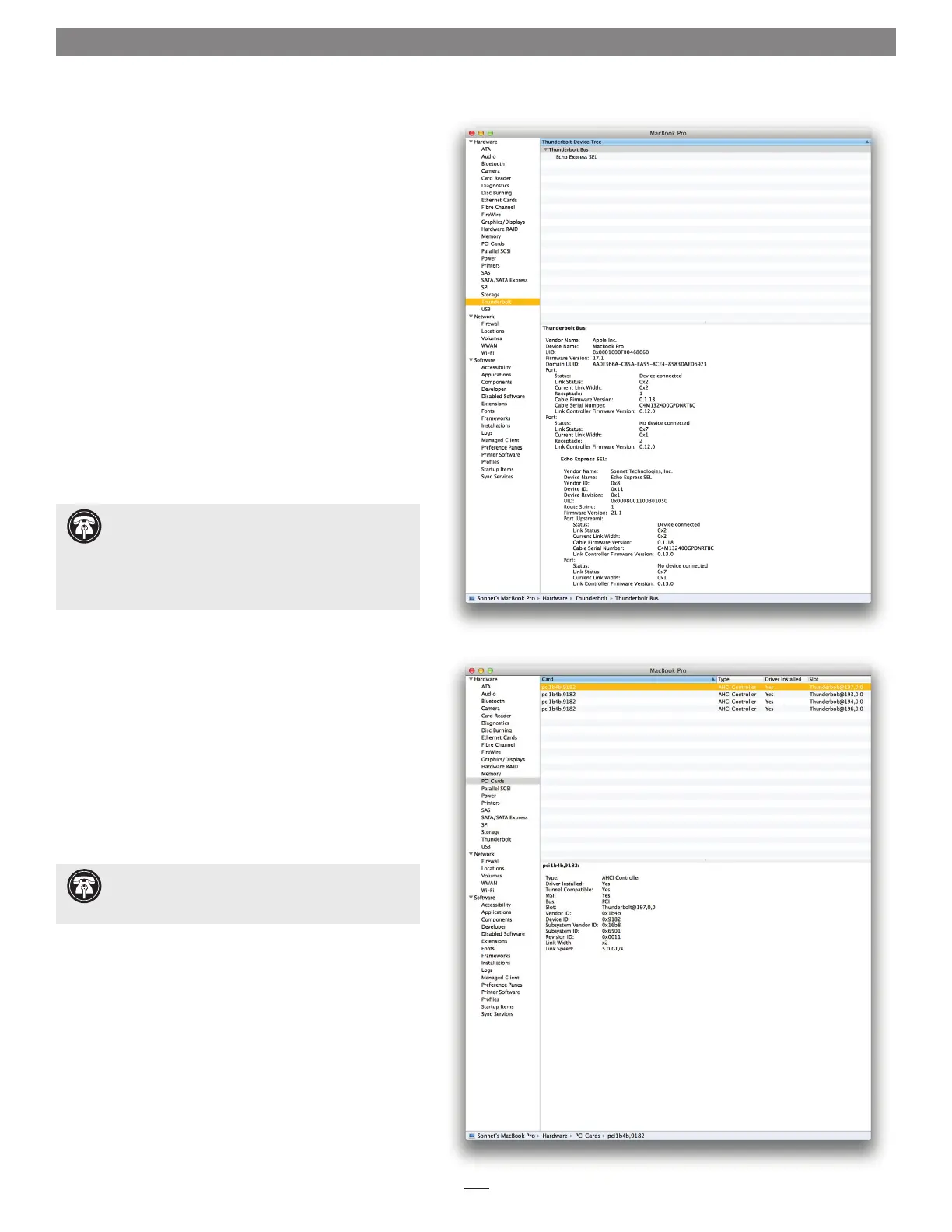
Figure 9
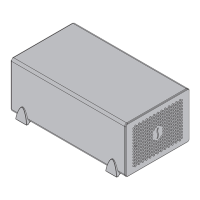
Figure 10
A – Verify the Echo Express SEL is Recognized
1. With the Echo chassis powered and connected to the
computer, turn on the computer.
2. From the Apple menu, select About This Mac; the
System Information application will launch.
3. When the About This Mac window opens, click More
Info; a summary of specifications will appear.
4. Click System Report; a full report window will appear.
5. In the System Information window, click Thunderbolt
under the Hardware header in the left column
(Figure 9).
6. In the top right column under the Thunderbolt Device
Tree header, you will see the computer, followed
by Thunderbolt Bus, and then “Echo Express SEL”
(Figure 9).
B – Verify the Installed Card is Recognized
1. Click PCI Cards under the Hardware header in the left
column (Figure 10).
2. At the top of the right column, the installed card is
listed. By selecting the card, detailed information is
listed. You should see “Yes” next to Driver Installed and
Tunnel Compatible, otherwise the card or driver may
not be Thunderbolt-compatible (Figure 10).
Support Note: If you do not see “Echo Express SEL”
listed, disconnect and reconnect the Thunderbolt
cable between the computer and Echo Express SEL. Note
that it is not necessary to shut down the computer before
disconnecting and reconnecting the cable, so long as the
installed card is Thunderbolt-compatible.
Support Note: While the Echo Express SEL
expansion chassis requires no drivers, the installed card
requires Thunderbolt-compatible drivers to enable its use.



 To Next Page