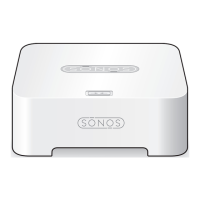
Sonos BOOST
5
I have a new router
If you purchase a new router or change your ISP (Internet service provider), you will need to restart all your
Sonos products after the router is installed.
1. Disconnect the power cord from all of your Sonos products for at least 5 seconds.
2. Reconnect them one at a time, starting with the Sonos product that is connected to your router (if one is
usually connected).
Wait for your Sonos products to restart. The status indicator light will change to solid white on each
product when the restart is complete.
If your Sonos setup is completely wireless (you don’t keep a Sonos product connected to your router), you
will also need to change your wireless network password. Follow the steps below:
1. Temporarily connect one of your Sonos players to the new router with an Ethernet cable.
2. Go to More -> Settings -> Advanced Settings -> Wireless Setup.
Sonos will detect your network.
3. Enter the password for your wireless network.
4. Once the password is accepted, unplug the player from your router and move it back to its original
location.
I want to change my wireless network password
If your Sonos system is set up wirelessly and you change your wireless network password, you will also need
to change it on your Sonos system.
1. Temporarily connect one of your Sonos players to your router with an Ethernet cable.
2. Choose one of the following options:
• Using the Sonos app on a mobile device, go to More -> Settings -> Advanced Settings -> Wireless
Setup.
• Using the Sonos app on a PC, go to Settings -> Advanced from the Manage menu. On the General
tab, select Wireless Setup.
• Using the Sonos app on a Mac, go to Preferences -> Advanced from the Sonos menu. On the General
tab, select Wireless Setup.
3. Enter the new wireless network password when prompted.
4. Once the password is accepted, you can unplug the player from your router and move it back to its
original location.
Note: If the ISP technician connects a Sonos product to the new router, you only
need to restart your wireless Sonos products.



 To Next Page