Sony Ericsson Timescape™
Sony Ericsson Timescape™ changes the way you interact with others by collecting all your
communications into one view. Every event (such as text and multimedia messages, missed
calls and web service updates) appears as a tile in a chronological flow on the screen. This
way you can see a snack-size preview of events before choosing to open and view the full
content. Also, you can tap the infinite button to view a range of content related to the item
you are currently viewing in Timescape™.
The services and features described in this chapter may not be supported in all countries or
regions, or by all networks and/or service providers in all areas.
To start Timescape™
1
From the Home screen, tap .
2
Find and tap Timescape™.
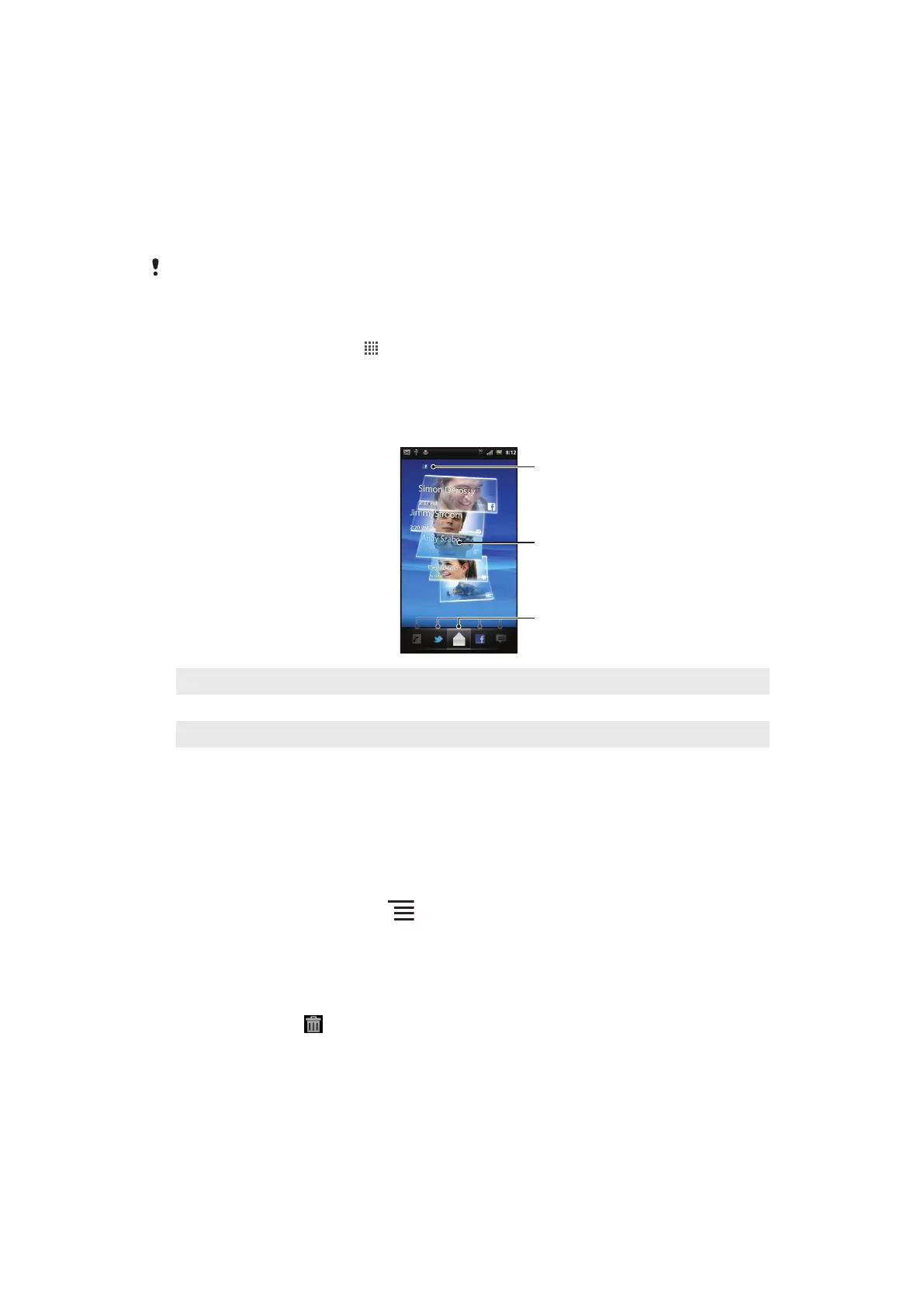
Timescape™ main view
1
Your status on the web services you have selected
2 Timescape™ tiles, in chronological order, with the most recent tile at the top
3 Timescape™ event filter
Timescape™ widget
The Timescape™ widget shows the latest Timescape™ events. You can tap the widget to
open Timescape™. For quick access, the Timescape™ widget can be added on the Home
screen. See Home screen on page 14
To add the Timescape™ widget to your Home screen
1
From your Home screen, press .
2
Tap Add > Widgets.
3
Tap Timescape™ widget. Select an item you want to add.
To remove the Timescape widget from your Home screen
1
From your Home screen, touch and hold the Timescape widget.
2
Drag the widget to
at the bottom of the screen.
Using Timescape™
To scroll through tiles in Timescape™
•
Flick up or down to scroll through the tiles.
46
This is an Internet version of this publication. © Print only for private use.





 To Next Page