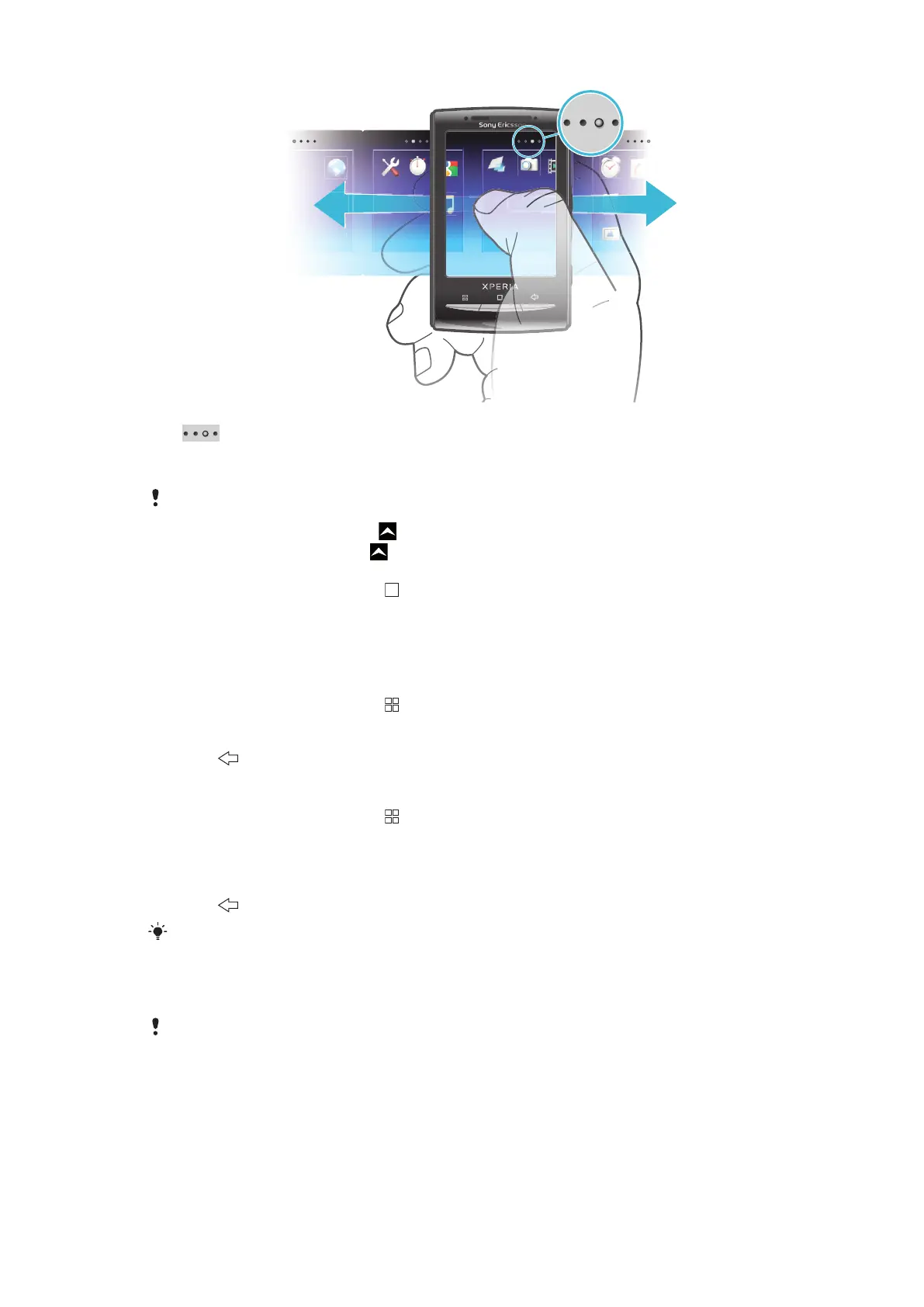
Shows which applications pane you are in
To open the applications panes
You can open the applications panes by different ways.
•
From the Home screen, drag upwards.
•
From the Home screen, tap .
•
Flick the Home screen upwards.
•
From the Home screen, press .
To browse the applications panes
•
From the applications panes, flick right or left.
To create a new applications pane
1
From the Home screen, press .
2
Tap Arrange icons.
3
Touch and hold an item in the last pane until it vibrates and then drag it to the right.
4
Press to exit the edit mode.
To move an application
1
From the Home screen, press .
2
Tap Arrange icons.
3
Touch and hold an item until it vibrates and drag it to one of the corners or to another
application pane. If you move an item in the last applications pane, the pane switches
to the next pane.
4
Press to exit the edit mode.
The items in the applications panes are not shortcuts to the applications but the actual
applications. When you move an application from the applications panes to corners or vice versa,
the actual application gets moved and not shortcut. There are no shortcuts to the applications.
To rearrange the corners
The corners are not shortcuts to applications, but the actual applications.
17
This is an Internet version of this publication. © Print only for private use.








 To Next Page