Playback
37
US
(For other models)
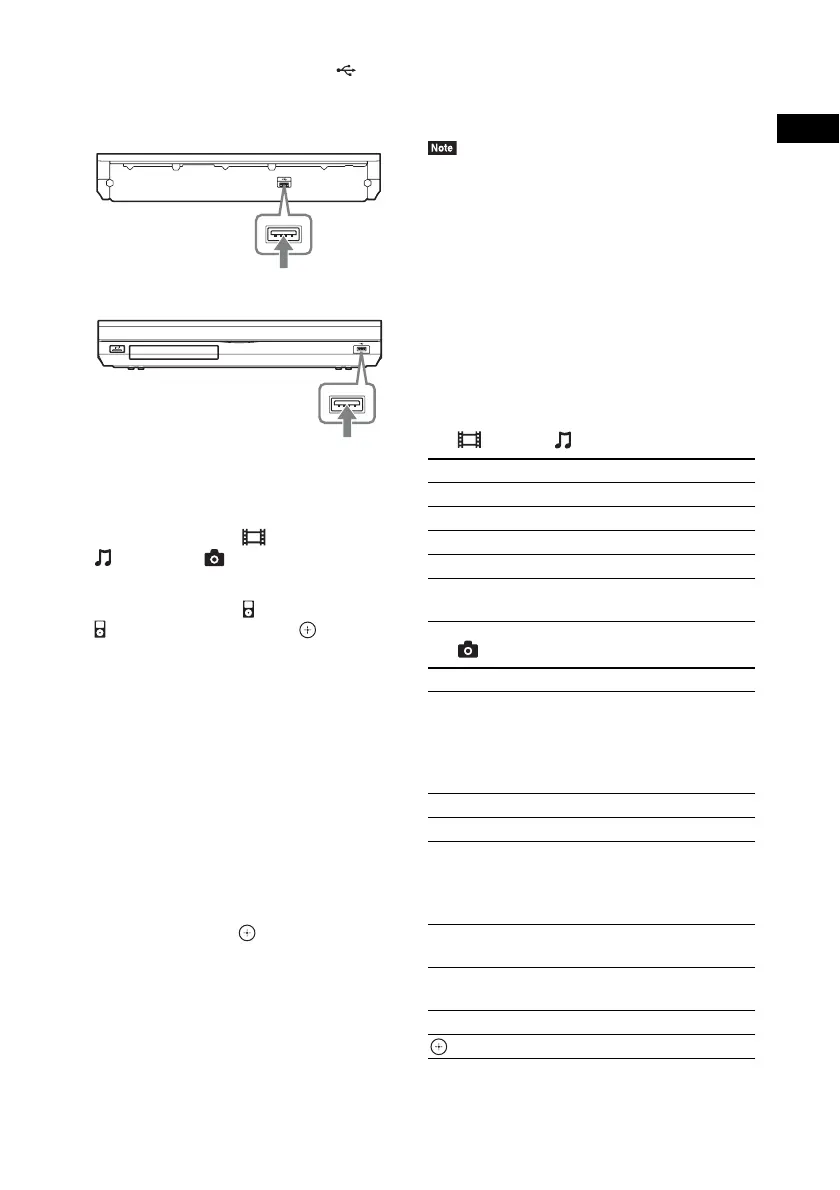
Connect the iPod/iPhone to the
(USB) port on the unit with the iPod/
iPhone’s USB cable.
2 Press HOME.
The home menu appears on the TV screen.
3 Press C/c to select [Video]*,
[Music], or [Photo]*.
* U.S. and Canada models only.
4 Press X/x to select [iPod (front)] or
[iPod (rear)], then press .
x If you selected [Video]* or [Music] in
Step 3
The video/music files are listed on the TV
screen. Go to the next Step.
x If you selected [Photo] in Step 3*
[Please change the TV input to the video
input] appears on the TV screen. Switch the
input selector on your TV so that the signal
from the iPod/iPhone appears on your TV
screen. Then, start the slideshow by
operating the iPod/iPhone directly.
* U.S. and Canada models only.
5 Press C/X/x/c and to select the file
that you want to play.
The sound from the iPod/iPhone is played
on the system.
When you play a video file, switch the input
selector on your TV so that the signal from
the iPod/iPhone appears on your TV screen.
(U.S. and Canada models only)
You can operate the iPod/iPhone using the
buttons on the remote.
For operation details, refer to the operating
instructions of the iPod/iPhone.
• To change a system setting, such as the surround
setting, while viewing images from your iPod/iPhone
on your TV, select the input on your TV for this
system before operating the system. (U.S. and
Canada models only.)
To operate the iPod/iPhone using
the remote
You can operate the iPod/iPhone using the
buttons on the remote. The following table
shows an example of buttons that can be used.
(Depending on the iPod/iPhone model, the
operation may be different.)
For [Video]*/[Music]
For [Photo]
*
* U.S. and Canada models only.
Rear panel
USB cable that is connected to the iPod/iPhone
Front panel
USB cable that is connected to the iPod/iPhone
Press Operation
N Starts play.
X Pauses play.
x Stops play.
m or M Fast reverses or forwards.
. or > Goes to the previous/next file or
chapter (if any).
Press Operation
N, X Starts/pauses play.
When you press and hold either of
these buttons for several seconds,
the connected iPod/iPhone enters
sleep mode.
x Pauses play.
m or M Fast reverses or forwards.
. or > Goes to the previous/next file.
When you press and hold either of
these buttons, the connected iPod/
iPhone fast reverses or fast forwards.
DISPLAY Turns the backlight on (or extends it
for 30 seconds).
OPTIONS, C Returns to previous display/folder
hierarchy.
X/x Selects the previous/next item.
, c Enters the selected item.


 To Next Page