Recording a picture
When recording in bright conditions, set the LCD BACKLIGHT switch to OFF.
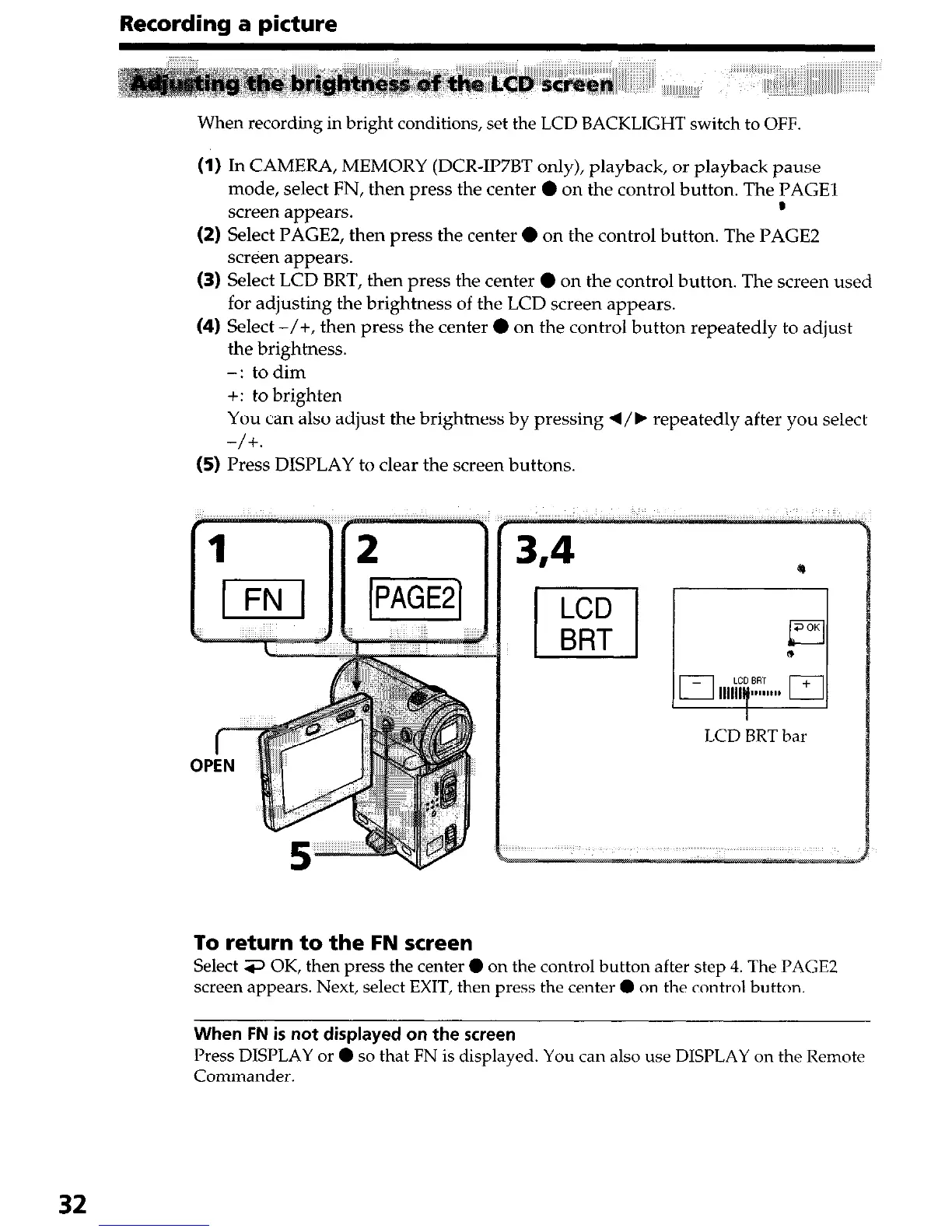
(I) In CAMERA, MEMORY (DCR-IP7BT only), playback, or playback pause
mode, select FN, then press the center 0 on the control button. The PAGE1
screen appears.
D
(2) Select PAGE2, then press the center 0 on the control button. The PAGE2
screen appears.
(3) Select LCD BRT, then press the center 0 on the control button. The screen used
for adjusting the brightness of the LCD screen appears.
(4) Select -/+, then press the center 0 on the control button repeatedly to adjust
the brightness.
-: todim
+: to brighten
You can also adjust the brightness by pressing q/b repeatedly after you select
-/+.
(5) Press DISPLAY to clear the screen buttons.
r-
OPEN
3,4
*
LCD BRT bar
To return to the
FN
screen
Select 3 OK, then press the center 0 on the control button after step 4. The PAGE2
screen appears. Next, select EXIT, then press the center 0 on the control button.
When FN is not displayed on the screen
Press DISPLAY or 0 so that FN is displayed. You can also use DISPLAY on the Remote
Commander.
32




 To Next Page