EasyManua.ls Logo

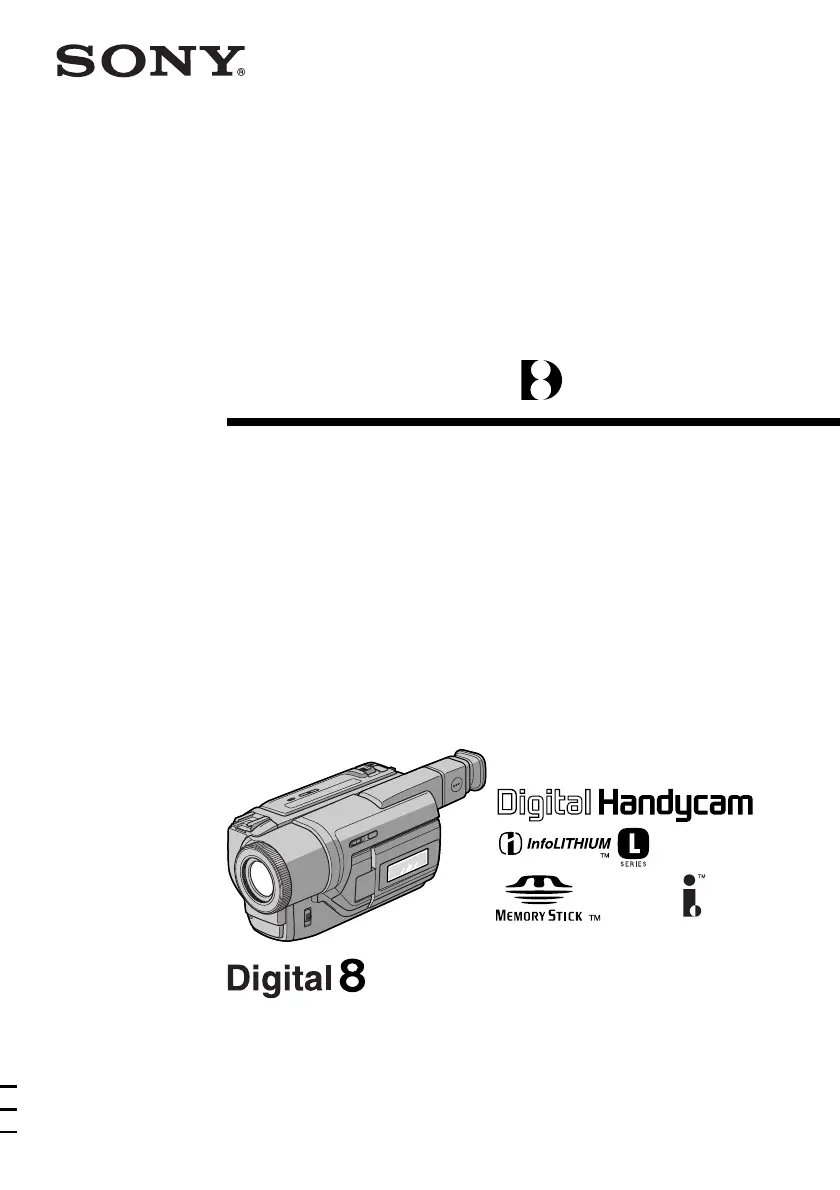
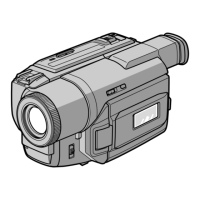
Sony Digital 8 DCR-TRV120 - User Manual

Sony Digital 8 DCR-TRV120
132 pages
Print Icon
To Next Page IconTo Next Page
Loading...
©2000 Sony Corporation
Operating Instructions
Before operating the unit, please read this manual thoroughly,
and retain it for future reference.
3-058-871-32 (2)
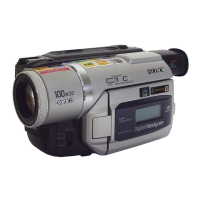
DCR-TRV120/TRV320
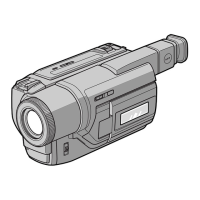
DCR-TRV320
Digital
Video Camera
Recorder

Table of Contents

Questions and Answers

  • J
    Julia HansenAug 14, 2025
    Why autofocus is not working on my Sony Camcorder?
    • W
      William BarberAug 14, 2025
      If the autofocus on your Sony Camcorder isn't working, check if FOCUS is set to MANUAL; if so, set it to AUTO. Alternatively, the shooting conditions might not be suitable for autofocus. In this case, manually set the focus.
  • D
    Deanna GatesAug 18, 2025
    How to fix a blurry viewfinder on Sony Digital 8 DCR-TRV120 Camcorder?
    • M
      Mrs. Rebecca FoxAug 18, 2025
      If the image on the viewfinder screen of your Sony Camcorder is not clear, the viewfinder lens may need adjustment. Adjust the viewfinder lens.
  • R
    Robert TateAug 21, 2025
    What to do if START/STOP button on my Sony Digital 8 DCR-TRV120 doesn't work?
    • S
      snowlauraAug 21, 2025
      If the START/STOP button on your Sony Camcorder isn't working, there could be several reasons. First, ensure the power is set to CAMERA. If the tape has run out, rewind it or insert a new one. Check the write-protect tab; if it exposes a red mark, use a new tape or slide the tab. If moisture condensation has occurred, remove the cassette and let the camcorder acclimatize for at least an hour. Lastly, if the camcorder has been in standby mode in CAMERA mode for over 3 minutes, set the POWER switch to OFF (CHARGE) and then back to CAMERA.
  • A
    Andrew CampbellAug 25, 2025
    How to fix too bright picture on Sony Camcorder?
    • C
      carolynwilsonAug 25, 2025
      If the picture appears too bright on your Sony Camcorder, and the subject is not visible on the LCD screen or in the viewfinder, NIGHTSHOT might be enabled. Set NIGHTSHOT to OFF. If NIGHTSHOT is on in a bright place, set it to OFF or only use the NightShot function in a dark place.
  • A
    Ashley McleanAug 28, 2025
    Why SteadyShot is not working on my Sony Digital 8 DCR-TRV120 Camcorder?
    • D
      derek06Aug 28, 2025
      If the SteadyShot function isn't working on your Sony Camcorder, check if STEADYSHOT is set to OFF in the menu settings. If it is, set it to ON.
  • G
    gsmithAug 31, 2025
    What to do if my Sony Digital 8 DCR-TRV120 displays an unknown picture?
    • A
      Angela Simpson PhDAug 31, 2025
      If your Sony Camcorder displays an unknown picture on the LCD screen or in the viewfinder, it might be due to the demonstration mode. If 10 minutes elapse after setting the POWER switch to CAMERA, or if DEMO MODE is set to ON without a cassette inserted, the camcorder automatically starts the demonstration. Insert a cassette to stop the demonstration, or cancel DEMO MODE.
  • G
    greenamandaSep 3, 2025
    Why the fader function is not working on my Sony Camcorder?
    • C
      Christopher ThomasSep 4, 2025
      If the fader function is not working on your Sony Camcorder, the digital effect function may be active. Cancel the digital effect function.
  • D
    Debbie BennettSep 6, 2025
    Why can't I record in LP mode on my Sony Digital 8 DCR-TRV120 Camcorder?
    • L
      Lauren HarrisSep 6, 2025
      If you cannot record in LP mode on your Sony Camcorder, the tape may be a standard 8 tape. Use Hi8/Digital8 tapes instead.
  • D
    david69Sep 10, 2025
    Why does a horizontal black band appear on my Sony Digital 8 DCR-TRV120 when filming a screen?
    • J
      Jay SmithSep 12, 2025
      To resolve the horizontal black band that appears when shooting a TV screen or computer screen with your Sony Camcorder, set STEADYSHOT to OFF in the menu settings.

Summary

Quick Start Guide

Connecting Power and Inserting Cassette

Initial setup for camcorder operation, including power connection and cassette loading.

Basic Recording and Playback

First steps to record video and monitor playback on the LCD screen.

Getting Started

Using the Manual and Accessories

Guidance on reading the manual and checking included accessories.

Power Supply and Cassette Insertion

Detailed setup for power supply and tape loading.

Recording Operations

Basic Recording and Zoom

Fundamental steps to record video and control zoom.

Special Recording Modes

Using Backlight, NightShot, Self-timer, and AE modes.

Advanced Recording Features

Tape Photo, digital effects, titles, and scene insertion.

Playback and Editing

Basic Playback and TV Viewing

Playing tapes and connecting the camcorder to a TV.

Advanced Playback and Search

Effects playback, PB ZOOM, and scene searching.

Dubbing and Recording TV Programs

Copying video and recording TV broadcasts.

Memory Stick Operations

Introduction and Setup

Handling, insertion, and quality settings for Memory Stick.

Photo Recording and Playback

Recording and viewing still images on Memory Stick.

Image Management

Protecting and deleting images on Memory Stick.

System Information and Reference

Menu Settings and Date;Time

Adjusting camcorder settings via the menu system and clock.

Troubleshooting and Warnings

Solutions for problems and understanding indicators.

Quick Reference

Labeled diagrams and function summaries.

Sony Digital 8 DCR-TRV120 Specifications

General IconGeneral
Recording FormatDigital 8
Optical Zoom20x
LCD Screen Size2.5 inches
ViewfinderColor
Image StabilizationElectronic
Shutter Speed1/4 - 1/4000 sec
MicrophoneBuilt-in
Image SensorCCD
Video Resolution720 x 480
Focus AdjustmentAuto, Manual
Exposure ControlAuto, Manual
White BalanceAuto
Audio RecordingStereo
Connector TypeS-Video
Camcorder Media Type8mm tape, Hi8 tape, Digital8 tape
Battery LifeUp to 2 hours (with optional battery)

Related product manuals