AUDIO
IN
~
FM
wire
antenna
AC
power
cord
,------~-----------------~
-'0-
ALARM
A
ALARM
B
TIME
ZONE
ALARMTIMEAB
aB
BB
~i.~EP'
" •" "
=~;7g7"od
~~
:
ApMM
l_
....
'
l_-'
:
l_-' l_-'
WAKE
UP
VOL
BB
B
STEREO
~jfffOX1Wm
,',.
• CMHz
FM
12
AM
•
JkHz
There
is
a
tactile
dot
on
the
VOLUME
+,
~/II
and
PRESETTUNING 3
button.
CR2032
About
the
backup
battery
To
keep good time, as a backup
power
source, this
unit has one
CR2032
battery inside
of
the unit in
addition to the house current.
The
battery keeps the clock and the alarm operating in
the event
of
a
power
interruption.
Knowing
when
to
replace
the
battery
If
a
power
interruption occurs when the battery is
weak, the brightness
of
characters in the display
darkens.
If
the battery runs out during the interruption,
the current time and alarm functions will be
initialized.
Replace the battery with a Sony
CR2032
lithium
battery. Use
of
another battery may present a risk
of
fire
or
explosion.
Replacing
the
backup
battery
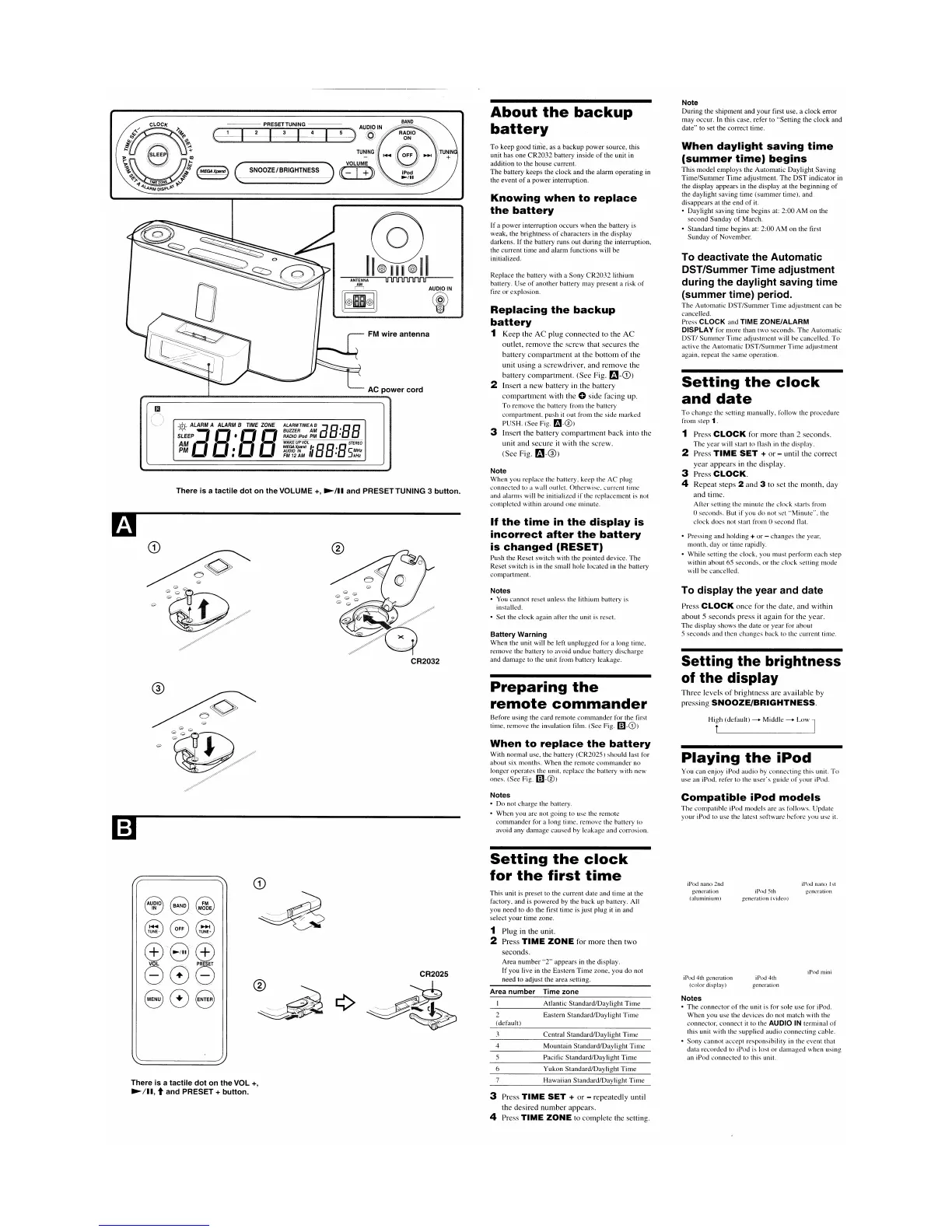
1 Keep the AC plug connected to the AC
outlet, remove the screw that secures the
battery compartment at the bottom
of
the
unit using a screwdriver, and remove the
battery compartment. (See Fig.
f.i.1-G))
2 Insert a new battery in the battery
compartment with the
0 side facing up.
To
remove the battery from the battery
compartment, push
it
out from the side marked
PUSH. (See Fig.
r..t.1-®)
3 Insert the battery compartment back into the
unit and secure it with the screw.
(See Fig.
f.i.1-®)
Note
When
you replace the battery, keep the AC plug
connected to a wall outlet. Otherwise. current time
and alarms will be initialized
if
the replacement
is
not
completed within around one minute.
If
the
time
in
the
display
is
incorrect
after
the
battery
is
changed
(RESET)
Push the Reset switch with the pointed device.
The
Reset switch is in the small hole located in the battery
compartment.
Notes
•
You
cannot reset unless the lithium battery is
installed.
• Set the clock again after the unit is reset.
Battery
Warning
When
the unit will be left unplugged for a long time,
remove the battery to avoid undue battery discharge
and damage to the unit from battery leakage.
Preparing
the
remote
commander
Before using the card remote
commander
for the first
time, remove the insulation film. (See Fig.
ID-CD)
When
to
replace
the
battery
With normal use, the battery (CR2025) should last for
about six months.
When
the remote
commander
no
longer operates the unit, replace the battery with new
ones. (See Fig.
ID-®)
Notes
• Do not charge the battery.
• When you are not going to use the remote
commander
for a long time, remove the battery to
avoid any damage caused by leakage and corrosion.
Note
During the shipment and your first use, a clock error
may occur. In this case, refer to "Setting the
clock
and
date" to set the correct time.
When
daylight
saving
time
(summer
time)
begins
This model employs the Automatic Daylight. Saving
Time/Summer
Time
adjustment.
The
DST
indicator in
the display appears in the display at the beginning
of
the daylight saving time
(summer
time), and
disappears at the
end
of
it.
• Daylight saving time begins at: 2:00
AM
on
the
second Sunday
of
March.
• Standard time begins at: 2:00
AM
on the first
Sunday
of
November.
To deactivate
the
Automatic
DST/Summer
Time
adjustment
during
the
daylight
saving
time
(summer
time)
period.
The Automatic
DST/Summer
Time
adjustment can be
cancelled.
Press
CLOCK
and TIME
ZONE/ALARM
DISPLAY
for more than two seconds.
The
Automatic
DST/
Summer
Time
adjustment will be cancelled.
To
active the Automatic
DST/Summer
Time
adjustment
again, repeat the same operation.
Setting
the
clock
and
date
To
change the setting manually, follow the procedure
from step
1.
1 Press
CLOCK
for more than 2 seconds.
The
year will start to flash
in
the display.
2 Press
TIME
SET
+
or
- until the correct
year appears in the display.
3 Press
CLOCK.
4 Repeat steps 2 and 3 to set the month, day
and time.
After setting the minute the clock starts from
oseconds. But
if
you do not set "Minute", the
clock does not start from 0 second flat.
• Pressing and holding
+
or
- changes the year,
month, day or time rapidly.
• While setting the clock, you must perform each step
within about 65 seconds,
or
the clock setting mode
will be cancelled.
To
display
the
year
and
date
Press
CLOCK
once for the date, and within
about 5 seconds press it again for the year.
The
display shows the date
or
year for about
5 seconds and then changes back to the current time.
Setting
the
brightness
of
the
display
Three levels
of
brightness are available by
pressing
SNOOZE/BRIGHTNESS.
Hit
(default) ---> Middle --->
LOW]
Playing
the
iPod
You can enjoy iPod audio by connecting this unit.
To
use an iPod, refer to the
user's
guide
of
your iPod.
Compatible
iPod
models
The
compatible iPod models are as follows. Update
your iPod to use the latest software hefore you use it.
Setting
the
clock
for
the
first
time
iPod
mini
iPod
nann
1st
generation
iPod
4th
generation
iPod
5th
generation
(video)
iPod
nano
2nd
generation
(aluminium)
iPod
4th
generation
(color
display)
Notes
•
The
connector
of
the unit is for sole use for iPod.
When
you use the devices do not match with the
connector, connect it to the
AUDIO IN terminal
of
this unit with the supplied audio connecting cable.
• Sony cannot accept responsibility
in
the event that
data recorded to iPod
is
lost
or
damaged
when using
an iPod connected to this unit.
Mountain StandardlDaylight
Time
Pacific Standard/Daylight
Time
Central StandardlDaylight
Time
Atlantic Standard/Daylight
Time
Eastern Standard/Daylight
Time
Time
zone
4
2
(default)
Area
number
This unit is preset to the current date and time at the
factory, and is powered by the back up battery. All
you need to do the first time is
just
plug it in and
select your time zone.
1 Plug in the unit.
2 Press
TIME
ZONE
for more then two
seconds.
Area
number
"2"
appears in the display.
If
you live in the Eastern
Time
zone, you do not
need to adjust the area setting.
CR2025
<D
888
6
Yukon Standard/Daylight
Time
There
is
a
tactile
dot
on
the
VOL
+,
~
/11, t
and
PRESET +
button.
Hawaiian Standard/Daylight
Time
3 Press
TIME
SET
+
or
- repeatedly until
the desired number appears.
4 Press
TIME
ZONE
to complete the setting.




 To Next Page