EasyManua.ls Logo

Sony DSR-1500A - User Manual

Sony DSR-1500A
128 pages
Print Icon
To Next Page IconTo Next Page
Loading...
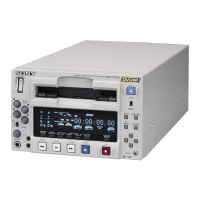
DSR-1500A/1500AP
© 2002 Sony Corporation
3-619-327-11(1)
Digital
Videocassette
Recorder
Operating Instructions
Before operating the unit, please read this manual
thoroughly and retain it for future reference.
Note
The supplied CD-ROM includes operation manuals
for the DSR-1500A/1500AP Digital Video Cassette Recorder
(English, Japanese, French, German, Italian and Spanish versions).
For more details, see “Using the CD-ROM Manual” on page 13.

Table of Contents

Questions and Answers

  • P
    Patricia WoodardAug 15, 2025
    Why don't the tape transport control buttons work on my Sony VCR?
    • L
      Lori KruegerAug 15, 2025
      If the Sony VCR's tape transport control buttons (PLAY, F FWD, REW, etc.) aren't working, it could be due to the REMOTE indicator being lit and the LOCAL ENABLE menu item set to STOP & EJECT or ALL DISABLE. To fix this, set the LOCAL/REMOTE switch to LOCAL to turn off the REMOTE indicator, or change the LOCAL ENABLE menu item to ALL ENABLE. Another potential cause is that no cassette is loaded. In this case, insert a cassette.
  • C
    Christopher CurryAug 18, 2025
    What to do if the NO EDIT indicator lights up on a Sony VCR?
    • J
      John PachecoAug 18, 2025
      If the NO EDIT indicator lights up on your Sony VCR, it could be because the audio recording mode selected on the unit doesn't match the tape. When editing, set the LOCAL/REMOTE switch to LOCAL to turn the REMOTE indicator off, then set the unit to the same audio recording mode as the tape using the REC MODE menu item, and then set the switch to REMOTE to light the REMOTE indicator again. Alternatively, the recording format of the tape might be DV or DVCPRO. In this case, replace the tape with one recorded in the DVCAM format. Finally, the recording format selected on the unit might be DV (SP). If so, select the DVCAM format.
  • J
    Jonathan ContrerasAug 21, 2025
    Why don't the REC/PB LEVEL control knobs work on my Sony VCR?
    • C
      Christy AdamsAug 21, 2025
      If the REC/PB LEVEL control knobs on your Sony VCR aren't working, it might be because the VAR switch on the front panel is set to PRESET. To resolve this, set the VAR switch to REC when recording, or set it to PB when playing back.
  • A
    avilabrianAug 25, 2025
    Why can't I set the initial time data value on my Sony VCR?
    • P
      Peter ClarkAug 26, 2025
      If you cannot freely set the initial time data value on your Sony VCR, it might be because the TC MODE menu item is set to EXT REGEN. Change the setting of the TC MODE menu item to INT PRESET. Another reason could be that CNT is selected as the time data type to be displayed. Press the COUNTER SELECT button to make the TC or U-BIT time data type indicator light up, as the CNT value cannot be set freely. Finally, the REMOTE indicator in the display section might be lit and the LOCAL ENABLE menu item set to STOP & EJECT or ALL DISABLE. Set the LOCAL/REMOTE switch to LOCAL to turn the REMOTE indicator off or change the setting of the LOCAL ENABLE menu item to ALL ENABLE.
  • J
    John RodriguezAug 28, 2025
    What to do if time data is not shown on the Sony VCR?
    • M
      Mr. Alexander Newman Jr.Aug 28, 2025
      If the tape is running but the time data isn't showing on your Sony VCR's time counter display, it could be because the MENU button or TC PRESET button in the menu control section has been pressed. Press the button once again to exit the menu control mode, time code preset mode, or digital hours meter display mode. Another reason could be that the U-BIT time data type indicator is lit. Press the COUNTER SELECT button to make the COUNTER or TC time data type indicator light up.
  • H
    Holly FloydAug 31, 2025
    Why is data not superimposed on the monitor screen of my Sony VCR?
    • J
      Jordan GravesAug 31, 2025
      If data is not superimposed on the monitor screen of your Sony VCR, it could be because the CHARA. DISPLAY menu item is set to OFF. Set the CHARA. DISPLAY menu item to ON. It could also be because the monitor is not connected to the B?Y/CPST (SUPER) connector of this unit. Connect the monitor to the B?Y/CPST (SUPER) connector to display any type of text on the monitor.
  • M
    matthewwilliamsSep 4, 2025
    Why is the image on the monitor screen too bright with my Sony VCR?
    • B
      benjaminmorganSep 4, 2025
      If the image on your Sony VCR's monitor screen is too bright, the 75 ? termination switch for video input on the monitor might be in the OFF position, or a 75 ? terminator is not fitted to its video input connector. Set the 75 ? termination switch to ON or connect a terminator.
  • L
    Laura OsborneSep 7, 2025
    Why is the image on the monitor screen too dark with my Sony VCR?
    • J
      Joseph WilliamsSep 7, 2025
      If the image on your Sony VCR's monitor screen is too dark, and you're using a video signal loop-through connection of video monitors, it could be that the 75 ? termination switches for video input on monitors other than the loop-end monitor are in the ON position. Set the 75 ? termination switches to OFF on all monitors other than the loop-end monitor.
  • R
    rellisSep 12, 2025
    How to exit remote mode on a Sony VCR?
    • M
      Mrs. Jessica GarnerSep 12, 2025
      To exit remote mode on your Sony VCR, set the LOCAL/REMOTE switch to LOCAL.

Summary

Chapter 1 Overview

Features

Details the DVCAM format, picture quality, audio, and compatibility.

Chapter 2 Recording and Playback

Recording

Explains necessary settings and operations for performing recording on the unit.

Playback

Describes the settings and operations necessary to perform playback on the unit.

Chapter 3 Convenient Functions for Editing Operation

Setting the Time Data

Explains functions related to time data, including CNT, time codes, and VITC.

High-Speed and Low-Speed Search-Quickly and Accurately Determining Editing Points

Explains how to use search functions to locate scenes and determine edit points.

Chapter 4 Menu Settings

Changing Menu Settings

Explains how to navigate and change basic and enhanced menu settings.

Chapter 5 Connections and Settings

Connections for a Digital Non-Linear Editing System

Shows connection diagrams for configuring a digital non-linear editing system.

Connections for a Cut Editing System

Illustrates a system configuration for cut editing using two units.

Chapter 6 Maintenance and Troubleshooting

Troubleshooting

Provides solutions for tape, time data, input, monitor, audio, and error issues.

Sony DSR-1500A Specifications

General IconGeneral
Video FormatDVCAM, DV
Audio Format16-bit PCM
Recording Time (DVCAM)Up to 184 minutes with PDV-184NP cassette
Recording Time (DV)276 min (L size tape)
Video InputComposite, S-Video
Video OutputComposite, S-Video
Audio InputXLR
Audio OutputXLR
Control InterfaceRS-422
Video Signal SystemNTSC

Related product manuals