To access your device settings
1
From your Home screen, tap .
2
Find and tap .
Transferring your contacts
Xperia™ Transfer is an application that helps you to collect
contacts from your old device and transfer them to your new
device. Xperia™ Transfer, which you can access from within
the PC Companion and the Sony Bridge for Mac computer
programs, supports mobile devices that run on several
operating systems, including iOS, Android™, Windows® and
BlackBerry™.
To use Xperia™ Transfer, you need:
•
An Internet-connected computer.
•
A USB cable for your old device.
•
A USB cable for your new Android™ device.
•
Your old device.
•
Your new Android™ device.
To transfer contacts to your new device
1
Search and download PC Companion (on a PC) or Bridge
for Mac (on a Mac computer) from
www.sonymobile.com
if
the application is not already installed.
2
After successful installation, open the PC Companion
application or the Sony Bridge for Mac application, then
click
Xperia™ Transfer
and follow the relevant instructions
to transfer your contacts.
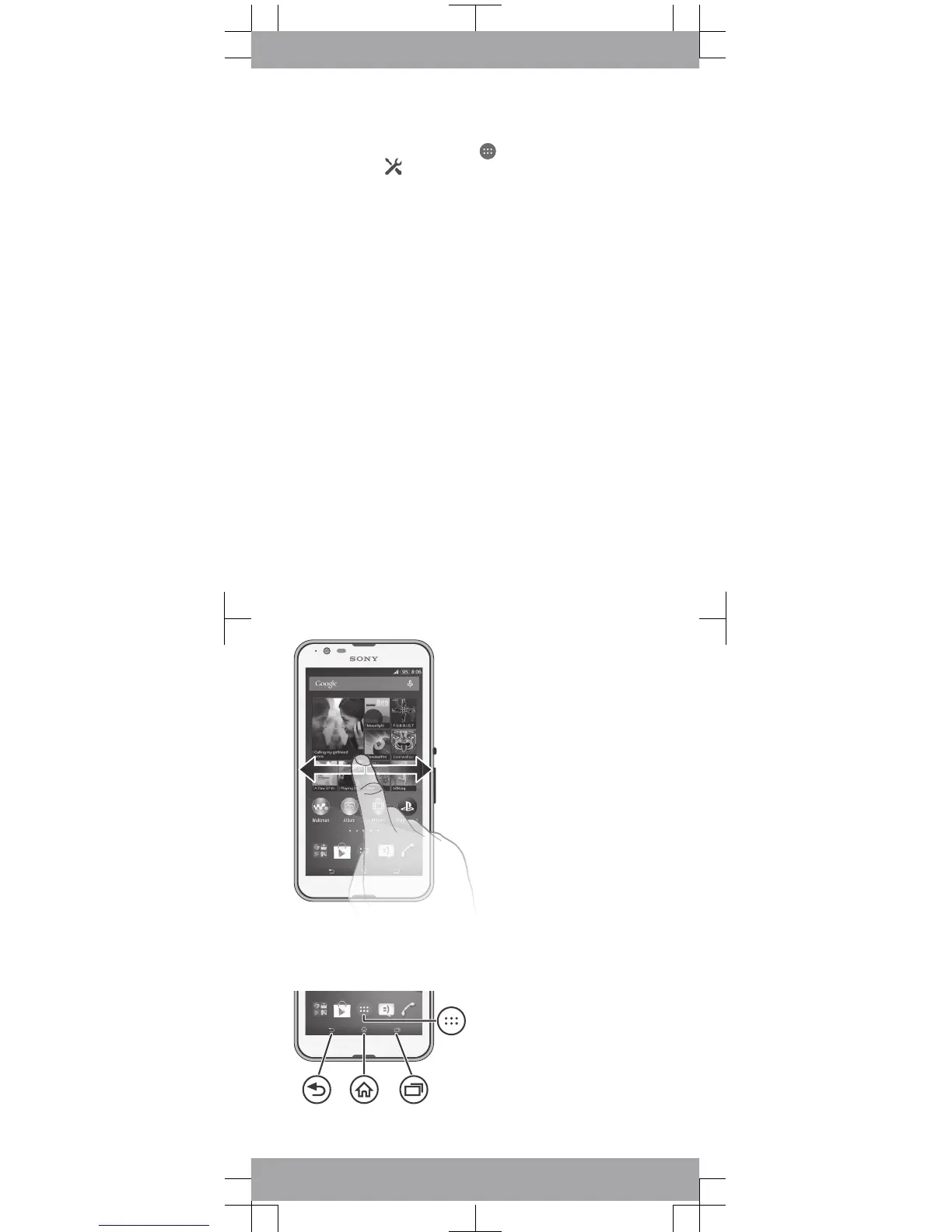
Finding your way
Using the keys







 To Next Page