3 Recently used applications window – Open a recently used application
4 Recent apps key – Open the recently used applications window
5 Home key – Exit an application and go back to the Homescreen
6 Back key - Go back to the previous screen within an application or close the application
To open the recently used applications window
•
Press .
To Quickly Switch Between Recently Used Applications
•
Quickly press twice.
To Close All the Recently Used Applications
•
Tap
and then tap CLEAR ALL.
To Open a Menu in an Application
•
While using the application, tap
.
Menus are not available in all applications.
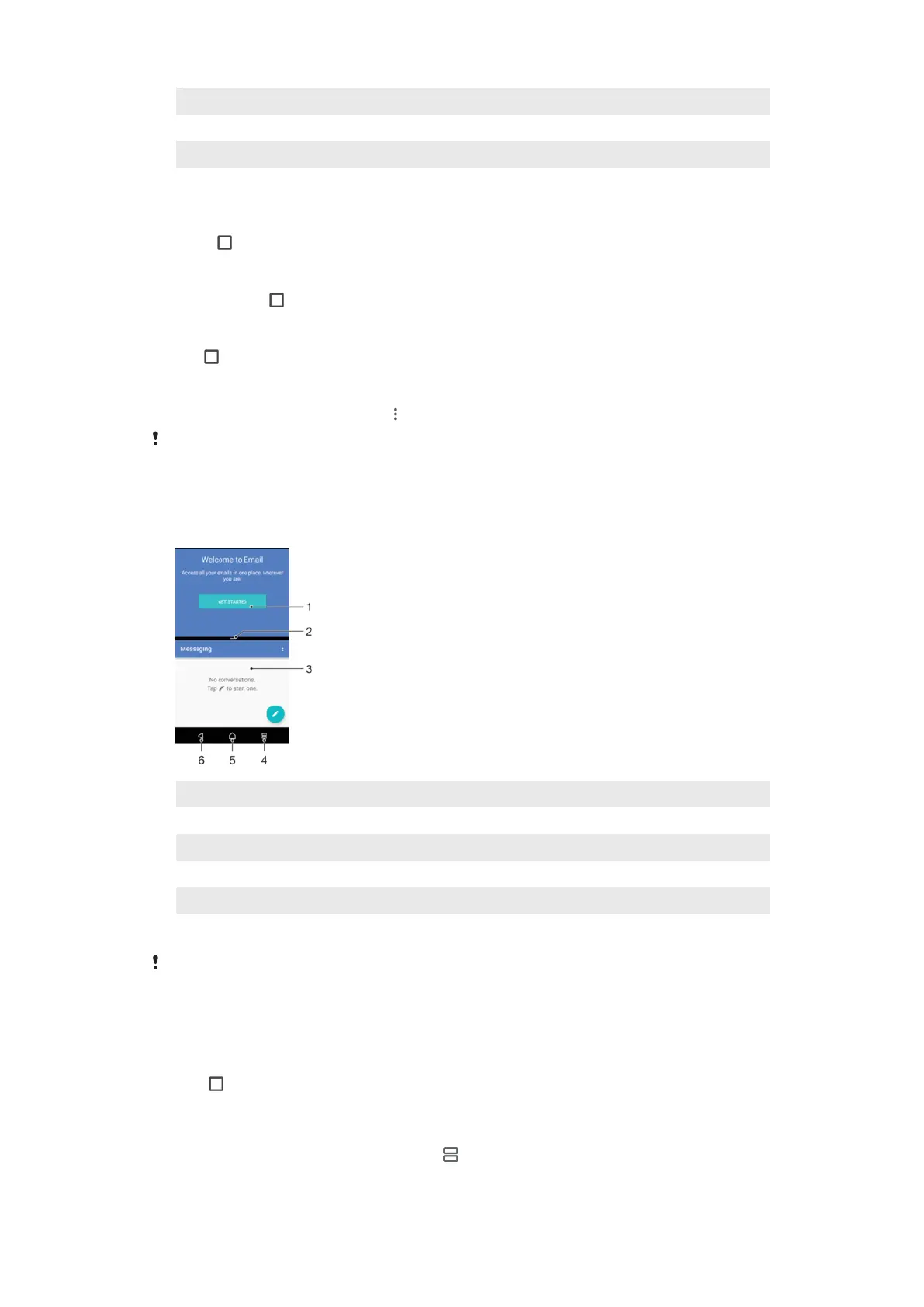
Split Screen Mode
Split screen mode enables you to view two applications at once, for example, if you want
to view your email inbox and a web browser at the same time.
1 Application 1
2 Split screen border – Drag to resize windows
3 Application 2
4 Split screen key – Select a recently used application
5 Home key – Go back to the Homescreen
6 Back key - Go back to the previous screen within an application or close the application
Not all applications support Split Screen mode.
To Use Split-Screen Mode
1
Make sure that the two applications that you want to use in Split Screen mode are
open and running in the background.
2
Open the application you would like to use in Split Screen mode, then tap and
hold
. The application will be assigned to the first part of the split screen.
3
Select the second desired application from the thumbnail list.
4
If you want to resize the split screen windows, drag the split screen border in the
center.
5
To exit Split Screen mode, tap and hold
while the split screen windows are
displayed.
26
This is an internet version of this publication. © Print only for private use.









 To Next Page