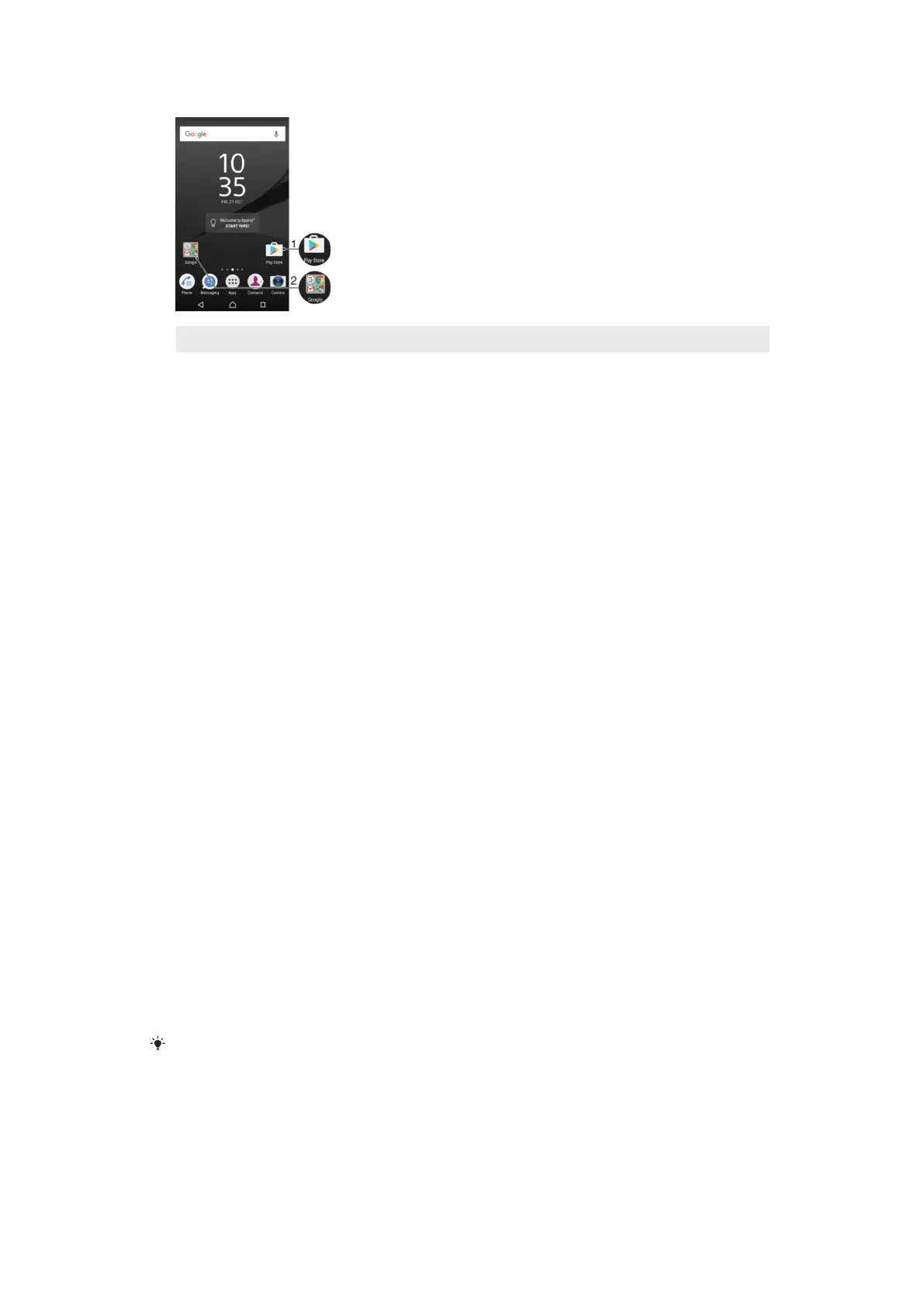
1 Access an application using a shortcut
2 Access a folder containing applications
To Add an Application Shortcut to Your Homescreen
1
Touch and hold an empty area on your Home screen.
2
In the customization menu, tap Widgets > Shortcuts.
3
Scroll through the list and select an application. The selected application gets
added to the Home screen.
To Move an Item on the Homescreen
•
Touch and hold the item until it is selected, then drag the item to the new location.
To Remove an Item from the Homescreen
•
Touch and hold the item until it becomes selected, then drag the item to
Remove
from home screen at the top of the screen.
To Create a Folder on the Homescreen
•
Touch and hold an application icon or a shortcut until it is selected, then drag and
drop it on top of another application icon or shortcut.
To Add Items to a Folder on the Homescreen
•
Touch and hold an item until the device vibrates, and then drag the item to the
folder.
To rename a folder on the Home screen
1
Tap the folder to open it.
2
Tap the folder's title bar to show the
Folder name
field.
3
Enter the new folder name and tap Done.
Background and Themes
You can adapt the Homescreen to your own style using wallpapers and themes.
To Change Your Homescreen Wallpaper
1
Touch and hold any empty area on your Home screen until the device vibrates.
2
Tap Wallpapers and select an option.
You can also change your Lockscreen wallpaper or set the same image for both your
Homescreen and Lockscreen. Follow the steps above, then tap Album. Tap the desired image
and choose an option.
30
This is an internet version of this publication. © Print only for private use.









 To Next Page