EasyManua.ls Logo

Sony FWD-42PX2 - User Manual

Sony FWD-42PX2
352 pages
Go to English
Print Icon
To Next Page IconTo Next Page
Loading...
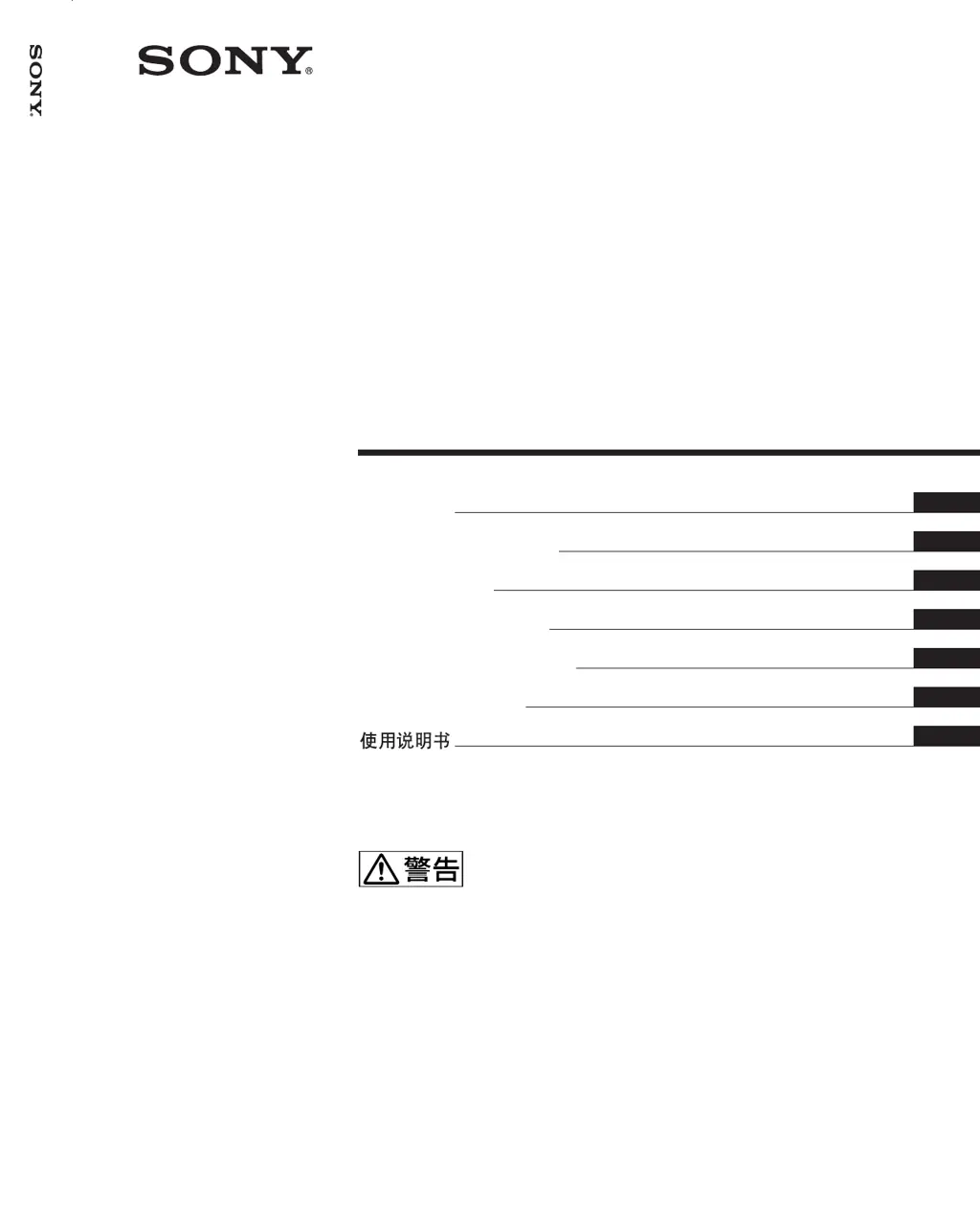
FWD-42PX2
2-680-266-01 (1)
2006 Sony Corporation
Operating Instructions
Mode d’emploi
Bedienungsanleitung
Manual de instrucciones
Istruzioni per l’uso
GB
FR
DE
ES
IT
取扱説明書
FWD-42PX2
Flat Panel Display
JP
この取扱説明書には、事故を防ぐための重要な注意事項と製品の取り扱
いかたを示してあります。この取扱説明書をよくお読みのうえ、製品を
安全にお使いください。お読みになったあとは、いつでも見られるとこ
ろに必ず保管してください。
お買い上げいただきありがとうございます。
電気製品は安全のための注意事項を守らないと、
火災や人身事故になることがあります。
CS

Table of Contents

Other manuals for Sony FWD-42PX2

Questions and Answers

  • T
    Troy RiggsAug 15, 2025
    How to fix a Sony FWD-42PX2 Monitor with no picture but the power light is on?
    • S
      Susan MaddoxAug 15, 2025
      If your Sony Monitor's power indicator is lit but there's no picture, it could be due to a few reasons. One possibility is that a different input is selected. Try pressing one of the input selection buttons (INPUT1, INPUT2, OPTION1, or OPTION2) on the remote control or switch between the input signals by pressing the INPUT button on the top of the display. Alternatively, a protective shutdown may have activated due to internal heat buildup. In this case, turn off the power, ensure the air vents are not blocked, there's ample space for airflow, and the room ventilation is working correctly. The display should operate properly again once the internal temperature returns to normal.
  • M
    Michael MarshallAug 18, 2025
    What to do if colors are not displaying properly on my Sony FWD-42PX2?
    • T
      Tracy WhiteAug 18, 2025
      If the colors on your Sony Monitor are not displaying properly, several factors could be the cause. Verify that the display input is correctly set, as it may be set to COMPONENT (YUV) while the input signal is RGB, or vice versa. Try pressing one of the input selection buttons (INPUT2, OPTION1, or OPTION2) on the remote control, or switch between the input signals by pressing the INPUT button on the top of the display. Also, check if the “Pic. Inversion” screen saver is set to “Auto” or “On”; if so, set it to “Off”. Ensure that the cable connected to VIDEO OUT or S-VIDEO OUT is securely connected, and check the condition of the signal cable for any damage or poor connection.
  • A
    Alexis DominguezAug 21, 2025
    How to stop my Sony Monitor picture from jumping around?
    • T
      Todd LewisAug 21, 2025
      If the picture on your Sony Monitor jumps to a different position sometimes, it is likely that the “Pic. Orbit” screen saver is set to “On”. To prevent the picture from moving, set the screen saver to “Off”.
  • A
    Angela GuerreroAug 25, 2025
    Why does my Sony FWD-42PX2 Monitor screen go dark quickly?
    • C
      chelseathompsonAug 26, 2025
      If the screen on your Sony Monitor goes dark after a short time, the “Auto Dimmer” screen saver might be set to “On”. To prevent the display from going dark, set the screen saver to “Off”.
  • M
    Melanie HallAug 28, 2025
    How do I fix input toggling issues on my Sony FWD-42PX2?
    • A
      Amy AnthonyAug 28, 2025
      If neither the remote control nor a Control S connection can be used to toggle between RGB and YUV (component), or between VIDEO (component video) and S-VIDEO (Y/C) on your Sony Monitor, the “Input Setting” for the selected input might be set to “Fix”. If you want the input signal to toggle with each press of the button, set the “Input Setting” to “Selectable”.
  • C
    chortonAug 31, 2025
    Why is my Sony FWD-42PX2 remote control not working?
    • E
      Erin ChavezAug 31, 2025
      If the Sony Monitor's remote control isn't working, there could be several reasons. First, ensure that nothing is blocking the remote control signal detector on the display. Check the condition of the batteries in the remote control and try operating the display by pressing the power button and control buttons on the top of the display to see if the issue is with the remote itself. Also, verify that a cable is not connected to the CONTROL S IN connector, as the remote control cannot be used while the display is controlled via a Control S connection. Finally, check the “Control Mode” in the remote control settings, making sure it is not set to “Display Unit Only”. If it is, use the control buttons on the top of the display to change the setting.
  • A
    Austin CruzSep 3, 2025
    Why does my Sony FWD-42PX2 Monitor turn off after a short time?
    • J
      Justin StrongSep 3, 2025
      If your Sony Monitor's display power or screen turns off after a short time, it might be due to the “Auto Shut Off” function being enabled. To prevent this, set this function to “Off”. Also, check the On/Off Timer setting in the TIMER/CLOCK menu to ensure it hasn't been set accidentally. Additionally, a protective shutdown could be activated due to internal heat buildup. In this case, turn off the power, ensure the air vents are not blocked, allow ample space for air to flow, and ensure the room ventilation is working correctly, the display will operate properly again when the internal temperature returns to normal.
  • P
    pamela08Sep 7, 2025
    Why does my Sony FWD-42PX2 have horizontal lines of static?
    • D
      David SingletonSep 7, 2025
      If horizontal lines of static are disturbing the picture on your Sony Monitor, it could be due to the internal temperature of the display getting too high. Turn off the power, and make sure that the air vents are not blocked, that there is ample space for air to flow around the display, and that the ventilation in the room is working properly. When the internal temperature returns to normal, the picture will display properly again.
  • G
    gonzalezrhondaSep 12, 2025
    What to do if the power button and control buttons on my Sony FWD-42PX2 don't work?
    • M
      Mr. Chad PhillipsSep 12, 2025
      If the power button and control buttons on your Sony Monitor display do not work, it might be because the “Control Mode” in the remote control settings is set to “Remote Only”. Check the setting by opening the main menu with the remote control and then selecting “CUSTOM SETUP” t “Remote” t “Control Mode”.

Summary

Product Introduction and Safety

Initial Safety Warning

Crucial safety information regarding electrical hazards and proper use.

Important Safety and Compliance Information

General Safety Guidelines

Precautions for preventing fire, electric shock, and injury during operation.

Precautions and Component Overview

External Component Identification

Detailed identification of all parts, controls, and connectors on the display.

Detailed Safety and Handling Precautions

Operational Safety and Ventilation

Guidelines for safe operation, heat dissipation, and ventilation.

Plasma Panel Specifics and Cleaning

Notes on PDP characteristics, image retention, and cleaning procedures.

Environmental Responsibility and Power

Power Cord Selection

Guidance on selecting the correct power cord for regional power supplies.

Display Unit Component Identification

Physical Layout Diagrams

Illustrations showing the front, rear, side, and bottom views of the display.

Key Connectors and Sockets

Identification of SPEAKER Socket, AC IN socket, and Connector Panel.

Control and Indicator Details

Control Button Operations

Description of INPUT, MENU, cursor, and POWER buttons on the unit.

Bottom Connector Panel Details

Remote and Input Connectors

Details on REMOTE, CONTROL S, AUDIO OUT, INPUT1, and INPUT2 connectors.

Remote Control and Signal Adaptors

Remote Commander Functions

Detailed explanation of the RM-980 remote control buttons and operations.

Remote Commander Operations and Troubleshooting

Image Retention and Connections

Preventing Image Retention

Understanding and mitigating screen burn-in and afterimages.

Navigating On-Screen Menus

Menu Operation Basics

How to operate menus using the remote or unit buttons.

Timer and Screen Saver Functions

Screen Saver Modes

Activating screen savers like Pic. Inversion, Orbit, All White, Background, and Auto Dimmer.

Picture Viewing and Input Selection

Switching Input Sources

How to select and switch between various input signals (DVI, RGB, etc.).

Image Quality and Basic Adjustments

Contrast, Brightness, and Chroma Control

Fine-tuning contrast, brightness, and color intensity.

Picture Resizing and Positioning

Multi-Picture Display Modes

Picture-in-Picture (PinP) and Picture-by-Picture (P&P)

Enabling and managing two pictures simultaneously.

Activating and Swapping Pictures

Methods for activating specific pictures and swapping their positions.

Multi-Display Setup for Video Walls

Configuring Multi-Display Arrangements

Setting up multiple displays to form a video wall (2x2, 3x3, 4x4).

Sound Quality Adjustments

Timer and Clock Functions

Automatic Power Control (On;Off Timer)

Configuring On;Off Timer Schedules

Setting specific times for the display to automatically turn on or off.

Screen Saver Features

Network Configuration: IP Address

Automatic IP Address Setup (DHCP)

Automatically obtaining an IP address for network management.

Manual IP Address Configuration

Manually setting IP address, subnet mask, and DNS information.

Remote Control for Specific Displays

Controlling Displays by Index Number

Operating individual displays using ID MODE and index numbers.

Troubleshooting: Picture Issues

Resolving No Picture Problems

Troubleshooting steps for a display with no picture or power indicator issues.

Correcting Color Display Problems

Addressing issues with incorrect colors, Pic. Inversion, or cable connections.

Troubleshooting: Display Behavior

Screen Dimming and Auto Shut-Off Issues

Resolving screens going dark or turning off automatically.

Troubleshooting: Controls and Connectivity

Remote Control Malfunctions

Resolving issues where the remote control or display buttons are unresponsive.

Technical Specifications Overview

Video Processing and Signal Inputs

Details on preset signals, resolution, and input/output connectors.

Sony FWD-42PX2 Specifications

General IconGeneral
Screen Size42 inches
Resolution1024 x 768
Display TypePlasma
Brightness1000 cd/m²
Weight45 kg
Display TechnologyPlasma
Aspect Ratio16:9
Response Time8 ms
Input PortsComposite, S-Video, Component, VGA, HDMI

Related product manuals