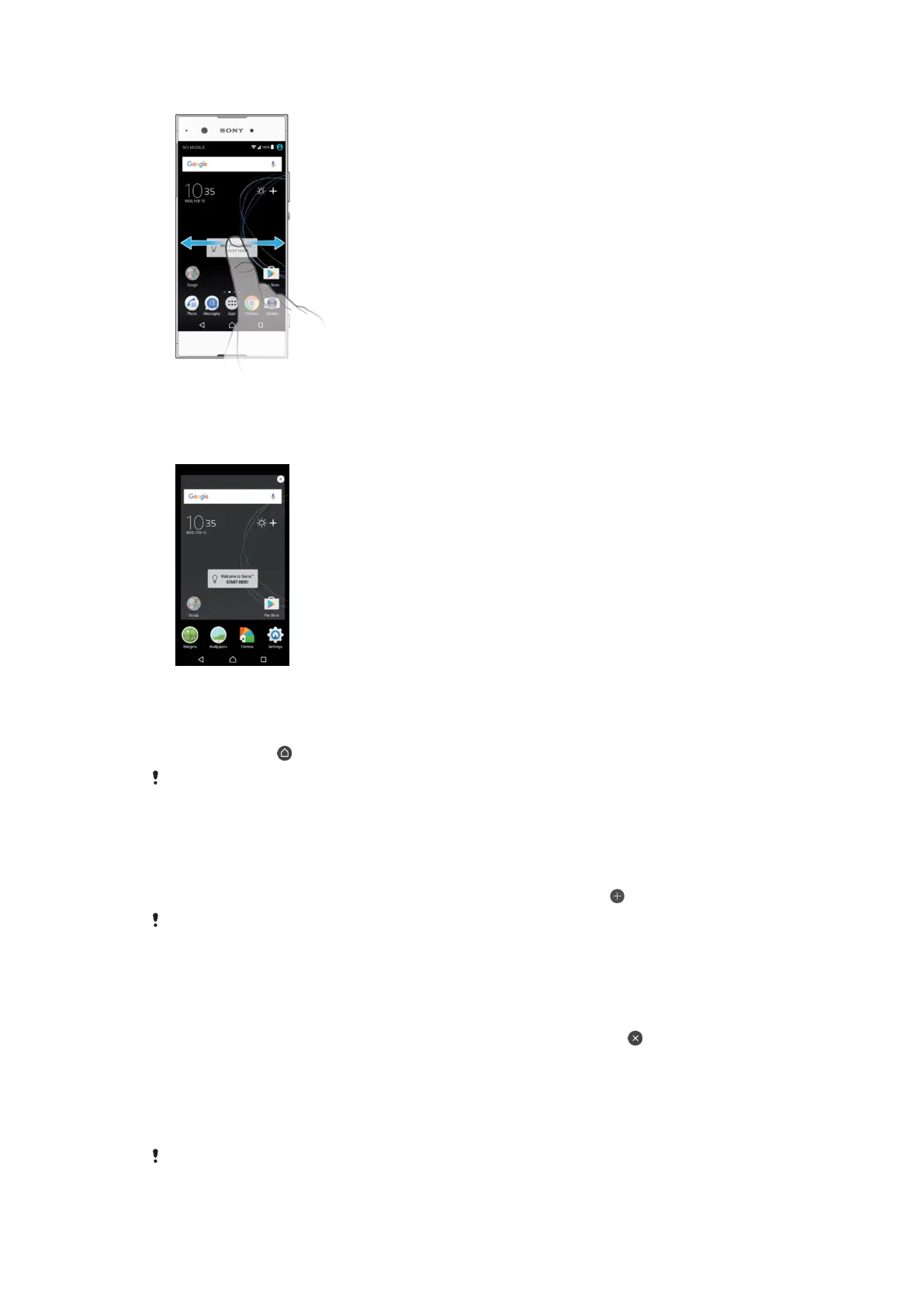
To browse the Home screen
Homescreen panes
You can delete panes or add new ones to your Homescreen (up to a maximum of twenty
panes).
To Set a Pane as the Main Homescreen Pane
1
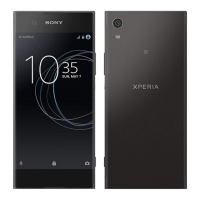
Touch and hold any area on your Homescreen until the device vibrates.
2
Flick left or right to browse to the pane you want to set as your main Homescreen
pane, then tap in the upper-left corner of the screen.
When Google Search & Now is enabled, the left-most pane is reserved for this service and the
main Homescreen pane cannot be changed. For more information, see
Google Search & Now
on page 120.
To Add a Pane to Your Homescreen
1
Touch and hold any area on your Homescreen until the device vibrates.
2
To browse the panes, flick all the way to the right or left, then tap
.
When Google Search & Now is enabled, the left-most pane is reserved for this service and
additional panes cannot be added to the left. For more information, see
Google Search & Now
on page 120.
To Delete a Pane from your Homescreen
1
Touch and hold any area on your Homescreen until the device vibrates.
2
Flick left or right to browse to the pane you want to delete, then tap in the top-
right corner of the pane.
Homescreen Settings
To disable or uninstall an application from the homescreen
Disabling a pre-installed app deletes all data, but the app can be enabled again from
Settings
> Apps. Only downloaded apps can be fully uninstalled.
23
This is an internet version of this publication. © Print only for private use.



 To Next Page