
 To Next Page


D
David SharpSep 12, 2025
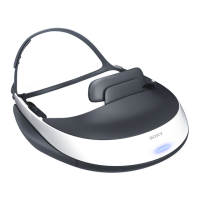
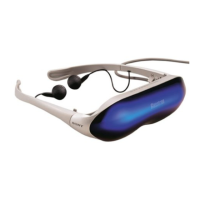
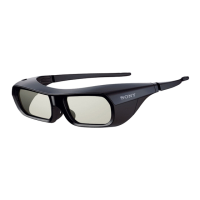
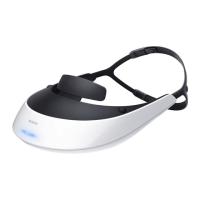
Why is there no bass on my Sony HMZ-T2 3D Glasses?
- Sshannon61Sep 12, 2025
Make sure that the earbuds fit snugly in your ears.

Why is there no bass on my Sony HMZ-T2 3D Glasses?
Make sure that the earbuds fit snugly in your ears.
Why is the screen dark or blurry on my Sony HMZ-T2?
Refer to the "Startup Guide" to confirm that the AC power cord, HDMI cable, and connecting cord of the head mounted unit are correctly connected, and that you are wearing the head mounted unit correctly. You may also need to perform the adjustment again by accessing "Lens span adjustment" in the setting menu. Finally, wipe the lenses with a soft dry cloth to clean them.
How to enable 3D on Sony HMZ-T2?
Try changing the "3D Display" setting in "3D Settings". Restart the connected equipment used for 3D playback. If you are using a PS3, turn it off and then on again by pressing its power button for at least 5 seconds until you hear a beep sound twice. Momentarily stop playback, and then resume playback.
Why do the screens suddenly go off on my Sony HMZ-T2 3D Glasses?
After 3 hours of continuous viewing, the system will display a warning screen and go off after 90 seconds of inactivity. Also, ensure you are wearing the head mounted unit correctly.
What to do if my Sony HMZ-T2 system does not go off?
Hold down the 1 (Power On/Standby) button for at least one second.
Why is there no video or audio on my TV when the Sony 3D Glasses system is off?
Confirm that the HDMI cables are fully connected. Set "HDMI pass-through" in "General Setup" to "On." Switch the input source on the TV to this system. Check the HDMI output settings on the playback equipment.
What to do if my Sony 3D Glasses have no video or distorted output?
First, check the "Startup Guide" to ensure the AC power cord, HDMI cable, and the head mounted unit's connecting cord are correctly connected. Also, verify that the equipment connected to the HDMI IN jack on the processor unit is powered on and that the source signal is supported by the system. Ensure the HDMI cable is fully plugged in, and if the video quality remains poor, try using a new High-Speed HDMI cable. Disabling video output with the Deep Color signal on the connected equipment may also help. Try connecting the equipment directly to the processor unit, and if using an HDMI selector, ensure the input is correctly switched. If these steps don't resolve the issue, and you are using a PS3, turn it off and then on again by pressing its power button for at least 5 seconds until you he...
Why is there no audio input in Dolby Digital or AAC format on Sony 3D Glasses?
In the playback equipment settings, disable Dolby Digital or AAC conversion, and then resume playback.
Why does the screen flicker on my Sony 3D Glasses?
Some source signals may cause the screen as a whole to appear to flicker when "Panel Drive Mode" is set to "Clear," or when "24p True Cinema" is activated.
How to enable surround sound on Sony 3D Glasses?
Make sure the "Surround" setting in "Sound" is not set to "Off." Also, ensure the "Type of Headphones" setting in "Sound" is correct for the type of headphones in use.
Provides warnings regarding fire, electric shock, and general safety precautions.
Lists critical safety instructions for product usage and maintenance.
Details device compliance, FCC rules, and notices for Canada/UK.
Advises on age restrictions and provides guidance for video viewing.
Covers power supply, installation environment, and condensation handling.
Covers lens, system, headphone care, and cord handling.
Precautions for HDMI jacks and connectors.
Advises on allergic reactions and proper handling of headphones.
Key features and capabilities of the display.
Lists all items included with the system.
Details components and controls of the head mounted unit.
Identifies front and back panel components and ports.
Explains how to adjust the forehead supporter for a comfortable fit.
Details attaching light blockers and using the cord holder.
Guidance on balancing weight and adjusting straps for a secure fit.
Instructions for fitting and replacing earbuds.
Lists available replacement parts for the system.
Explains how to check and adjust screen alignment for optimal display.
Illustrates proper alignment and advises on issues.
Step-by-step guide to navigating and operating the system's menus.
Covers lens span adjustment and an overview of 3D settings.
Manually selects display formats for 3D content.
Manages auto 3D, notifications, picture modes, and adjustments.
Details noise reduction and image enhancement features.
Covers 24p True Cinema, aspect ratio, and overscan.
Manages surround sound, treble, bass, and audio enhancement.
Selects headphone type and manages dual mono audio.
Covers password, LPCM, and HDMI pass-through.
Controls HDMI CEC and power off settings.
Manages viewing warnings and language settings.
Resets settings and provides HDMI control guidance.
Addresses issues related to the system not turning on or off.
Troubleshooting steps for video output problems and screen clarity.
Explains screens turning off, dimming, and flickering.
Explains pixel issues and unnatural 24 fps scenes.
Troubleshoots 3D display issues and automatic activation.
Troubleshooting steps for audio issues like no sound, static, or bass.
Solutions for surround sound and audio format problems.
Troubleshooting for audio format and HDMI control problems.
Addresses HDMI pass-through, TV control, button responsiveness, and language setup.
Details technical specifications including power, dimensions, and signal compatibility.
Lists trademarks and software licensing information.
 General
| Quantity per pack | 1 pc(s) |
|---|---|
| Product color | Black, White |
 Weight and Dimensions
| Weight | 330 g |
|---|---|
| Dimensions (WxDxH) | 210 x 110 x 196 mm |