EasyManua.ls Logo

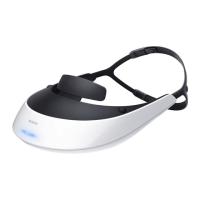
Sony HMZ-T2 - User Manual

Sony HMZ-T2
40 pages
Print Icon
To Next Page IconTo Next Page
Loading...
4-439-019-12(1)
HMZ-T2
Head
Mounted
Display
Reference Guide
Before Initial Use
Refer to the “Startup Guide” for instructions on
connecting the system, wearing the unit, and completing
initial settings.

Other manuals for Sony HMZ-T2

Questions and Answers

  • T
    tiffanygaySep 5, 2025
    Why can't I control connected equipment with my Sony HMZ-T2 buttons?
    • B
      Brett AllenSep 5, 2025
      First, ensure that the connected equipment supports the HDMI CEC functions and that its "Control for HDMI" setting is configured correctly. Also, the connected AV amplifier may not be compatible with the system’s "Control for HDMI" function. Finally, make sure the "Control for HDMI" setting in "General Setup" is set to "On".
  • A
    Antonio SmithSep 3, 2025
    How to activate automatic 3D display on Sony HMZ-T2 3D Glasses?
    • K
      Kevin HenrySep 3, 2025
      Ensure that the "Auto 3D" setting in "3D Settings" is set to "On". If the issue persists, try changing the "3D Display" setting in "3D Settings" to "Side-by-Side" or "Over-Under".
  • J
    James Lopez MDSep 1, 2025
    What does it mean when the power indicator keeps flashing red on Sony HMZ-T2 3D Glasses?
    • B
      bakerjosephSep 1, 2025
      If the indicator flashes twice every 3 seconds, the head mounted unit or processor unit may be damaged. If the indicator flashes three times every 3 seconds, the processor unit has overheated; wait until it cools off and flashing stops. If the indicator flashes four times every 3 seconds for a minute, the head mounted unit has overheated; wait until it cools off and flashing stops. If the indicator flashes five times every 3 seconds for a minute, both the head mounted unit and processor unit have overheated; wait until the units cool off and flashing stops.
  • A
    Andrew RobinsonAug 31, 2025
    Why is there no video or audio on my TV when the Sony 3D Glasses system is off?
    • J
      jaclyn00Aug 31, 2025
      Confirm that the HDMI cables are fully connected. Set "HDMI pass-through" in "General Setup" to "On." Switch the input source on the TV to this system. Check the HDMI output settings on the playback equipment.
  • D
    Dawn ChurchAug 29, 2025
    What to do if my Sony HMZ-T2 system does not go off?
    • C
      castillobrianAug 29, 2025
      Hold down the 1 (Power On/Standby) button for at least one second.
  • A
    Anthony JonesAug 27, 2025
    Why do the screens suddenly go off on my Sony HMZ-T2 3D Glasses?
    • L
      leonard31Aug 28, 2025
      After 3 hours of continuous viewing, the system will display a warning screen and go off after 90 seconds of inactivity. Also, ensure you are wearing the head mounted unit correctly.
  • J
    johnsonsarahAug 26, 2025
    How to enable 3D on Sony HMZ-T2?
    • R
      Robert ChenAug 26, 2025
      Try changing the "3D Display" setting in "3D Settings". Restart the connected equipment used for 3D playback. If you are using a PS3, turn it off and then on again by pressing its power button for at least 5 seconds until you hear a beep sound twice. Momentarily stop playback, and then resume playback.
  • M
    Megan CarlsonAug 25, 2025
    Why is the screen dark or blurry on my Sony HMZ-T2?
    • E
      Elizabeth MorrisonAug 25, 2025
      Refer to the "Startup Guide" to confirm that the AC power cord, HDMI cable, and connecting cord of the head mounted unit are correctly connected, and that you are wearing the head mounted unit correctly. You may also need to perform the adjustment again by accessing "Lens span adjustment" in the setting menu. Finally, wipe the lenses with a soft dry cloth to clean them.

Summary

Warnings and Precautions

General Safety Warnings

Provides warnings regarding fire, electric shock, and general safety precautions.

Important Safety Instructions

Lists critical safety instructions for product usage and maintenance.

Regulatory Information

Compliance and Customer Notices

Details device compliance, FCC rules, and notices for Canada/UK.

Health Precautions

Age Limitations and Viewing Advice

Advises on age restrictions and provides guidance for video viewing.

Operational Precautions

Power, Installation, and Condensation

Covers power supply, installation environment, and condensation handling.

System Care and Connections

Maintenance and Handling

Covers lens, system, headphone care, and cord handling.

HDMI Jacks and Connectors

Precautions for HDMI jacks and connectors.

Headphone Handling

Usage and Allergy Advice

Advises on allergic reactions and proper handling of headphones.

Product Highlights and Accessories

Product Highlights

Key features and capabilities of the display.

Supplied Accessories

Lists all items included with the system.

Parts and Controls

Head Mounted Unit Overview

Details components and controls of the head mounted unit.

Processor Unit Details

Front and Back Panel Identification

Identifies front and back panel components and ports.

Fitting the Head Mounted Unit

Forehead Supporter Adjustment

Explains how to adjust the forehead supporter for a comfortable fit.

Optimizing Fit and Light Management

Light Blockers and Cord Holder

Details attaching light blockers and using the cord holder.

Comfortable Fit Guide

Strap Adjustment and Balancing

Guidance on balancing weight and adjusting straps for a secure fit.

Earbud and Consumable Care

Earbud Fitting and Replacement

Instructions for fitting and replacing earbuds.

Replacement Parts Availability

Lists available replacement parts for the system.

Screen Alignment

Confirming Screen Alignment

Explains how to check and adjust screen alignment for optimal display.

Screen Alignment Guidance

Correct vs. Incorrect Display

Illustrates proper alignment and advises on issues.

System Settings

Navigating System Menus

Step-by-step guide to navigating and operating the system's menus.

System Menu Options

Lens Span and 3 D Settings

Covers lens span adjustment and an overview of 3D settings.

3 D Display Settings

Selecting 3 D Display Formats

Manually selects display formats for 3D content.

Display Adjustments

Auto 3 D and Picture Settings

Manages auto 3D, notifications, picture modes, and adjustments.

Advanced Picture Settings

Noise Reduction and Image Enhancement

Details noise reduction and image enhancement features.

Picture Format Controls

Cinema and Aspect Ratio Settings

Covers 24p True Cinema, aspect ratio, and overscan.

Audio Settings

Sound Modes and Tone Adjustments

Manages surround sound, treble, bass, and audio enhancement.

Audio and General Setup

Headphone Type and Mono Settings

Selects headphone type and manages dual mono audio.

System Configuration Options

Covers password, LPCM, and HDMI pass-through.

Advanced System Controls

HDMI Control and Power Management

Controls HDMI CEC and power off settings.

Viewing Warnings and Language Settings

Manages viewing warnings and language settings.

System Reset and HDMI Guidance

Factory Reset and HDMI Control Help

Resets settings and provides HDMI control guidance.

Troubleshooting: Power Issues

System Power Problems

Addresses issues related to the system not turning on or off.

Troubleshooting: Video Display

Video Output and Screen Clarity

Troubleshooting steps for video output problems and screen clarity.

Troubleshooting: Screen Behavior

Screen Auto-Off, Dimming, and Flicker

Explains screens turning off, dimming, and flickering.

Pixel Issues and Unnatural Scenes

Explains pixel issues and unnatural 24 fps scenes.

Troubleshooting: 3 D Video

3 D Display and Auto-Activation Issues

Troubleshoots 3D display issues and automatic activation.

Troubleshooting: Audio

Sound, Volume, and Bass Problems

Troubleshooting steps for audio issues like no sound, static, or bass.

Surround Sound and Format Issues

Solutions for surround sound and audio format problems.

Troubleshooting: Audio Formats & HDMI Control

Audio Input and HDMI Control Problems

Troubleshooting for audio format and HDMI control problems.

Troubleshooting: System Operation

Pass-through, Button, and Language Issues

Addresses HDMI pass-through, TV control, button responsiveness, and language setup.

Specifications

Technical Data and Signal Compatibility

Details technical specifications including power, dimensions, and signal compatibility.

Legal Notices

Trademarks and Software Licenses

Lists trademarks and software licensing information.

Sony HMZ-T2 Specifications

General IconGeneral
Quantity per pack1 pc(s)
Product colorBlack, White
Weight and Dimensions IconWeight and Dimensions
Weight330 g
Dimensions (WxDxH)210 x 110 x 196 mm

Related product manuals