Help Guide
Glass Sound Speaker
LSPX-S2
Using a computer to connect the speaker to Wi-Fi
If you are connecting your speaker to Wi-Fi using this method, you must initialize the speaker. Be aware that initializing
the speaker returns all of the settings to their defaults and deletes all of the BLUETOOTH pairing information. To connect
using the BLUETOOTH wireless technology again, first delete the speaker's pairing information on your PC, and then
pair with the speaker again.
This section explains how to use your computer to connect your speaker to Wi-Fi.
Check the following before starting any operations:
The speaker is as close to a Wi-Fi router as possible.
Both an SSID (wireless network’s name) and an encryption key (WEP or WPA) are required to do Wi-Fi settings. An
encryption key (or a network key) is a cipher for restricting the devices that can communicate with each other. These
are used to carry out more secure communication between devices that are connected to Wi-Fi routers or access
points.
Write down the SSID and password (encryption key) for the Wi-Fi router you are using.
For details, refer to the operating instructions for the Wi-Fi router you are using.
1
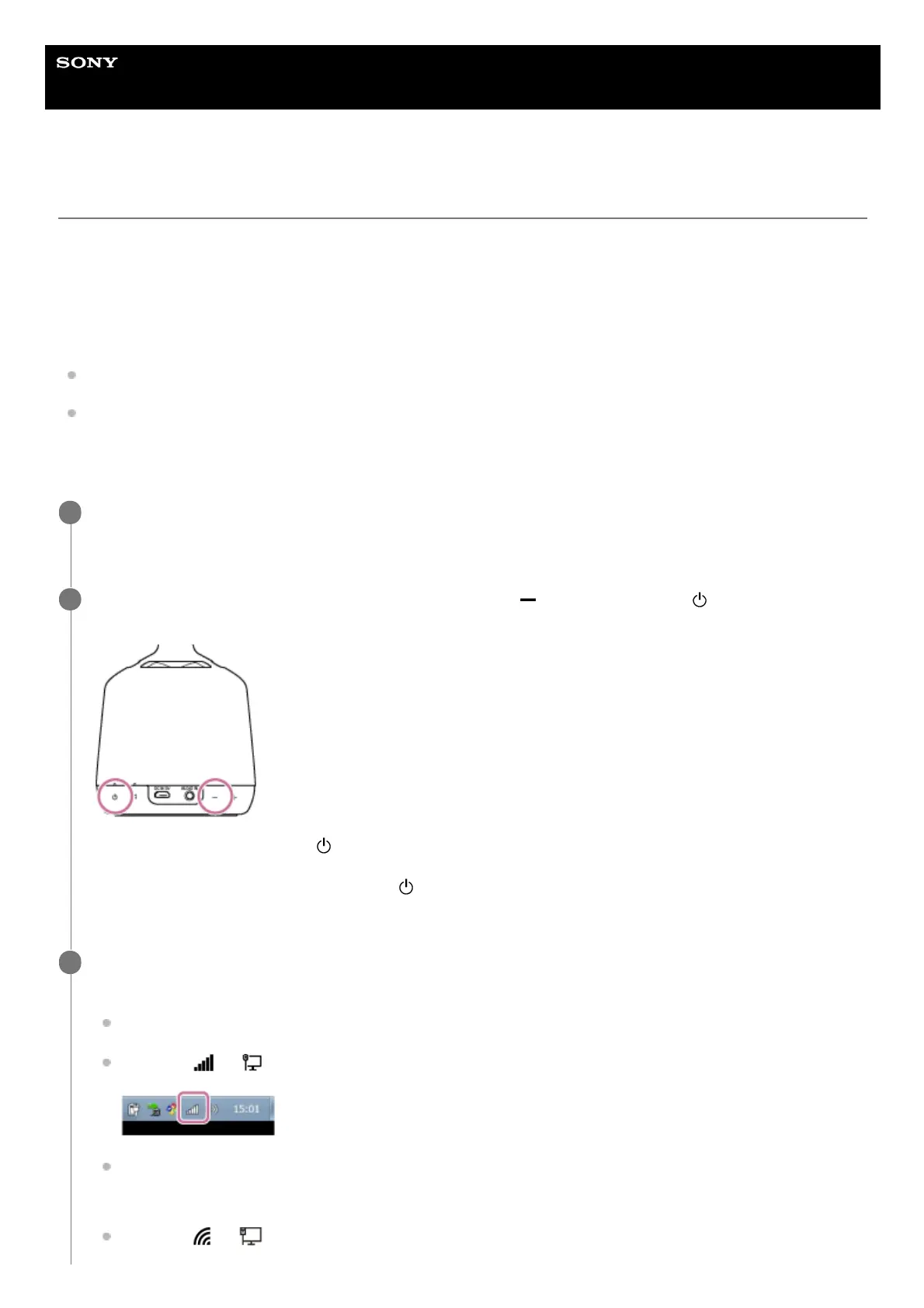
While the speaker is on, press and hold both the speaker’s
(volume) button and (on/standby) button
at the same time for at least 4 seconds.
If the operation is successful, the (on/standby) indicator flashes in white and initialization begins.
Initialization requires tens of seconds.
After that, when initialization is complete, the
(on/standby) indicator turns off and the speaker restarts.
Initializing the settings deletes all BLUETOOTH pairing information and network settings.
2
Connect the speaker to the PC.
For Windows 7/Windows 8.1
For Windows 8.1, click or tap the desktop on the Start screen.
Select the
or icon on the bottom right of the screen.
Select [LSPX-S2_xxxxxx] from the list of wireless networks that you can browse from the computer.
For Windows 10
Select the
or icon on the bottom right of the screen.
3


 To Next Page