•
·¥'7:
; ~
;
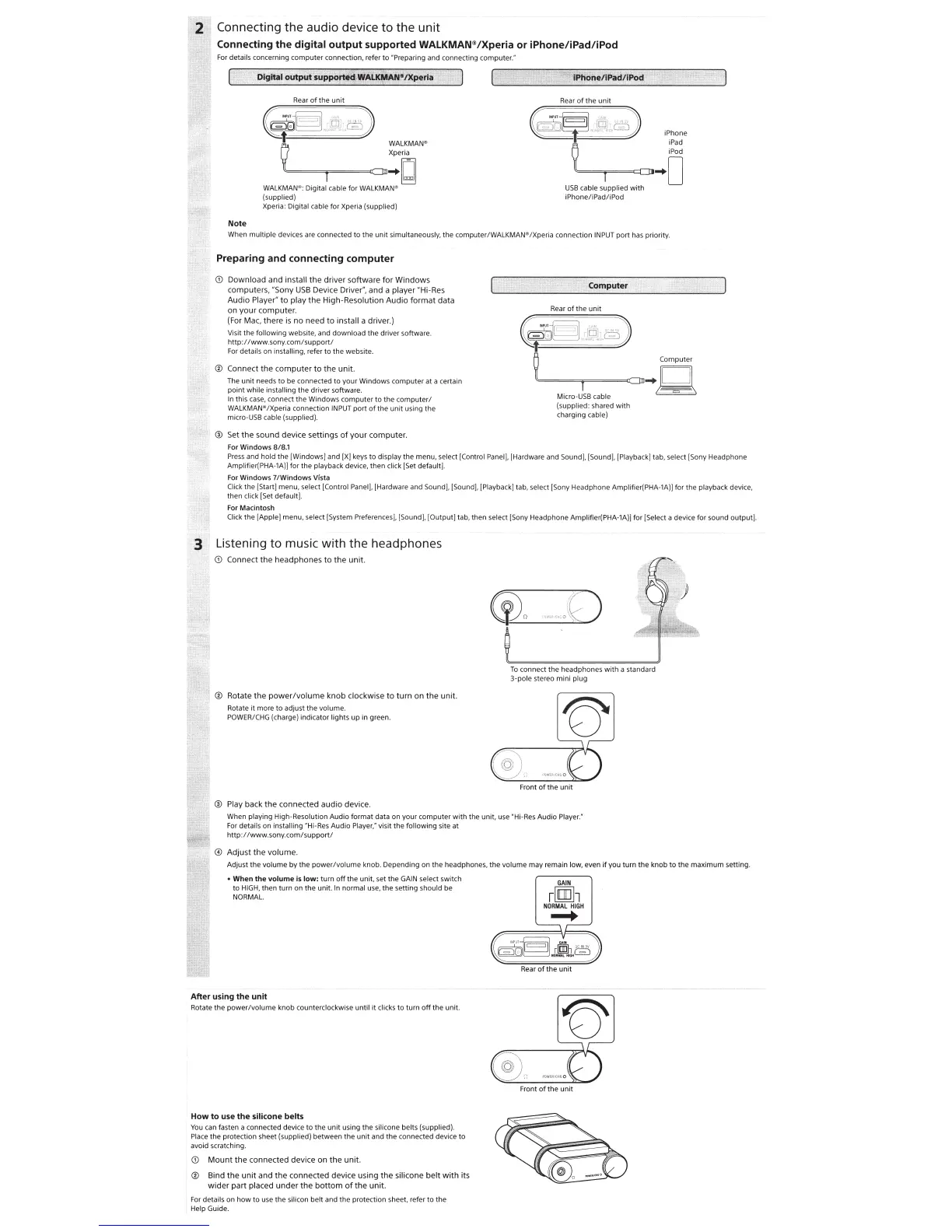
Connecting the audio device
to
the unit
Connecting
the
digital
output
supported
WALKMAN°
/Xperia
or
iPhone/iPad/iPod
For details concerning computer connectio
n,
refer
to
"Preparing and connecting computer:
Note
Rear
of
the
unit
€;
g~8
)
Ft
WALKMAN
8
t""==~~.....,==c
WALKMAN
8
;
Digital cable for
WALKMA
N
~
(supplied)
Xperi
a:
Digital cable for Xperia (supplied)
Rear
of the
unit
~~
-
~
iPhone
;I;
iPad
~
i
Pod
I
Dl-+
0
USB
cable supplied
wi
th
iPhone/iPad/iPod
When multiple devices are connected
to
the unit simultaneously, the computer/WAL
KMAN
®/Xperia connection
INP
UT
port has priority.
Preparing and connecting
computer
CD
Download and insta
ll
the driver software for Windows
computer
s,
~so
n y
U
SB
Device
Driver~.
and a player "
Hi
-Res
Audio
PlayerH
to play the High-Re
so
lution Audio format data
on your comp
ut
er.
(For
Mac,
there is no need to install a driver.)
Vi
si
t the following websit
e,
and
down
load the driver software.
http:
//www
.sony.
com/s
up
port/
For
details on installing, refer to the website.
@ Connect the computer to the unit.
The
unit
needs
to
be connected
to
your Windows computer at a certain
point
wh
i
le
installing the driver software.
In this
case
, connect the Windows
co
m
pu
ter
to
the comp
uter/
WA
LK
MAN
®/Xperia connection
INPUT
port
of
the
unit
using the
micro-USB cable (supplied).
®
Set
the
so
und dev
ic
e settings
of
your
co
mput
e
r.
For
Windows 8/8.1
Rear of the unit
(~
Q.J~
.G
)
~
Co
m
pu
ter
"=====--
~~=
..
W
Micro-
USB
cable
{supplied: shared
with
charging cable)
Press
and hold the [Windows] and
[X)
k
eys
to
display the menu, select [Control
Pane
l], [Hardware and Sound], [Sound), [Playback] tab, select [Sony Headphone
Amplifier(PHA-1
A)]
for the playback device, then
cl
ick [Set default].
For Windows
7/Windows
Vista
Click
the [Start] menu, select [Control
Pane
l
],
[Hardware and Sound]. [Sound]. [Playback] tab, select [Sony Headphone Ampl
if
ier(PHA-1A)] for the playback device,
then click [Set default].
For Macintosh
Click the [Apple] menu, select [System
Pre
ferences], (Sound
],
(Output] tab, then select [Sony Headphone Amplifier(PHA-
1A)
] f
or
[Se
lect a d
ev
i
ce
for
so
und output].
3· Listening
to
music with the headphones
CD
Co
nnect the headphon
es
to the
unit
.
.,..
® Rotate the power
/vo
lume knob clockwi
se
to
turn on the unit.
Rotate
it
more
to
adjust the volume.
POWE
R/CHG
(c
harge) indi
ca
tor
lights
up
in green.
®
Pl
ay
back the
co
nn
ec
t
ed
audio device.
To
connect the headphones with a standard
3-pole stereo mini plug
When playing High-Resolution Au
dio
format data on your
co
mputer
with
the unit, u
se
"Hi
-R
es
Audio Player
."
For
details on insta
ll
ing -Hi-Res Audio Player," visit the following site at
http:
//www
.sony.com/support/
@ Adjust the volume.
Adjust the volume by the power/volume knob. Depending on the headphon
es,
the volume may remain low, even if you turn the knob
to
the maximum setting.
•
When
the
volume
is
low:
turn
off
the unit, set the
GA
IN
se
le
ct
switch
to
HI
GH, then turn on the unit.
In
normal u
se,
the setting should be
NORMAL
After using
the
unit
Rotate the power/volume knob counte
rcl
ockwise until
it
clicks
to
turn
off
the
unit
.
How
to
use
the
silicone
belts
You
can
fasten a connected device
to
the unit using the s
il
icone belts
(s
upplied).
Place the protection sheet (supplied) between the unit and the
co
nnected device
to
avoid scratching.
(i)
Mount the connected device on the unit.
® Bind the unit and the
co
nnected device using the silicone belt with its
wider part
placed under the
bo
ttom
of
the unit.
For
details on
how
to use the silicon belt and
th
e protection sheet, refer
to th
e
Help Guide.
GAIN
r!.W.h
NORMAL
HIGH
.....


 To Next Page
 Loading...