SONY.
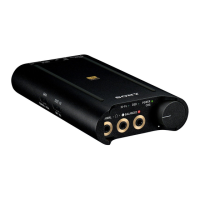
Portable
Headphone
Amplifier
Amplificateur
portatif
pour
casque
d'ecoute
Amplificador
portatil
de
auriculares
4-547-088-11(2)
Reference
Guide
Guide
de
reference
Guia de referenda
©
2014
Sony
Corporation
Printed
in
Ch
i
na
htlp://www.sony.neV
11
11111111111111111111111111
1
1111111111111111111111111
• 4 5 4 7 0 8 8 1 1 • (2)
Manuals supplied
The 3 following manuals are included.
0
0
-
Reference Guide (this document)
Provides you with precautions and product
specifications.
Start Guide (exhibit document)
Provides
you
with
instructions
on
how
to
connect
the unit with devices and
basic
operations.
Help Guide (Operating Instructions)
Read
the Help Guide on your computer or
smartphone, when you want
to
know how
to
use
the unit in greater detail. The Help Guide also
contains a troubleshooting guide which provides
you with remedies for the problems you might
encounter.
URL:
http:
//rd1
.sony.
net/help/mdr/pha-3/h_uc/
Two-dimensional code:
For
the
customers in
the
USA
Owner's Record
The serial number
is
located at the bottom
of
the unit.
Record
these numbers in the spaces provided below. Refer
to
them whenever you call upon your Sony dealer regarding this
product.
Model
No.
PHA-3
Serial
No.
____
____
___
_
Information
If
you have any questions about this product, you may call:
Sony Customer Information Service Center 1-800-222-
7669
or
http://www.sony.com/
Declaration
of
Conformity
Trade Name:
SONY
Model No.:
PHA-3
Responsible Sony Electronics Inc.
Party:
Address:
Telephone
No
.:
16530
Via
Esprillo,
San
Diego,
CA
92127
USA
858-942-2230
This device complies with Part
1S
of
the
FCC
Rules.
Operation
is
subject
to
the following
two
conditions:
(1)
this device may not
cause harmful interference, and
(2)
this device must accept any
interference received, including interference that may
cause
undesired operation.
You
are cautioned that any changes or modifications not
expressly approved
in
this manual could void your authority
to
operate this equipment.
Note
This
equipment has been tested and found to comply with the
limits for a
Class
B digital device, pursuant
to
Part
15
of
the
FCC
Rules.
These limits are designed
to
provide reasonable
protection against harmful interference in a residential
installation. This equipment generates,
uses
and
can
radiate
radio frequency energy and,
if
not installed and used
in
accordance with the instructions, may cause harmful
interference
to
radio
communications
. However, there
is
no
guarantee that interference
will
not
occur
in
a particular
installation.
If
this equipment does cause harmful interference to
radio
or
television reception, which
can
be
determined by
turning the equipment
off
and on, the user
is
encouraged
to
try
to correct the interference by one
or
more
of
the following
measures:
-Reorient
or
relocate the receiving antenna.
-Increase
the separation between the equipment and receiver.
- Connect the equipment into
an
outlet on a circuit different
from that
to
which the receiver
is
connected.
-Consult
the dealer or
an
experienced radio/TV technician for
Troubleshooting
If
you run into any problems using this unit, use the following
checklist and read the product support information on our
website. Should any problem per
sis
t, consult your nearest Sony
dealer.
No sound
~
Check that the unit and the audio device are connected
correctly.
--+
Check
that the connected device
is
turned
on.
~
Check that the unit
is
turned on.
~If
the
POWER
CHG
(charge) indicator does not light up,
charge the battery.
~
Check
that the
INPUT
switch
is
in the correct position for the
connected audio device.
~
Check that the
OUTPUT
switch
is
in the correct position
for
the output jack.
--.
Turn
up
the volume of the connected device.
~
Turn
up the volume
of
the unit.
~
Connect the headphone plug firmly
to
the unit.
~
Check
that the unit, amplifier and active speaker are
connected correctly.
~
Check
that the connected headphones are stereo, not
monaural.
The unit does not support monaural headphones.
Do
not
connect monaural headphones. It may cause a malfunction.
When connected
to
a computer, there
is
no sound
or
the
sound
is
not
played back properly.
~
The computer does not recognize the unit
as
a
USB
device.
Restart your computer.
Install the driver software for Windows "Sony
USB
Device
Driver" on your Windows computer. Visit the following
website, and install the software.
http://www.sony.com/supportl
~
Turn up the volume
of
your computer
or
software.
~
If
the unit was connected
to
the computer while using audio
playback software, restart the audio playback software.
~
When playing High-Resolution Audio format data on your
computer with the unit, use the audio playback software
compatible with the High-Resolution Audio format data, such
as
"Hi-Res Audio Player."
When "Hi-Res Audio Player"
is
not installed, install
it
on your
computer. Visit the following website, and install the
software.
http://www.sony.com/supportl
~
If
the computer enters standby, sleep or hibernation mode,
while the music
is
played back by using the audio playback
software, restart the audio playback software.
~
Check that the sound device settings
of
your computer are
correct
~
For Windows
8/8
.1
Press
and hold the [Windows] and
[X
]
keys
to
display the
menu, select [Control Panel]. [Hardware and Sound],
[Sound], [Playback] tab, select [Sony
PHA-3
] for the
playback device, then click [Set default].
~
For Windows
7/Windows
Vista
Click the [Start] menu, select [Control Panel], [Hardware and
Sound].[Sound],[Piayback] tab, select [Sony
PHA-3]
for the
playback device, then click [Set default].
~
For Macintosh
Click the (Apple] menu, select [System Preferences],
[Sound]. [Output] tab, then select
[PHA
-
3]
for [Select a
device for sound output].
~
The volume control
of
your computer
or
the audio playback
software
is
set to suppress the sound. Cancel the setting.
~
The
CD-ROM
drive does
not
support the digital reproduction
function.
Use
a
CD-ROM
drive that supports the digital
reproduction function.
~
Digitally broadcast sound may not
be
output from a
computer's
USB
port.
In
this
case,
connect the
AUDIO
IN/LINE
OUT
jack
of
the unit
to
the analog audio
output
of
the
computer.
low
sound
--+
Turn
up
the volume of the connected device.
~
Turn up the volume
of
the unit.
~
When using high-impedance headphones, set the
GAIN
select switch
to
HIGH
.
~
Use
headphones
that
have a stereo mini plug. The unit only
supports headphones that have a stereo mini plug.
If
you use
headphones/headset with a remote control
or
microphone,
there may
be
low
sound
or
no sound.
The unit does
not
turn on.
~
Charge the battery
of
the unit.
~
When battery life reduces
to
half, the battery
is
approaching
the end
of
its service life. Consult your nearest Sony dealer
for replacement.
Distorted sound
~
If
the audio device
is
connected
to
the
AUDIO
IN/LINE
OUT
jack
of
the unit. turn down the volume
of
the connected
device.
~
Set
the equalizer setting
of
the connected device to
off
.
~
Charge the battery
of
the unit.
The battery cannot be charged.
--+
Turn
off the unit.
~
Check that the unit and your computer are firmly connected
using the micro-USB cable (supplied).
~
Check that the computer
is
turned on and not
in
standby,
sleep
or
hibernation mode.
~
Check that the unit and the computer are directly connected,
and not
via
a
USB
hub.
~
Try
the
USB
connection procedure again in
cases
other than
those stated above.
~The
USB
port
of
the connected computer may have a
problem. Connect the unit
to
another
USB
port
of
the
computer
if
available.
~
A
USB
AC
adaptor that
is
not recommended
is
being used.


 To Next Page
 Loading...